Импортиране на CSV, Excel или JSON файл
Обновено
Already keep your list in a spreadsheet? Bring it in and it becomes a table you can share, filter and view as a board or calendar. Artavolo reads CSV, TSV, Excel and JSON files, and rows you copy from a spreadsheet. Before anything is saved, it shows you what it found, so you can check it first.
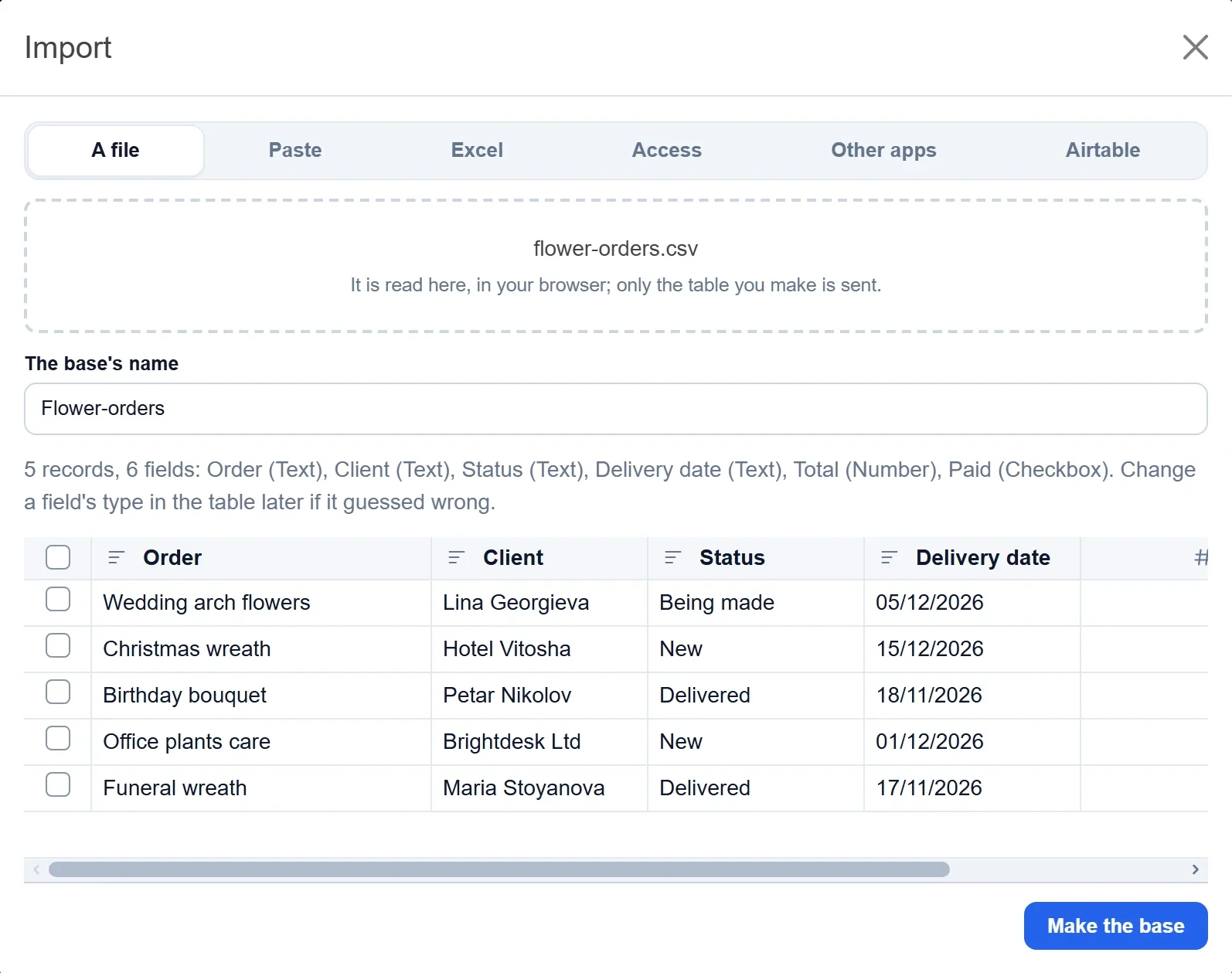
Make a new base from a file
- On Home, click Импортирайте електронна таблица. The Импорт window opens on the Файл tab.
- Click Pick a CSV, TSV, JSON, Excel or Access file and choose your file.
- Check the line under The base's name: it counts the records and lists each field with the type Artavolo guessed, such as Text, Number or Checkbox. The preview below shows the first rows.
- Change the name if you like, and click Създайте базата.
A field with the wrong type is easy to fix afterwards: change the field's type in the table.
Paste rows instead
- In Excel or Google Sheets, select your rows, including the row of column names at the top, and copy them.
- In the Импорт window, click the Paste tab and paste into the box.
- Click Read it, check what was found, and click Създайте базата.
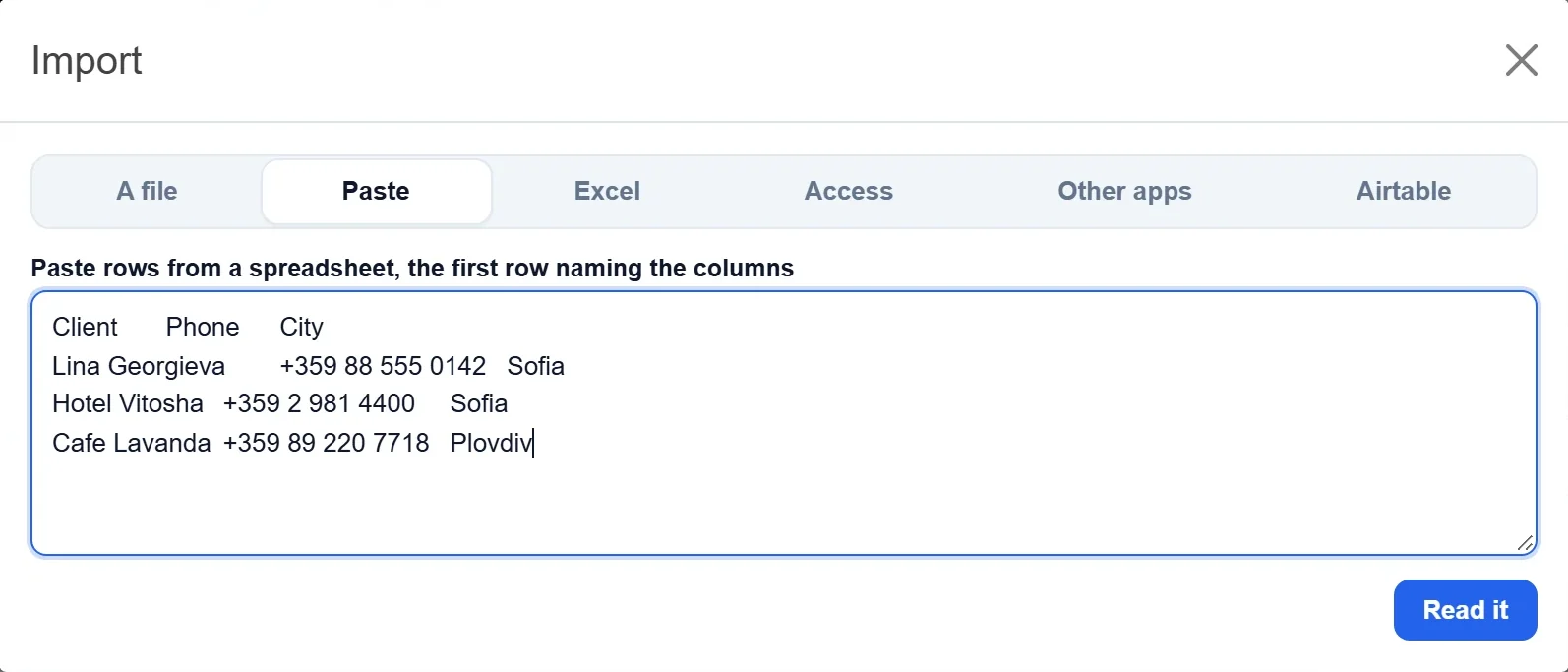
The other tabs bring in whole Excel workbooks, Access databases, and exports from other apps: see Преминаване от Excel или Access и Move from monday.com, Asana, Trello and other apps.
Add a file as a new table in a base
- Отворете базата и щракнете върху малката стрелка вдясно от Добави таблица.
- Изберете Import a file as a table, then drop the file on the window or click to choose it.
- Check each column. It becomes a field: its type is guessed from the values, and the first values are shown beside it. Change a guess in the Field type list. The first column names the records.
- Type a Table name and click the button at the bottom, which says how many records it brings (for example Import 5 records).
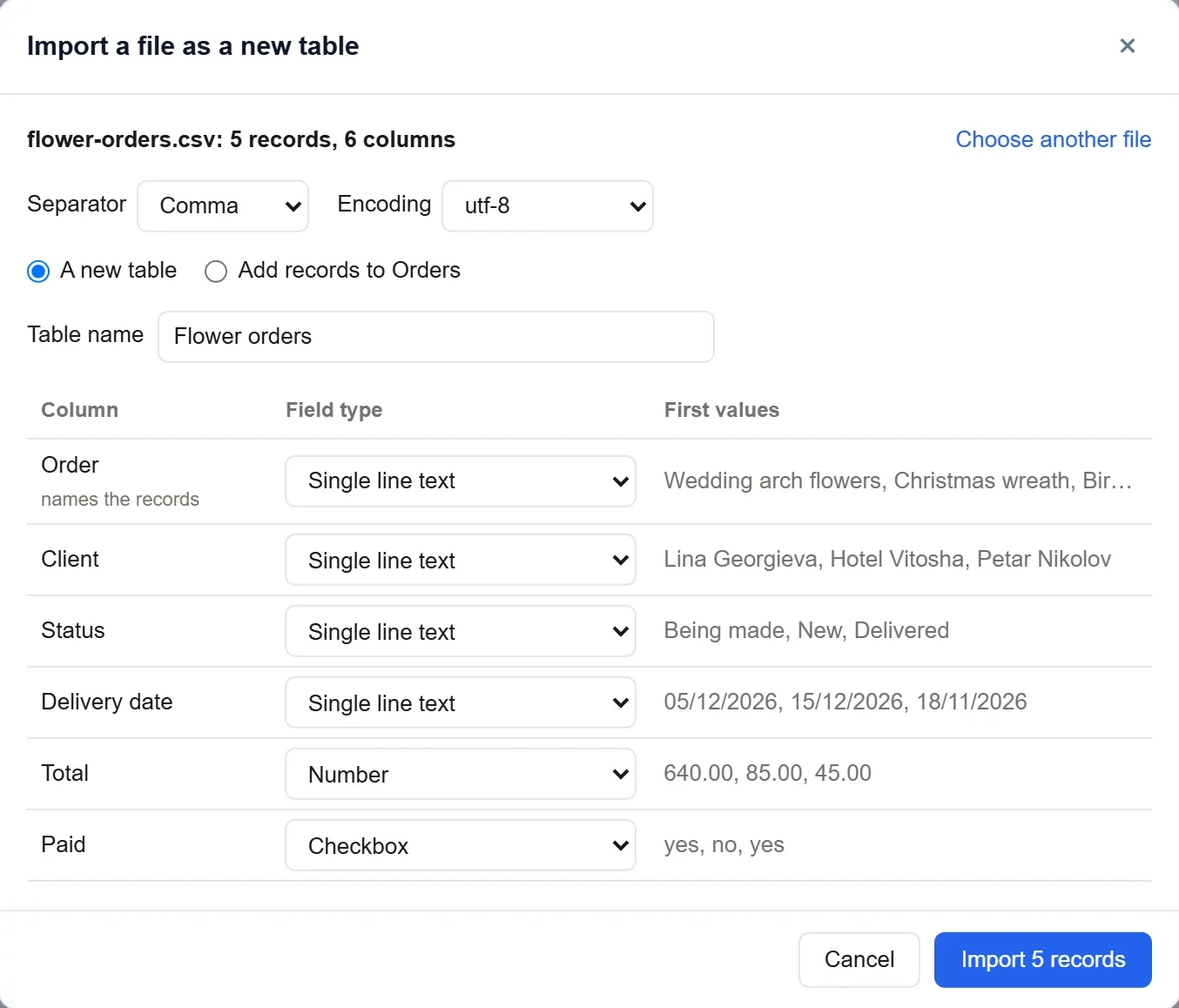
Dates written as text, such as 15/12/2026, may come in as Single line text. Pick Дата in their list before you import: dates written day first or month first are both understood.
Add records to a table you already have
- Click the small arrow on the table's tab and choose Import records from a file.
- Pick the file. Each column of the file goes to the field with the same name. To send it somewhere else, pick another field under Goes to field, или Skip this column.
- Read any notes in the box at the top, then click Импорт with the number of records.
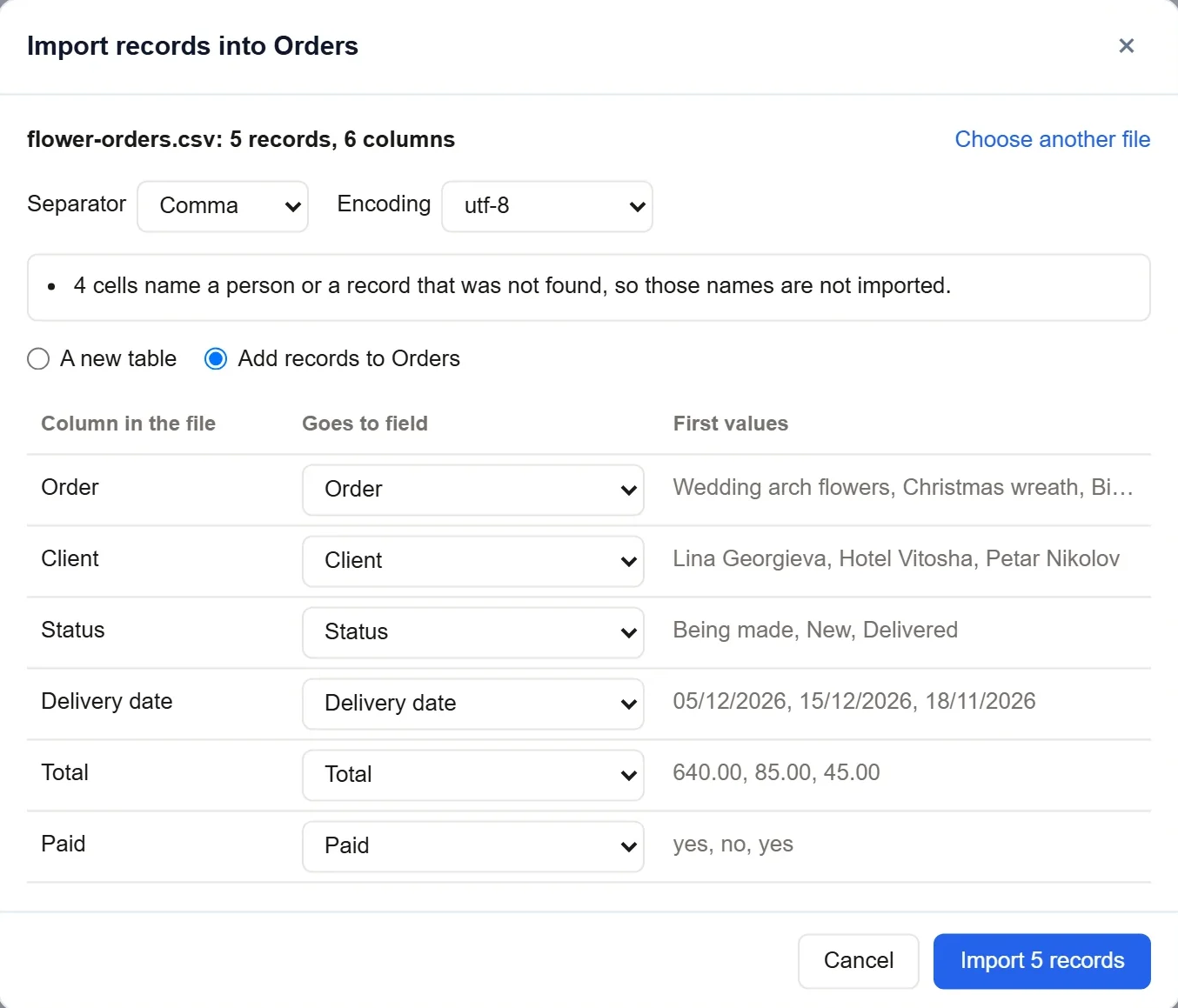
A choice field gains any new options the file brings. A person field reads names or e-mail addresses, and a link field reads the names of the linked records, separated by commas. Names that match no one are left out, and the window tells you how many.
Поставяне в таблица
For a few rows, there is a shortcut: copy cells in Excel or Google Sheets, click a cell in the grid and press Ctrl+V. If the paste runs past the last record, Artavolo asks whether to add the extra rows as new records.
Добре е да знаете
- The file is read in your browser; only the table you make is sent.
- The window finds the Separator (comma, semicolon, tab or pipe) and the Encoding (how the letters are stored) by itself. Change them only if the preview looks garbled.
- It also points out rows longer or shorter than the header, a quote that is never closed, values a field cannot hold, and records with the same name as one already in the table.
- In a CSV file, a value with a comma inside, such as
"Riva & Sons, Ltd", must be in double quotes. A decimal comma stays a decimal:1,50is one and a half. - JSON файлът трябва да е списък със записи, например
[{"Name": "Ana"}, ...]. - Who can import: a new base, owners of the workspace (within the plan's number of bases); a new table, owners of the base; records into a table, anyone who may add records to it.
- Импортът в таблица е една стъпка за отмяна: Ctrl+Z го връща.
- Идвате от Airtable? Използвайте Доведете вашата база от Airtable вместо CSV файлове: така се запазват връзките, идентификаторите, формулите и файловете.