Field types: which one to use
Updated
A field's type decides what it holds and how you fill it in: text, a date, a choice from a list, a person, a file, a link to another table, or a value worked out for you. Pick the closest type when you add a field, because the type also decides how the field sorts, filters, groups and adds up.
Choose a type
- Press the + after the last field, or open Hide fields in the view bar and press Add a field.
- Type a Name.
- Under Field type, pick a type, or type in Find a type to narrow the list. The line under the list says what the chosen type is for.
- Set the type's options and press Create field.
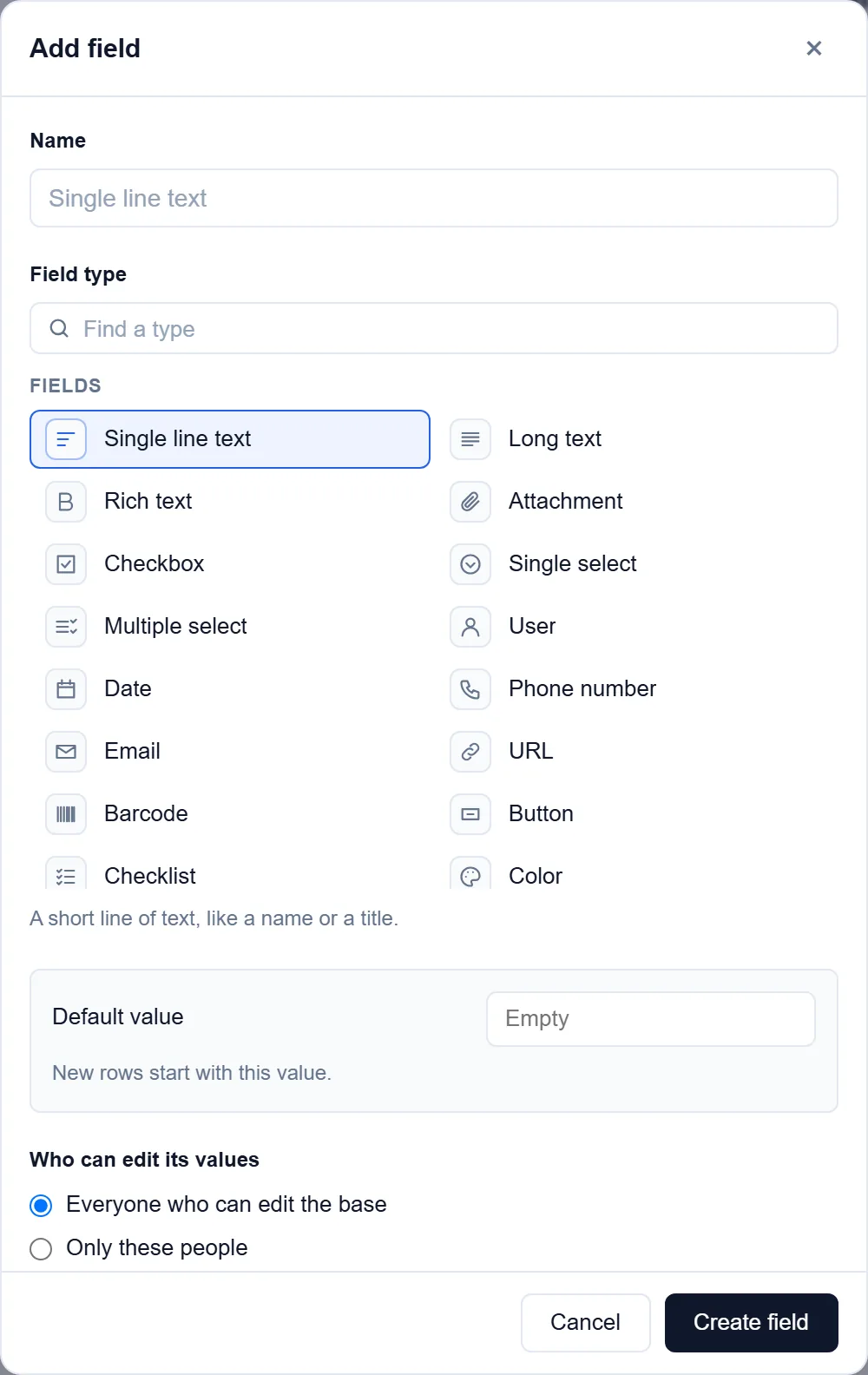
Text
- Single line text: a name, a title, a short code. See Long text and rich text.
- Long text: several lines, such as notes, with optional Markdown.
- Rich text: formatted text with a toolbar.
Choices and people
- Single select and Multiple select: one or several coloured options from a list. See Single and multiple select.
- User: one or more people with access to the base. See User field.
- Checkbox: done or not done, one click to toggle.
- Checklist: a list of to-dos; the cell shows how many are done.
- Vote: one click adds your vote or takes it back; the cell shows the count.
- Color: a colour from the palette or any hex code.
Dates and numbers
- Date: a day, with or without a time. See Date field.
- Number: whole numbers, decimals, currency or percent, all in one type. See Number, currency and percent.
- Duration: a length of time, typed as 1:30 or 1h 30m.
- Time of day: a clock time with no date, such as 9:30 am or 14:05.
- Rating: one to ten stars, hearts, thumbs, flags or dots.
- Sparkline: a list of numbers drawn as a small line, area or column chart.
Files, contact details and codes
- Attachment: images and files. See Attachments.
- Phone number, Email and URL: shown as links. See Phone, email and URL.
- Barcode: a barcode's text, typed or scanned with a phone's camera. See Take photos and scan barcodes.
- Button: a button on every record that opens a web address built from the record's fields, such as
https://example.com/orders/{Order id}.
Computed and automatic
- Formula: a value worked out from the record's other fields. See Formulas.
- Created time, Last modified time, Created by and Last modified by: filled in for you.
- Autonumber: a number every record gets, counting up.
- AI: a model writes the value from a prompt that names the record's fields. The value is stored and can be edited by hand. It uses your workspace's AI.
Other tables
- Link to records: records of another table this record points at.
- Lookup, Rollup and Count: a field of the linked records, a total over them, or how many there are. See Link records between tables.
Good to know
- Only the base's owners add fields and change their types. Everyone who may edit records fills them in.
- You can change a type later in Edit field. The dialog says how many values will be cleared or cut short before you save.
- Currency and percent are formats of the Number type, not separate types.
- From Airtable, every field type with a match here comes across as that type. A type with no match arrives as a text field, and the import report names it. See Move from Airtable.