Turn e-mails into records with Make
Обновено
Orders, questions and invoices arrive by e-mail and then get buried in the inbox. This setup fixes that. You put the label Artavolo on an e-mail in Gmail, and within the hour it turns up in your table as a new record, ready to assign, comment on and tick off.
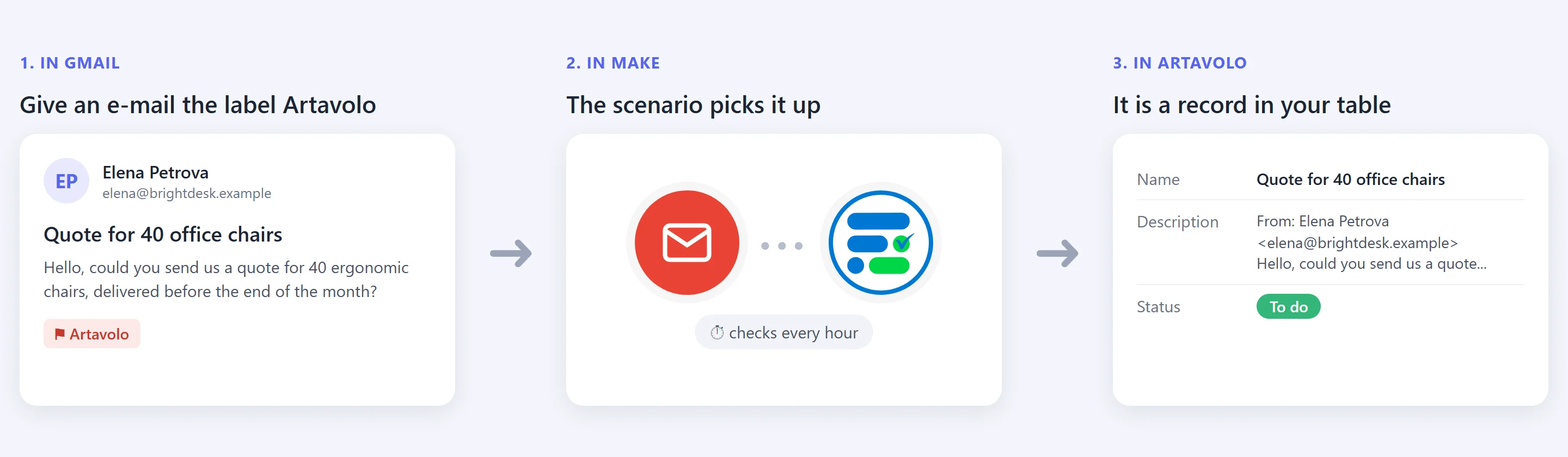
The link between Gmail and Artavolo is Make (make.com), a free service that moves information between apps. You set it up once; after that it runs by itself.
What you need
- An Artavolo account.
- A Gmail address.
- A free Make account. Sign up at make.com if you do not have one.
Step 1: Make a table for the e-mails
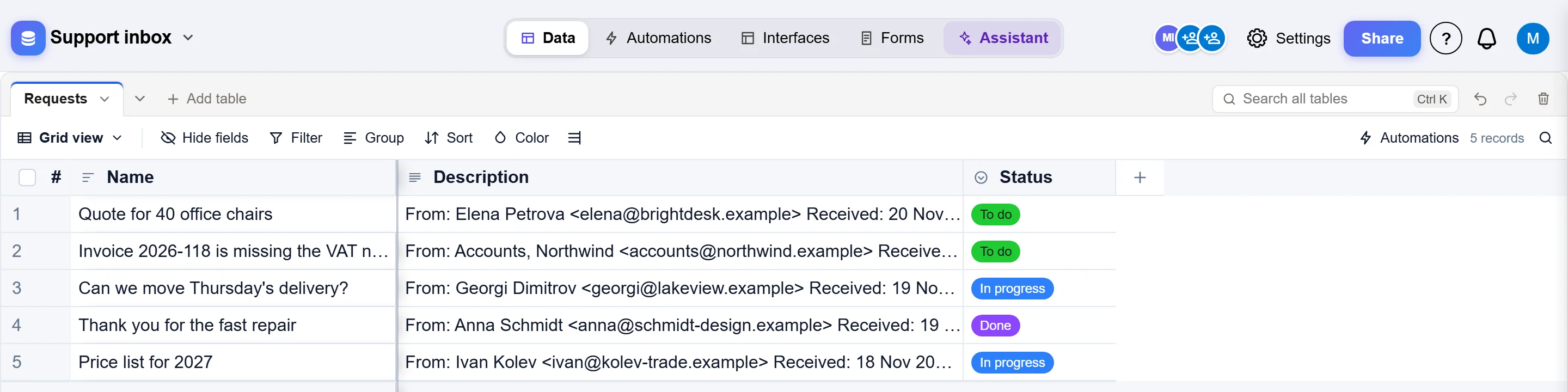
In Artavolo, create a new base, or add a new table to a base you already have. A new table always starts with three fields: Име, Описание и Статус. That is exactly what this setup fills in, so you do not need to change anything. You can rename the table, for example to Заявки.
When it is working, the table will look like this:
Step 2: Get a key for Make
Make needs a key to put records into your table. In Artavolo this key is called an API токен.
- Click your picture or initials at the top right and choose Моят профил.
- Scroll down to API токени and click Manage tokens.
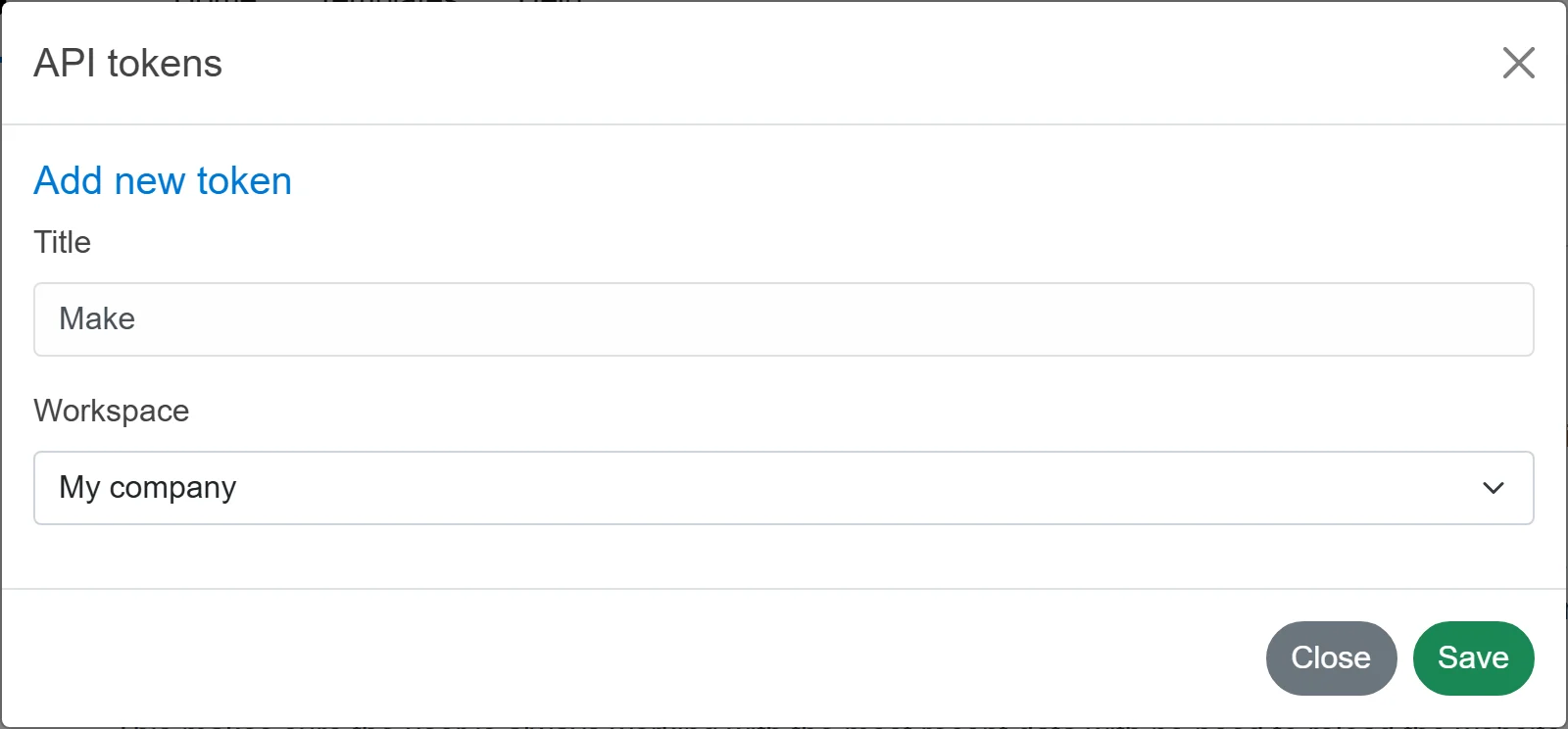
- Click Създай токен. Type Make as the title, choose your workspace, and click Запази.
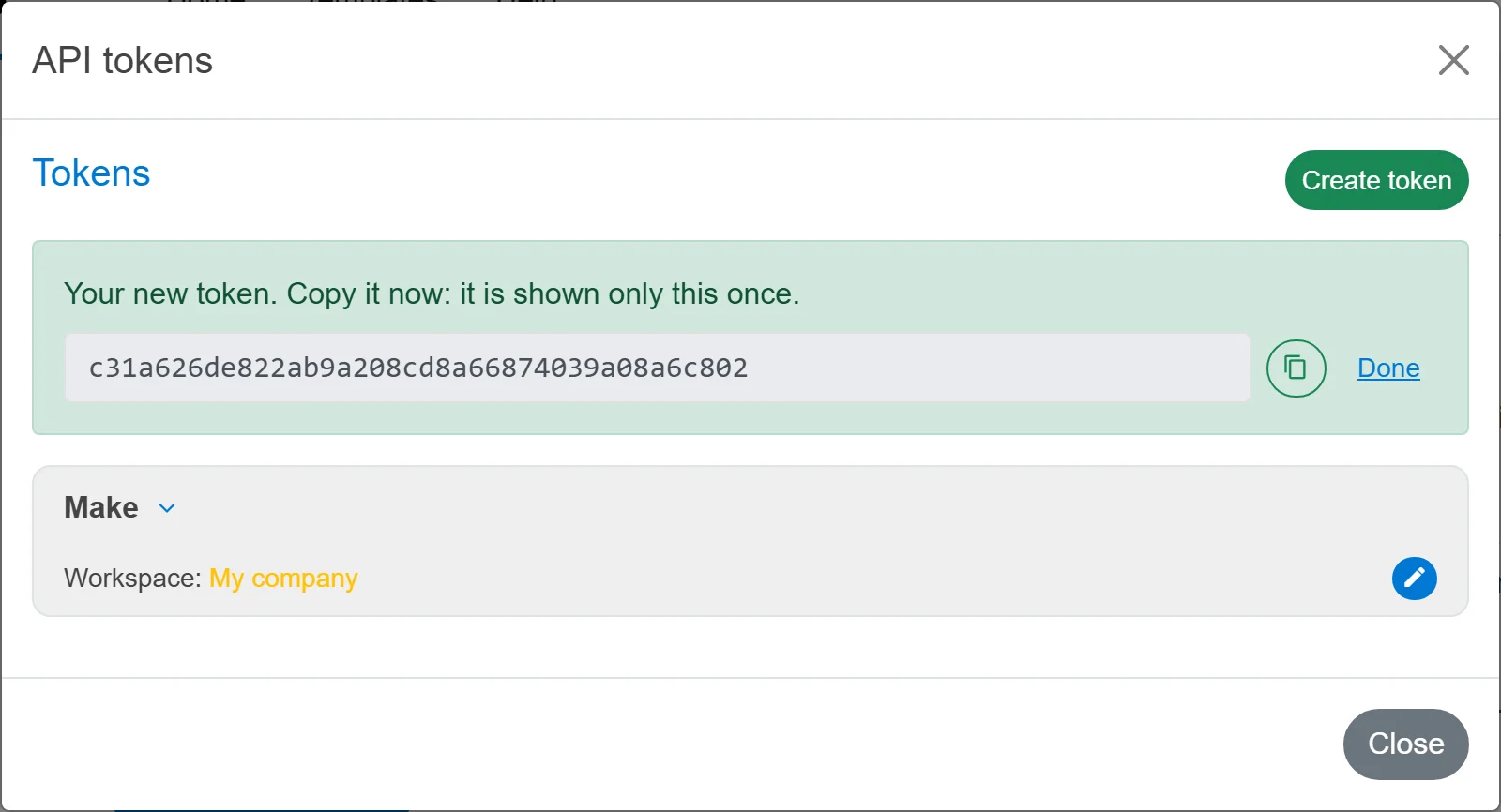
- Your new key appears in a green box. Click the copy button next to it, and keep it somewhere safe for a minute: it is shown only this once.
Step 3: Add the ready-made setup to Make
- Отворен this link to add Artavolo to Make and click Install. You only do this once.
- Download the ready-made setup: make-gmail-to-artavolo.json. Your browser saves it in your Downloads folder.
- In Make, click Scenarios on the left, then Create a new scenario.
- At the bottom of the screen, click the ... button, choose Import Blueprint, pick the file you downloaded, and click Запази.
You now see two circles joined by a line: a red one for Gmail and a blue one for Artavolo.
Step 4: Connect your Gmail and your Artavolo
- Click the red Gmail circle. Next to Connection, click Добави, sign in with your Google account and allow access. Click Запази.
- Click the blue Artavolo circle. Next to Connection, click Добави. Paste the key from step 2 into API токен, leave the address as it is, and click Запази.
- Under База, choose your base. Under Таблица, choose your table. Name, Description and Status appear below, already filled in with the e-mail's subject, sender and message.
- Click Запази at the bottom of the window, then the save icon at the bottom of the screen.
Step 5: Try it
- In Gmail, open any e-mail. Click the label button at the top (it looks like a tag), choose Create new, type Artavolo and click Create.
- Back in Make, click Run once at the bottom left.
- Open your table in Artavolo. The e-mail is there as a new record.
Nothing came in? The first time, Make only looks at e-mails that arrive after the setup was made. Right-click the red Gmail circle, choose Choose where to start, pick All, and click Run once again.
Step 6: Let it run by itself
At the bottom left of the scenario, turn the switch on. From now on Make looks for new labelled e-mails on its own, every hour.
A note on Make's free plan: it allows 1,000 actions a month, and every check counts as one, even when there is nothing new. Checking once an hour uses about 720 a month, which fits. To change how often it checks, click the small clock on the red Gmail circle.
Ideas to make it yours
- Catch e-mails without a label. In the Gmail circle, the Заявка box says
label:artavolo. Replace it withfrom:orders@yourshop.comto catch every e-mail from that sender, orsubject:invoicefor every e-mail with "invoice" in the subject. - Another starting status. In the Artavolo circle, Status says To do. Type another of your statuses, or leave it empty.
- Outlook instead of Gmail. Delete the red circle, add Make's Microsoft 365 Email app in its place, and drag its subject, sender and text into the Artavolo circle.
Добре е да знаете
- Records are added in your name, and they show in the record's history like any change.
- Very long e-mails are cut after 5,000 characters. Attachments stay in Gmail.
- Taking the label off an e-mail does not remove its record.
- To stop it, turn the switch off in Make, or delete the key in Artavolo under Manage tokens.