Планирайте шифровани резервни копия
Обновено
If you run Artavolo on your own server, it can make a backup by itself every night: one locked (encrypted) file that holds everything needed to rebuild it, both databases and every uploaded file. It keeps as many days as you choose, on the server and, if you like, in online storage elsewhere. One command puts a backup back.
In our cloud you do not need this: we back up everything for you. A base's own restore points are under Настройки, Резервни копия in the base.
Step 1: Set the encryption key
Backups are locked with a key that only you hold. Until it exists, the Backups page shows a red warning and backups are refused.

- Make up a key of 32 or more random characters, for example with a password manager.
- Add it to
includes/config.phpasdefine('BACKUP_ENCRYPTION_KEY', '...');, or in Docker asARTAVOLO_BACKUP_ENCRYPTION_KEYin the.envfile. - Keep a copy of the key away from the server, in a password manager or a safe. A backup cannot be opened without it, and there is no way round that.
Step 2: Turn on the daily backup
- Sign in as an administrator. Click the round button at the top right and choose Контролен панел.
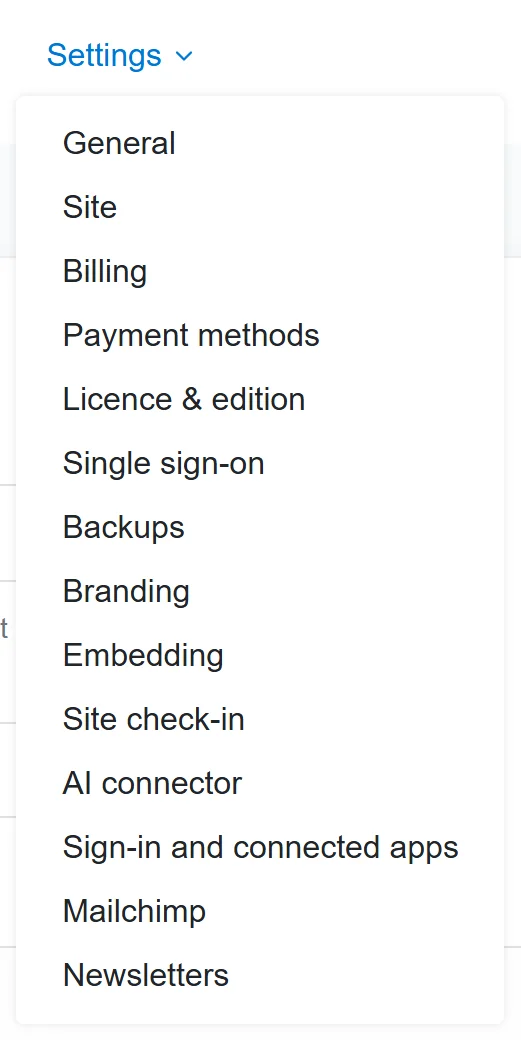
- In the Control panel's top menu, open Настройки and choose Резервни копия.
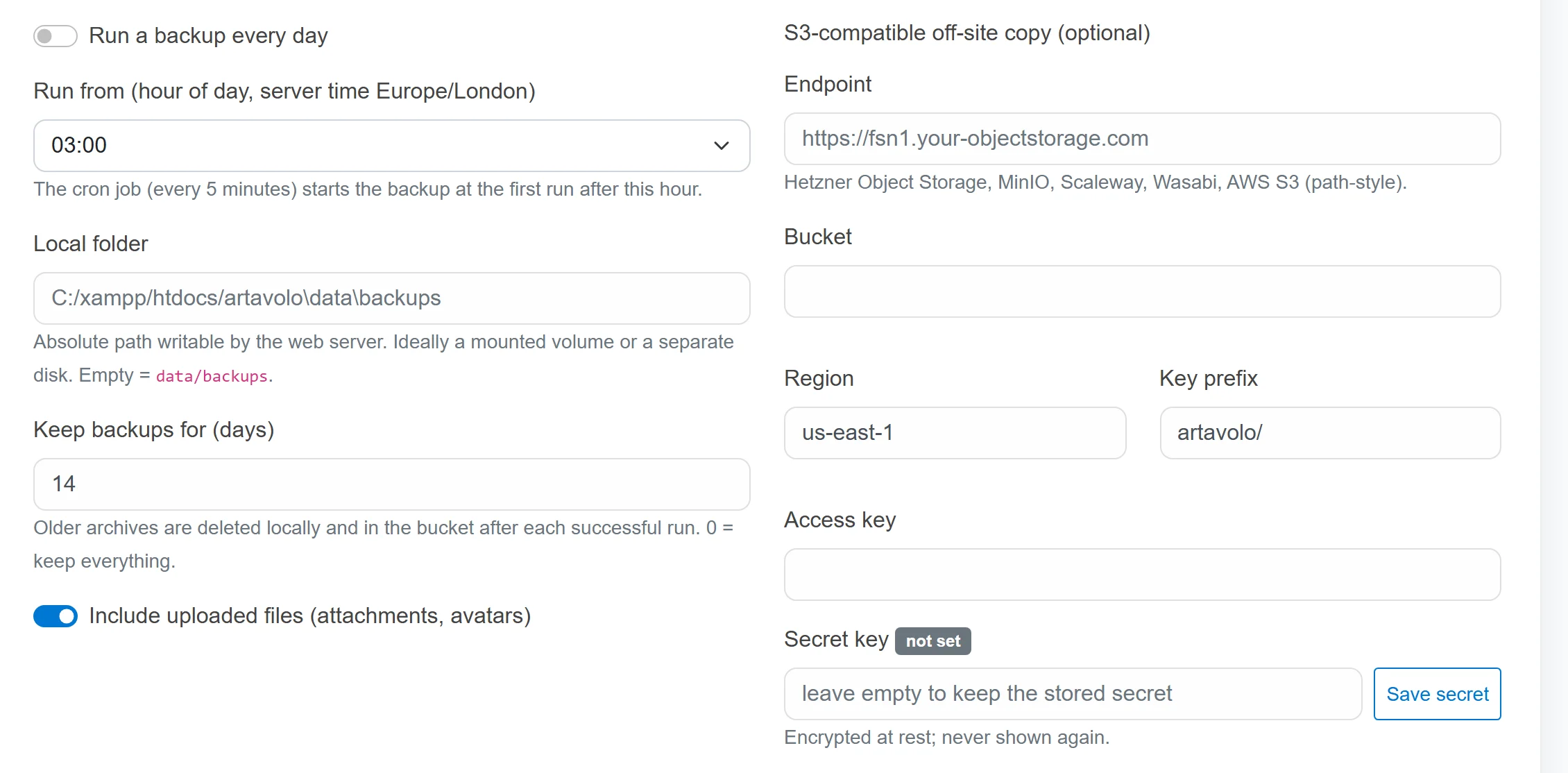
- Switch on Run a backup every day, and under Run from (hour of day, server time) choose a quiet hour.
- Under Local folder, type a folder outside the website, ideally on a separate disk. Leave it empty to use
data/backups. - Under Keep backups for (days), type how many days to keep. 0 keeps everything.
- Leave Include uploaded files (attachments, avatars) on, unless you copy the files another way.
- For a copy off the server, fill in S3-compatible off-site copy (optional): Endpoint, Bucket, Регион, Key prefix и Access key. Type the Secret key and click Save secret. Hetzner, MinIO, Scaleway, Wasabi and AWS S3 all work.
Each setting is saved as soon as you change it. Only the secret key has its own Save secret button.
- Click Run a backup now once. A first backup appears in the list below, with download beside it.

The cron job, which runs every 5 minutes, starts the backup at its first run after the hour you chose.
Step 3: Check a backup, and practise restoring
To check a backup without touching anything, run php utilities/restore.php /path/to/backup-file --dry-run. It checks the file, unlocks it into a temporary folder, lists what is inside and cleans up. Do this once a month.
To restore, stop the web server, then run the same command with --yes instead of --dry-run. It replaces both databases and copies the uploaded files back. Practise once on a spare machine now, while nothing is wrong: it is the only way to know the procedure works for you.
Добре е да знаете
- Run a backup now stays greyed out until the encryption key is set and a licence key that includes backups is in place.
- Each backup is encrypted with AES-256 and sealed with an HMAC-SHA256 check over the whole file, which is verified before anything is unlocked. A wrong key or a damaged file is refused, never half restored.
- A failed backup e-mails every administrator. Every run, good or failed, is in the audit log.
- The daily schedule is part of Pro on your own server and needs a licence key that includes it. Without one,
php utilities/backup.phpmakes the same backup from the command line in every edition. - The backup does not hold
includes/config.php, because it contains your database passwords and secrets. Keep a copy of that file with the key. - Backups older than the days you keep are removed after each successful run, on the server and in the online storage.
- In our cloud, each base's own restore points are kept too: Free keeps 10 per base, Standard 25 and Pro 50.