Споделете база и поканете хора
Обновено
To work on a base with other people, invite them. Each person gets a role that says what they may do: change everything, add and edit records, or only look. You can change their role or take their access away at any time.
Step 1: Choose who gets access to what
Open the base and click Сподели at the top right. Choose one of three:
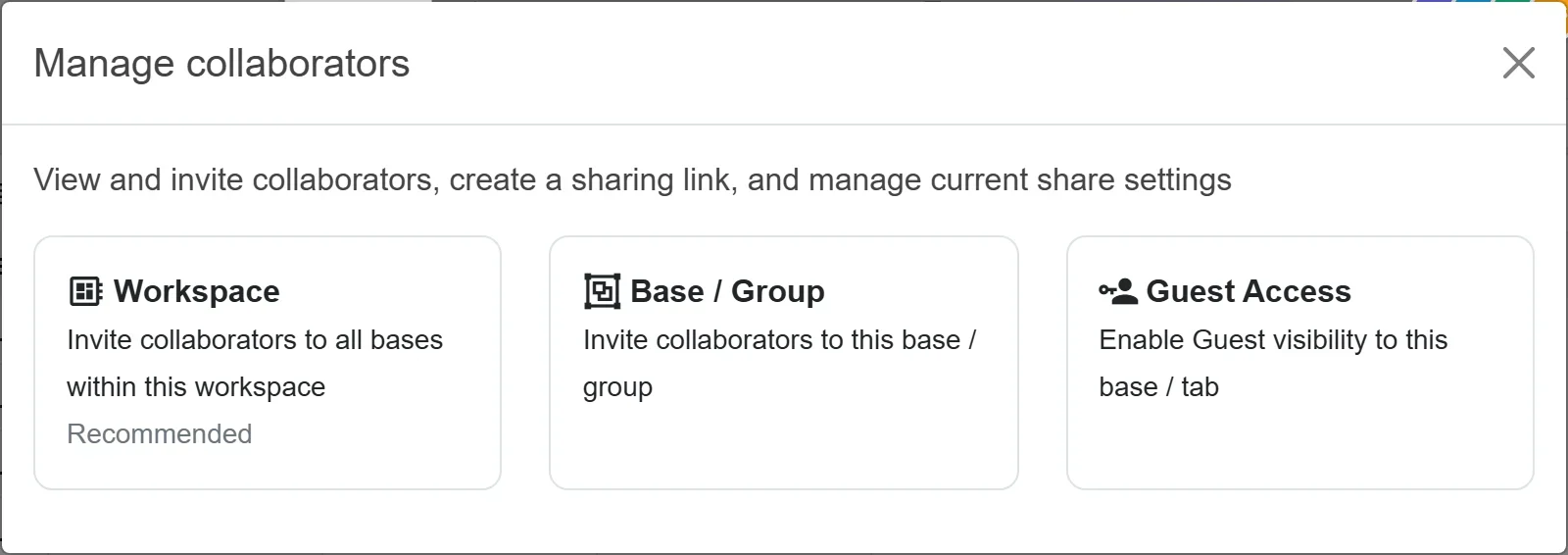
- Работно пространство: people join every base in the workspace (your company's space). Best for a team that works on everything together. Only the workspace's owners see it.
- Base / Group: people join this base only. Best for a freelancer or a client.
- Guest Access: anyone with a link can look at the base without an account.
Step 2: Invite someone
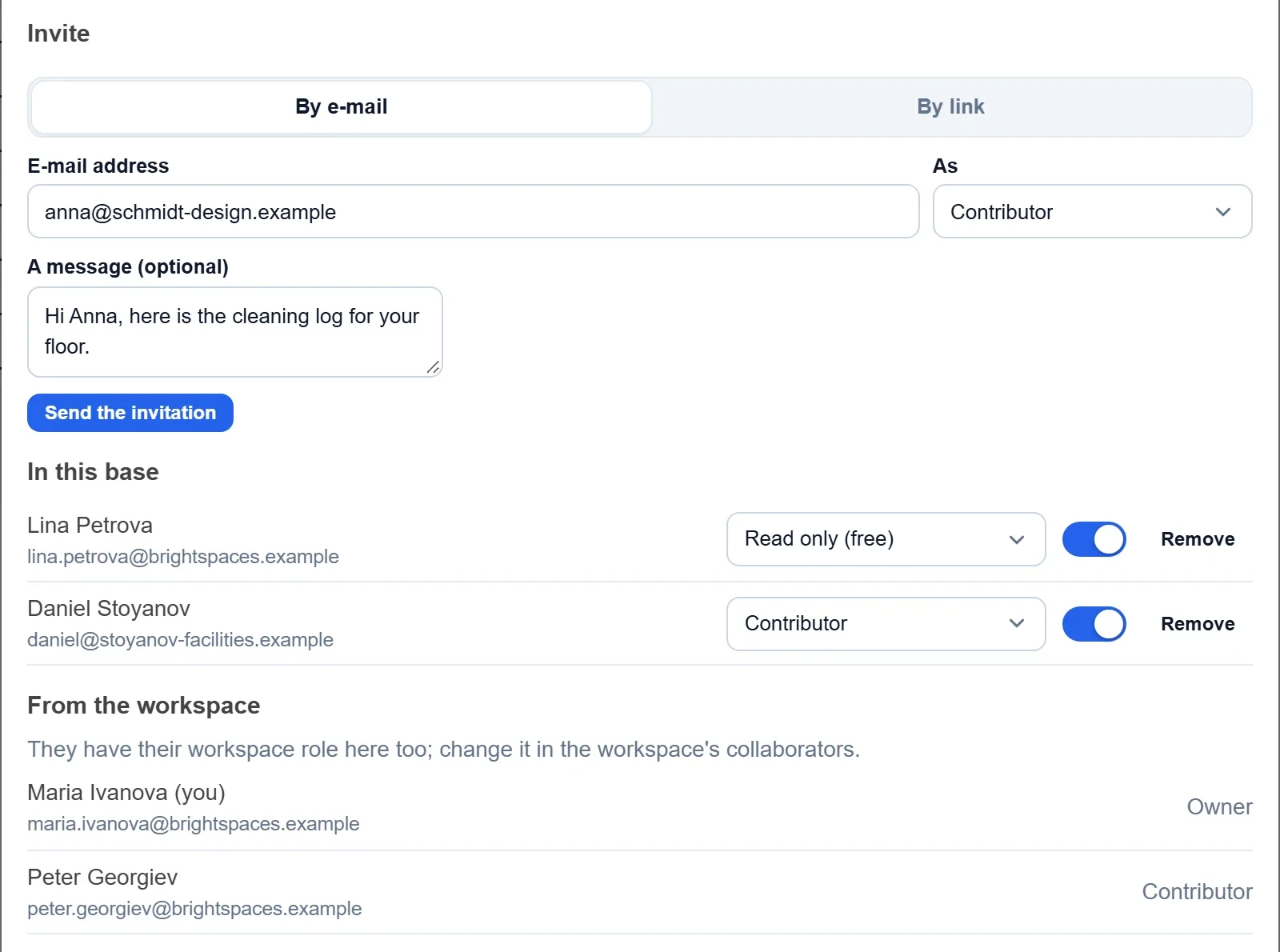
- Under Invite, keep By e-mail and type their Имейл адрес.
- Choose their role under As: Отговорник, Сътрудник or Read only (free).
- Добави A message (optional) if you like, and click Send the invitation.
They get an e-mail with a link. Until they accept, the invitation waits under Open invitations, where Отказ withdraws it.
To send the invitation yourself, for example in a chat, choose By link instead, pick the role under Anyone who opens the link joins as, click Create a link and send it.
Ролите
- Собственик: всичко, включително споделяне, настройки, автоматизации, формуляри, права и изтриване на базата.
- Сътрудник: adds, changes and deletes records (as the base's permissions allow), comments and writes notes.
- Read only (free): sees the records and changes nothing. Read-only people never cost anything.
Owners can narrow these further, table by table and even record by record. See Роли и права: кой какво вижда.
Change or remove someone
In the same window, In this base lists everyone invited to the base. Change a person's role in the list, turn the switch off to pause their access without removing them, or click Премахни.
From the workspace lists the people who have the base through the workspace. They keep their workspace role here; change it in the workspace's collaborators.
Допускайте хора, които поискат
When someone signed in opens a base they are not part of, they can click Поискайте достъп. Their request appears in the sharing window under Asking to join: choose their role and click Let in.
Show a base to guests
Under Guest Access, turn on Allow guests to view the base and send the link. Anyone who has it can look at the base, but only members can change it. See Покажете база на уебсайт.
Добре е да знаете
- Само собствениците виждат Сподели. На телефон е в менюто под името на базата.
- On the hosted service, your plan pays for a number of editors (owners and contributors). When they are all used, the window says so and the workspace owner can add more on the billing page. Read-only people, people who fill in a form and guests are free.
- Работното пространство винаги запазва поне един собственик.
- Един човек може да изпрати до 20 имейла с покани на час.
- AI agents appear among the people, with a role of their own, like any colleague.