Добавяйте и премахвайте хора от Entra ID или Okta (SCIM)
Обновено
If your company keeps its staff list in Microsoft Entra ID (formerly Azure AD) or Okta, Artavolo can follow that list by itself. When IT gives someone access to Artavolo there, they join your workspace. When someone leaves, their access is turned off. You do not have to invite or remove people by hand.
This works through SCIM, a standard way for staff directories to send their list of people to other apps. You need to be an owner of the workspace, and someone who can change settings in Entra ID or Okta (usually your IT person).
Step 1: Turn it on in Artavolo
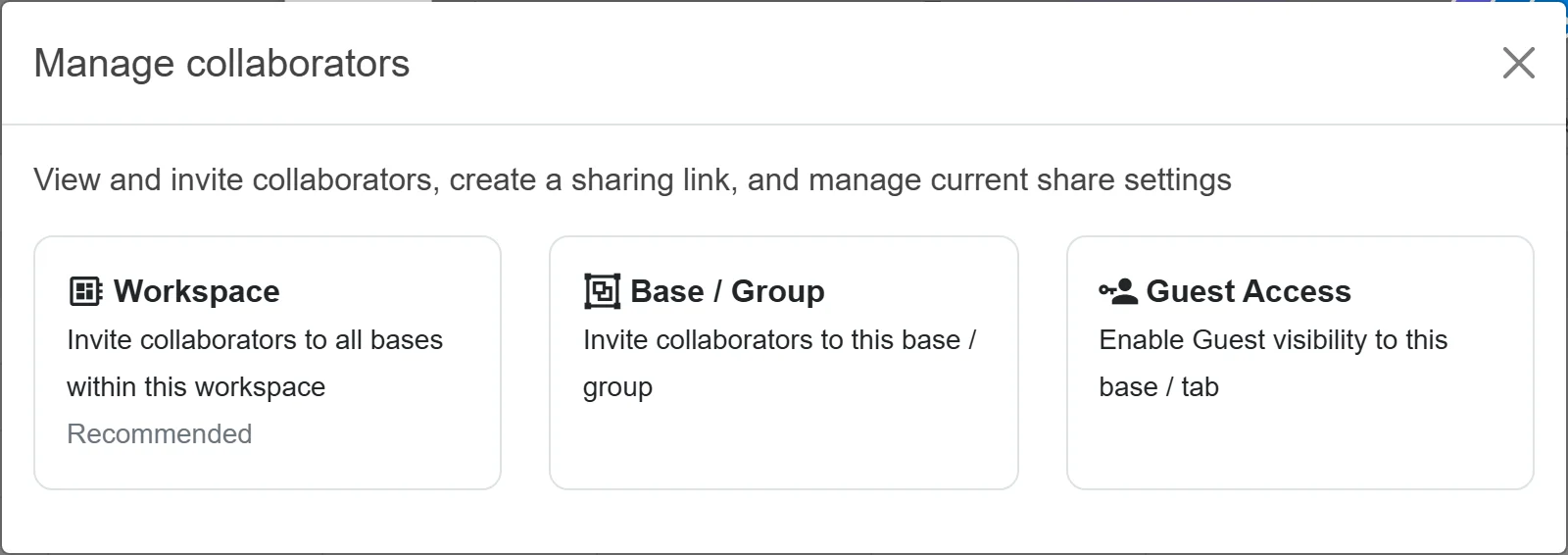
- Open any base of the workspace and click Сподели at the top right.
- В Manage collaborators, click Работно пространство.
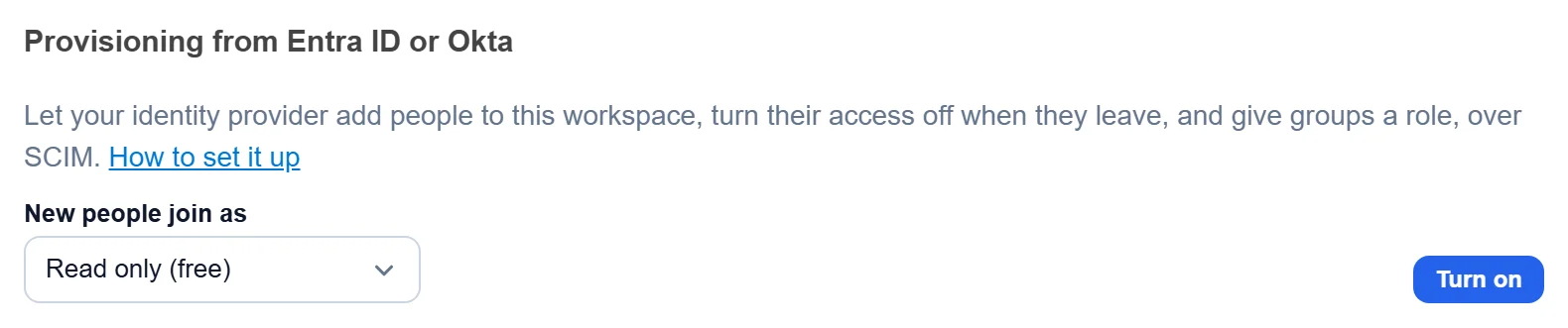
- Scroll down to Provisioning from Entra ID or Okta.
- Under New people join as, choose Read only (free) or Сътрудник (can edit). Then click Turn on.
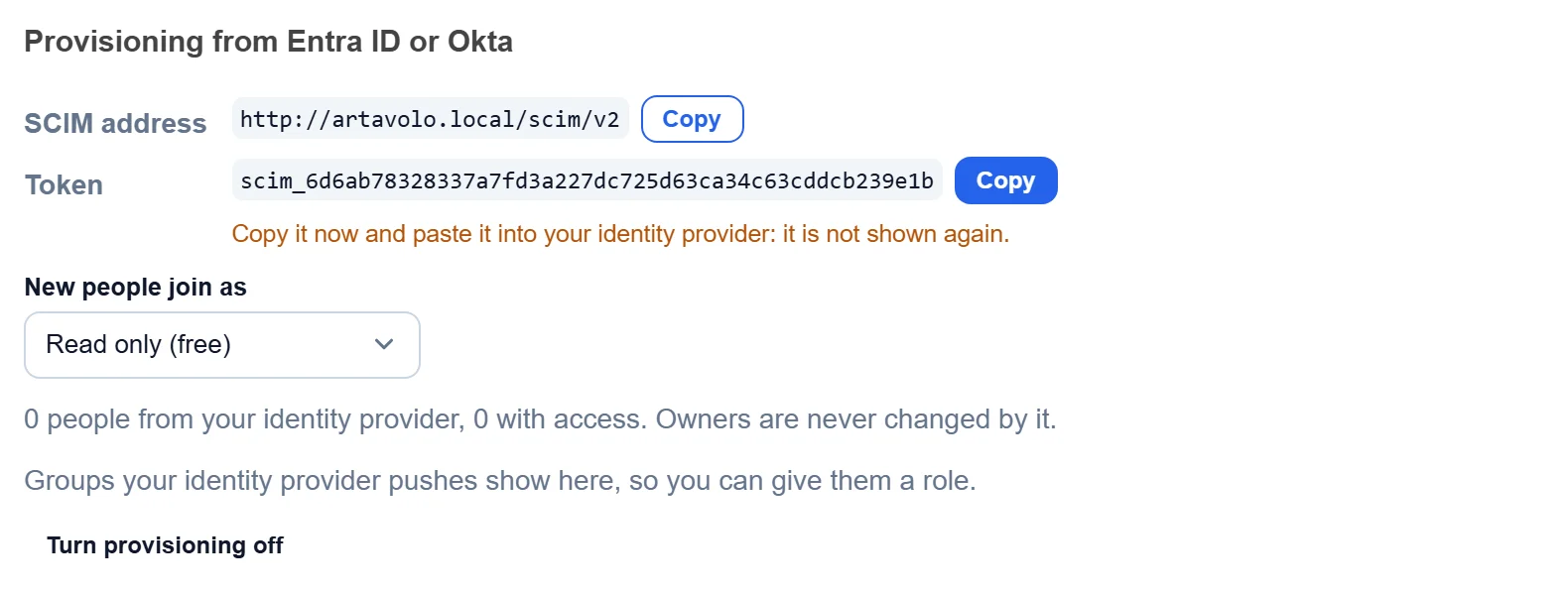
- Two things appear: the SCIM address and a Token, a long secret key. Click Копирай next to each and keep them for the next step. The token is shown only this once.
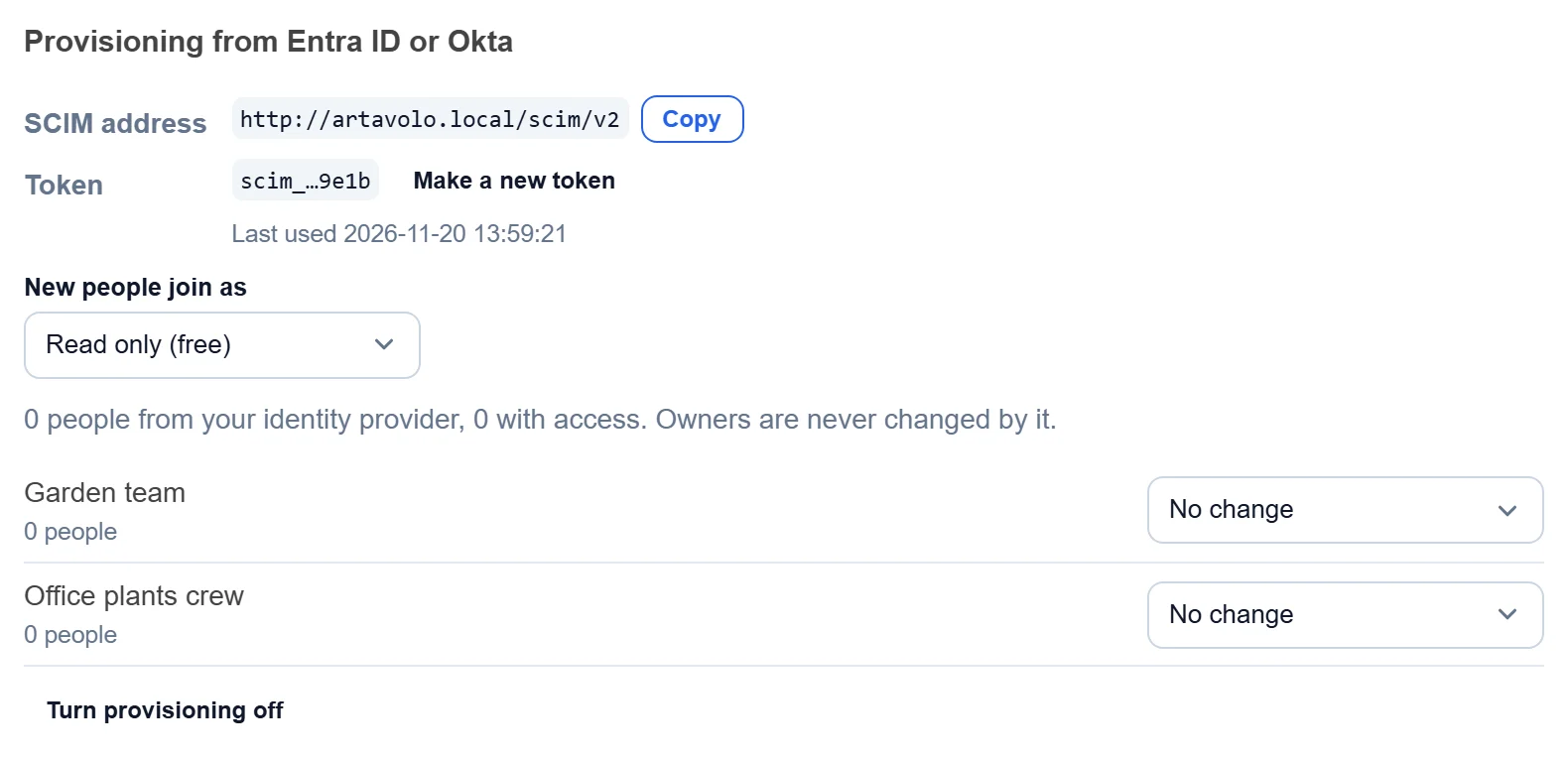
Lost the token? Click Make a new token. The old one stops working at once, so paste the new one into Entra ID or Okta.
Step 2a: Connect Microsoft Entra ID
- In the Microsoft Entra admin center, open Enterprise applications, click New application, then Create your own application. Name it Artavolo and choose Integrate any other application you don't find in the gallery.
- В новото приложение отворете Provisioning и задайте режима на Автоматично.
- Paste the SCIM address into Tenant URL and the token into Secret token. Click Test Connection, then Запази.
- Under Users and groups, add the people and groups who should be in the workspace.
- Back in Provisioning, set the status to Включено. Entra sends changes about every 40 minutes. To send one person straight away, use Provision on demand.
Step 2b: Connect Okta
- In the Okta Admin Console, create an app integration for Artavolo (or open the one you already use for signing in). On its General tab, set Provisioning to SCIM.
- On the Provisioning tab, under Integration: paste the SCIM address into SCIM connector base URL, type userName as the unique identifier, tick Push New Users, Push Profile Updates и Push Groups, choose HTTP Header and paste the token. Click Test, then Запази.
- Под To App включете Create Users, Update User Attributes и Deactivate Users.
- Assign people and groups on the Assignments tab, and pick the groups to send on Push Groups.
Step 3: Give groups a role
Groups that Entra ID or Okta send show up under Provisioning from Entra ID or Okta, with how many people are in each. Next to a group, choose Сътрудник to let everyone in it edit, or leave No change so its people get the default from New people join as. Someone in several groups gets the highest role any of them gives.
Какво се случва с хората
- Someone new gets an account and an e-mail with a link to choose a password (or signs in with your company sign-in, if that is set up). Someone who already has an Artavolo account with the same e-mail joins with it.
- Someone who leaves (turned off or removed from the app in Entra ID or Okta) loses access to the workspace and its bases. Their records, comments and history stay. Turn them on again and they get the same access back.
- Someone deleted in Entra ID or Okta leaves the workspace and its bases. Their Artavolo account stays, because it may belong to other workspaces.
- Owners are never changed by provisioning. Add and remove owners in Artavolo. The workspace's last owner is never turned off.
Добре е да знаете
- The section shows how many people came from your identity provider and how many have access, and the people list marks who they are.
- Names change in Artavolo only for accounts that provisioning made. Every change is in the audit log, marked "via SCIM".
- Turn provisioning off stops the token. The people it added stay in the workspace.