Правете снимки и сканирайте баркодове с телефон
Обновено
On a phone, Artavolo can use the camera: take a photo straight into a record, scan a barcode or QR code into a record, or scan a code to find the record that holds it. Handy for stock counts, deliveries, site visits, gift cards and equipment checks, right where you are.
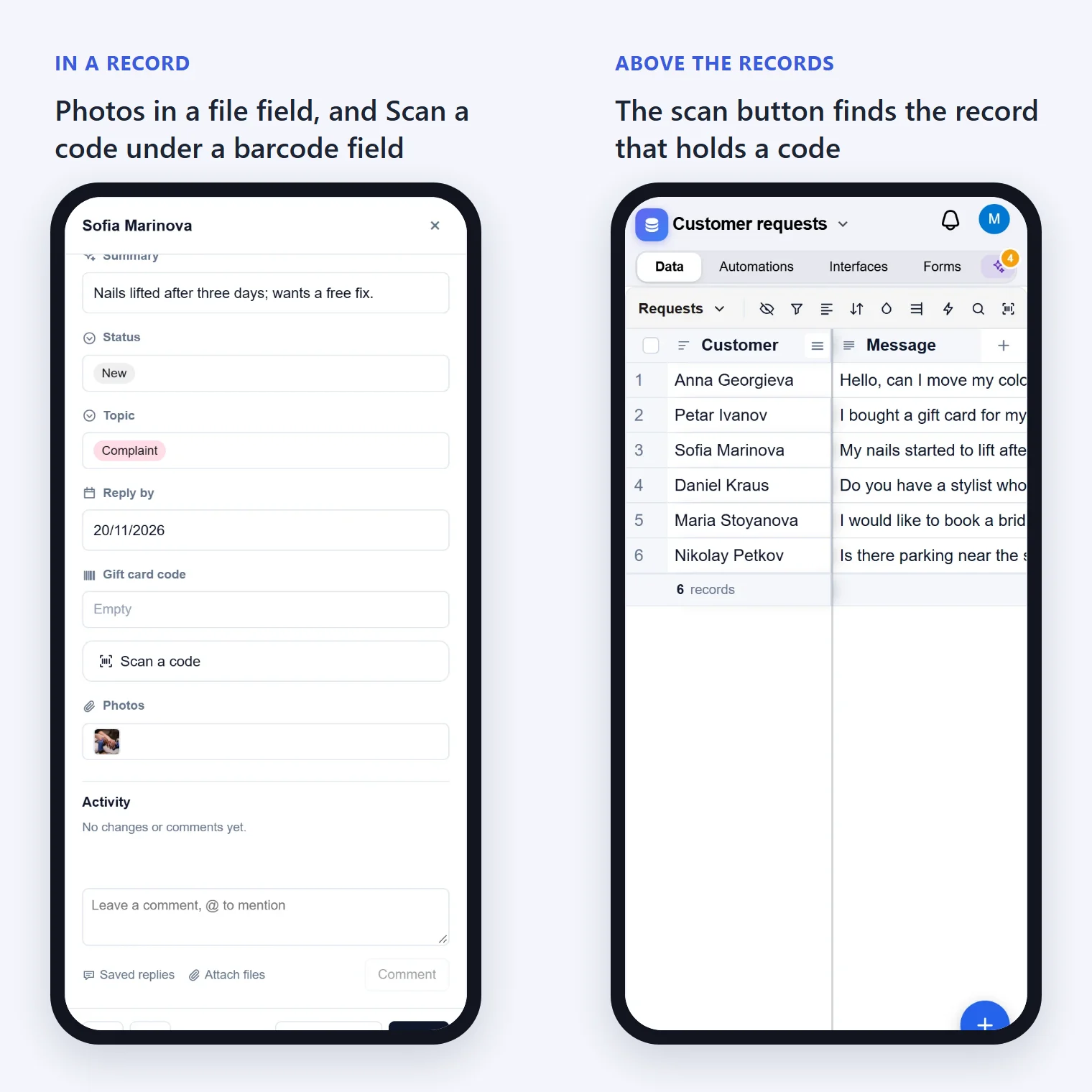
Take a photo into a record
This works with a file field, the kind of field that holds pictures and documents.
- Tap the record's number to open the record.
- Tap the file field, for example Снимки. A window for the field's files opens.
- Tap Take a photo. Your phone's camera opens.
- Take the picture and confirm it.
- Tap Готово.
The photo is added to the field and kept with the base's files. Before it is sent, it is made smaller (at most 2000 pixels wide), so it uploads quickly over a mobile connection.
Scan a code into a record
This works with a barcode field, the kind of field that holds the text of a barcode or QR code. To add one, add a field and choose the type Barcode.
- Open the record.
- Under the barcode field, tap Scan a code.
- Point the camera at the barcode or QR code. The first code it reads goes into the field.
Tap Отказ to close the camera without scanning. You can always type or paste a code instead.
Сканиране на код, за да намерите записа му
- Отворете изгледа, в който искате да търсите.
- Swipe the bar above the records to the left. The last button, after the magnifying glass, is Сканиране на код, за да намерите записа му. Tap it.
- Насочете камерата към кода.
Artavolo searches the view for the code. If exactly one record has it, that record opens. If several have it, the view shows them so you can pick one.
Добре е да знаете
- Сканирането работи там, където браузърът може да чете кодове от камерата, като Chrome на Android. Safari на iPhone засега не може, затова бутоните за сканиране не се появяват там; въведете кода ръчно.
- Take a photo appears on touch screens, for file fields that accept pictures. If a field's Accepted types lists only other kinds of file, such as .pdf, the button is not offered.
- Първия път браузърът пита дали да използва камерата. Ако сте отказали, разрешете камерата за този сайт в настройките на браузъра. Друго приложение, което използва камерата, също може да я блокира.
- You need permission to change the field: people who can only read do not see Take a photo or Scan a code.