Автоматизирайте рутинната работа
Обновено
An automation is a rule that does a job for you. When something happens in a table, for example a new record arrives with the result Issue found, it sends an e-mail, fills in a field, creates a record or tells another app. It runs on its own, for every change, whoever makes it.
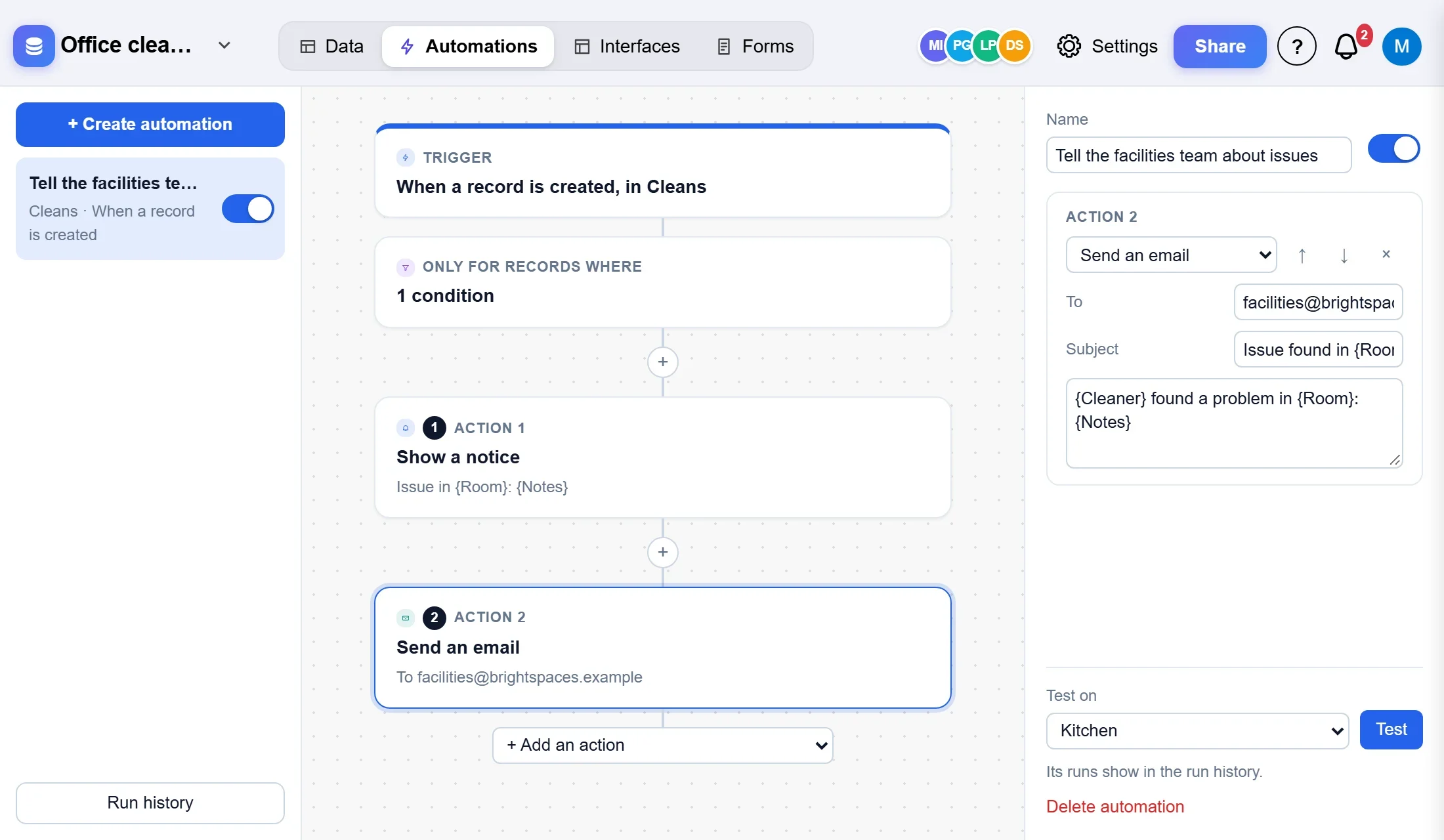
Every automation has three parts: a trigger (what starts it), an optional condition (which records it is for) and one or more actions (what it does).
The quickest start: a ready-made one
Отворен Автоматизации at the top of the base. While the base has none, four ready-made ones wait at the top. Choose the table under On the table, then click Use this on the one you want:

It is made and switched on at once, and e-mails you. You can change what it says, or when it runs, on the right.
Опишете я със свои думи
Можете и да напишете какво да става, както бихте казали на колега, и Artavolo ще направи автоматизацията вместо вас.
- Отворен Автоматизации at the top of the base.
- В полето Опишете какво да става горе вляво го напишете. Например: На 1-во число всеки месец започни месечно приключване за всеки активен клиент или Когато клиент прати документ, прати ми имейл с името му.
- Натиснете Направи я. След няколко секунди автоматизацията се появява в списъка, изключена, така че още нищо не става.
- Натиснете всяка карта, за да я проверите: какво я задейства, за кои записи е и какво прави. Сменете всичко, което не е точно.
- Опитайте я с Тествай, после включете превключвателя до името ѝ.
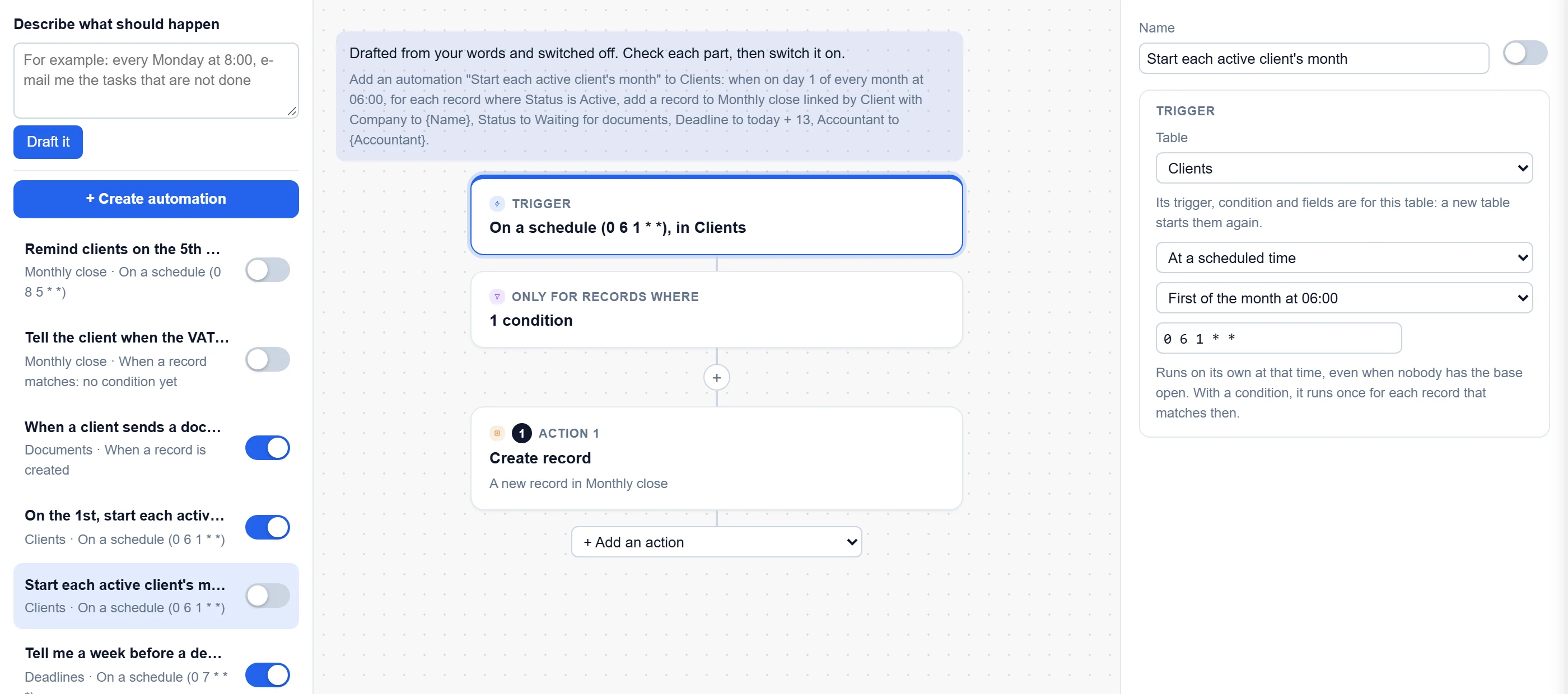
Artavolo избира таблицата по думите ви. Ако те не казват достатъчно, например кое поле или кой човек, под полето се появява въпрос: добавете отговора към текста си и натиснете Направи я отново.
Чатът на базата прави същото: натиснете Асистент и напишете какво да става. Той ви казва автоматизацията с думи и я създава, включена, когато натиснете Приложи. Вижте Говорете с AI във вашата база.
Без собствен AI ключ на работното пространство всяка чернова се брои като едно от AI използванията ви за месеца.
Направете своя
- Отворен Автоматизации and click + Create automation. A new automation appears with a trigger and one action.
- On the right, type a Име that says what it does, such as Tell the facilities team about issues.
- Under Trigger, choose the Таблица and what starts it, for example A record is created.
- To make it run only for some records, click the Only for records where card, then + Add condition. For example: Result is Issue found.
- Click an action card to set it up, or add one with + Add an action under the cards. For example Send an email: type the address in To, a Subject and the text.
- Try it: under Test on, at the bottom right, pick a record and click Test.
Every change is saved as you make it. The switch next to the name turns the automation off without deleting it.
Use a record's values in the message
Write a field's name in curly brackets and the automation puts in that record's value. For example the subject Issue found in {Room} becomes "Issue found in Reception". This works in e-mails, notices, messages and in the values an action fills in.
What can start an automation
- A record is created: a new record is added, by a person, a form or another app.
- A record changes: any field changes, or only one of the fields you pick.
- A record matches a condition: it runs once, when a record starts to match. For example, when Status becomes Done, and not again while it stays Done.
- Изпраща се формуляр: който и да е формуляр на таблицата или един от тях.
- A button is pressed: someone clicks a Button field in the table.
- At a scheduled time: every day, every Monday, or another schedule you choose.
- A webhook is received: another app calls the automation's own web address. See If, Find records, chat messages, AI and scripts.
What an automation can do
- Update the record: fill in fields, with a fixed value or with values from the record.
- Create a record in this table or another, and link it to the record that started it if you like.
- Изпрати имейл до най-много 20 адреса.
- Show a notice: a message in people's notifications (the bell). Choose who under Also send it to the notifications of:.
- Color the record while it matches the condition, so it stands out in the table.
- Изпрати съобщение в Slack, Teams или Google Chat до канал.
- Изпрати текстово съобщение (SMS или Viber) through your workspace's own SMS or Viber account.
- Call a webhook: send the record to another app's web address.
- Ако е изпълнено условие, направи, Намери записи и за всеки направи, Попитай AI и Изпълни скрипт: the bigger steps, explained in Условия, търсене на записи, чат съобщения, AI и скриптове в автоматизациите.
Actions run in order, top to bottom. To move one, click its card and use the up and down arrows on the right.
Проверете, че работи
Click Run history at the bottom left. Each run shows whether it was Готово, failed or stopped, the record it ran on and what each action did. Tick Show every automation's runs to see all the automations of the base together.

Добре е да знаете
- Само собствениците на базата виждат и променят нейните автоматизации. Автоматизацията действа с правата на собственика, който я е запазил последен, а историята на записа посочва автоматизацията, която го е променила.
- Automations run on the server for every change: from a person, a form, the API, AI chat, an AI agent or another automation.
- One automation can set off another, up to four in a row. Past that the run stops and says so, so automations cannot loop forever.
- Имейлите и уебхуковете се изпращат, след като промяната бъде запазена.
- A scheduled run with a condition runs once for each matching record, up to 500 records. The base keeps its last 500 runs.
- При инсталация на собствен сървър имейлът се изпраща само след като SMTP е настроен, а планираните автоматизации изискват работещата планирана задача на сървъра.
- Започнете с малко: автоматизация, която изпраща имейл при всяка промяна в натоварена таблица, научава хората да я пренебрегват.