Automate routine work
Updated
An automation is a rule that does a job for you. When something happens in a table, for example a new record arrives with the result Issue found, it sends an e-mail, fills in a field, creates a record or tells another app. It runs on its own, for every change, whoever makes it.
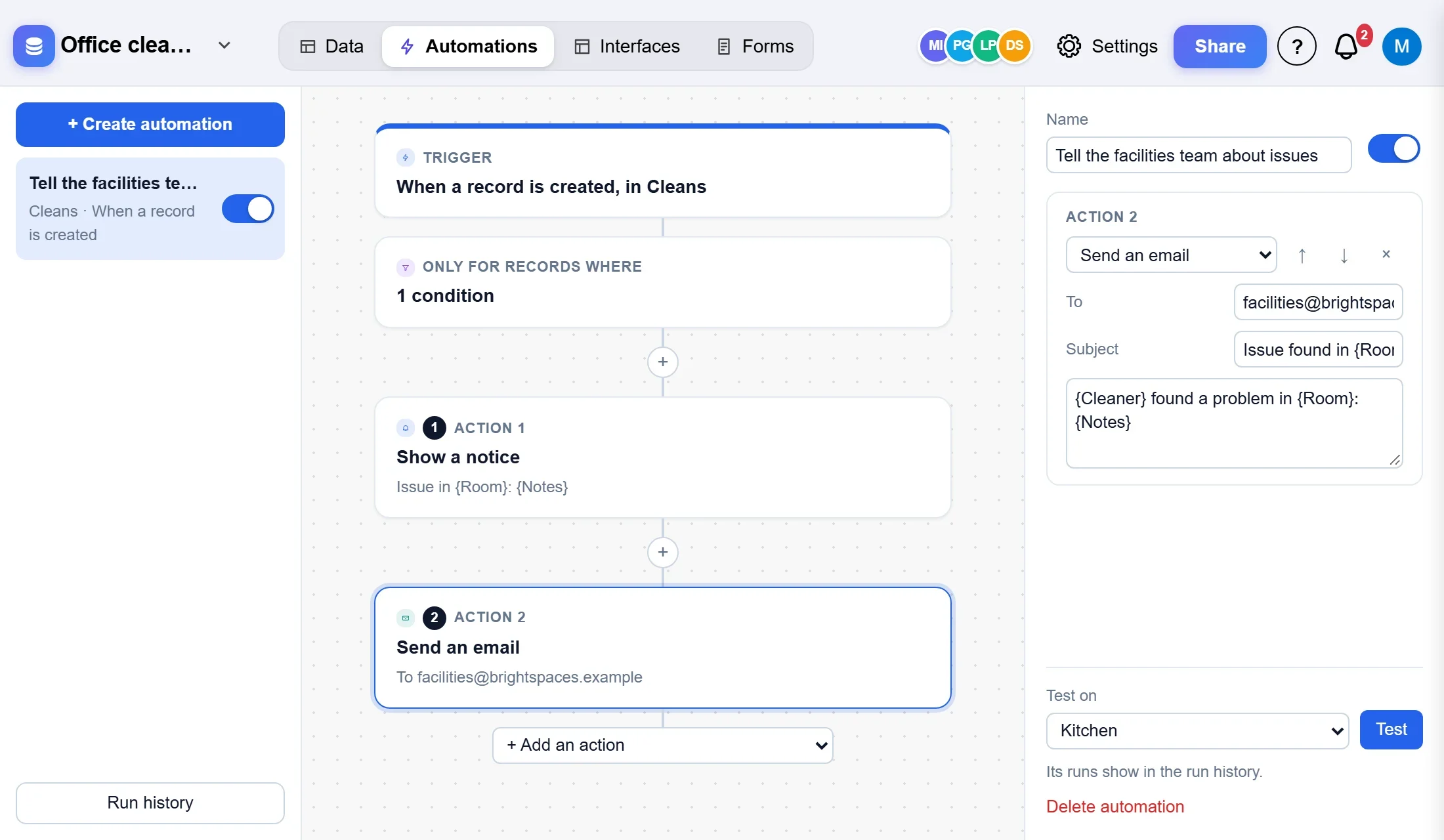
Every automation has three parts: a trigger (what starts it), an optional condition (which records it is for) and one or more actions (what it does).
The quickest start: a ready-made one
Open Automations at the top of the base. While the base has none, four ready-made ones wait at the top. Choose the table under On the table, then click Use this on the one you want:

It is made and switched on at once, and e-mails you. You can change what it says, or when it runs, on the right.
Describe it in your own words
You can also write what should happen, as you would tell a colleague, and Artavolo builds the automation for you.
- Open Automations at the top of the base.
- In the box Describe what should happen at the top left, write it. For example: On the 1st of every month, start a month's close for each active client, or When a client sends a document, e-mail me its name.
- Click Draft it. After a few seconds the automation appears in the list, switched off, so nothing happens yet.
- Click each card to check it: what starts it, which records it is for, and what it does. Change anything that is not right.
- Try it with Test, then turn on the switch next to its name.
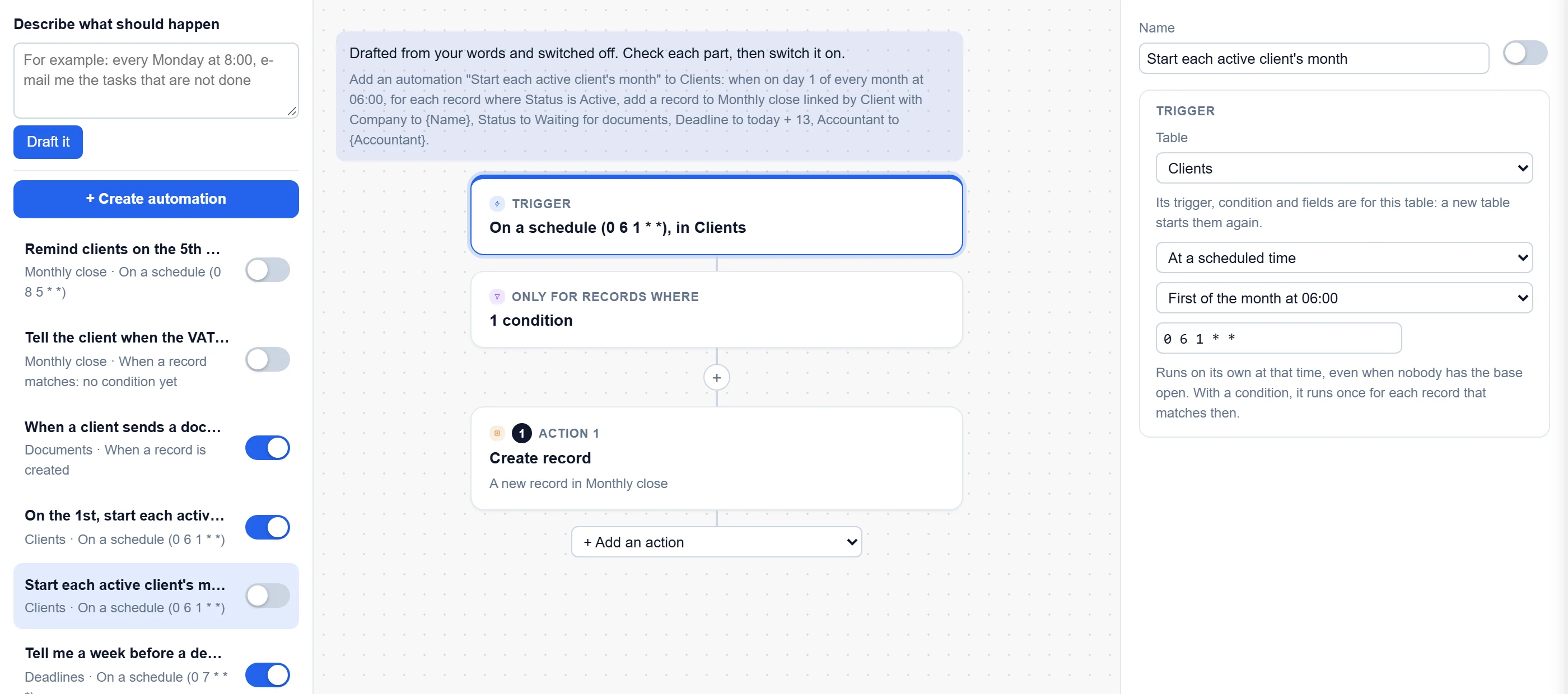
Artavolo picks the table from your words. If they do not say enough, for example which field or which person, a question appears under the box: add the answer to your text and click Draft it again.
The chat of the base does the same: click Assistant and write what should happen. It tells you the automation in words, and makes it, switched on, when you click Apply. See Talk to the AI in your base.
Without your workspace's own AI key, each draft counts as one of your AI uses for the month.
Make your own
- Open Automations and click + Create automation. A new automation appears with a trigger and one action.
- On the right, type a Name that says what it does, such as Tell the facilities team about issues.
- Under Trigger, choose the Table and what starts it, for example A record is created.
- To make it run only for some records, click the Only for records where card, then + Add condition. For example: Result is Issue found.
- Click an action card to set it up, or add one with + Add an action under the cards. For example Send an email: type the address in To, a Subject and the text.
- Try it: under Test on, at the bottom right, pick a record and click Test.
Every change is saved as you make it. The switch next to the name turns the automation off without deleting it.
Use a record's values in the message
Write a field's name in curly brackets and the automation puts in that record's value. For example the subject Issue found in {Room} becomes "Issue found in Reception". This works in e-mails, notices, messages and in the values an action fills in.
What can start an automation
- A record is created: a new record is added, by a person, a form or another app.
- A record changes: any field changes, or only one of the fields you pick.
- A record matches a condition: it runs once, when a record starts to match. For example, when Status becomes Done, and not again while it stays Done.
- A form is sent: any form of the table, or one of them.
- A button is pressed: someone clicks a Button field in the table.
- At a scheduled time: every day, every Monday, or another schedule you choose.
- A webhook is received: another app calls the automation's own web address. See If, Find records, chat messages, AI and scripts.
What an automation can do
- Update the record: fill in fields, with a fixed value or with values from the record.
- Create a record in this table or another, and link it to the record that started it if you like.
- Send an email to up to 20 addresses.
- Show a notice: a message in people's notifications (the bell). Choose who under Also send it to the notifications of:.
- Color the record while it matches the condition, so it stands out in the table.
- Send a Slack, Teams or Google Chat message to a channel.
- Send a text message (SMS or Viber) through your workspace's own SMS or Viber account.
- Call a webhook: send the record to another app's web address.
- If a condition holds, do, Find records and, for each, do, Ask AI and Run a script: the bigger steps, explained in If, Find records, chat messages, AI and scripts in automations.
Actions run in order, top to bottom. To move one, click its card and use the up and down arrows on the right.
Check that it works
Click Run history at the bottom left. Each run shows whether it was Done, failed or stopped, the record it ran on and what each action did. Tick Show every automation's runs to see all the automations of the base together.

Good to know
- Only the owners of a base see and change its automations. An automation acts with the rights of the owner who last saved it, and a record's history names the automation that changed it.
- Automations run on the server for every change: from a person, a form, the API, AI chat, an AI agent or another automation.
- One automation can set off another, up to four in a row. Past that the run stops and says so, so automations cannot loop forever.
- E-mails and webhooks go out once the change is saved.
- A scheduled run with a condition runs once for each matching record, up to 500 records. The base keeps its last 500 runs.
- On a self-hosted installation, e-mail goes out only once SMTP is set up, and scheduled automations need the server's scheduled job running.
- Start small: an automation that e-mails on every change of a busy table teaches people to ignore it.