If, Find records, chat messages, AI and scripts in automations
Updated
Besides updating and creating records, sending e-mails and calling webhooks, an automation can make decisions, work through many records at once, post to your team's chat, ask your AI service to write something, run your own JavaScript, and start when another system calls it. All of these are in the Action list of an automation; the trigger is in its Trigger card. See Automate routine work for the basics.
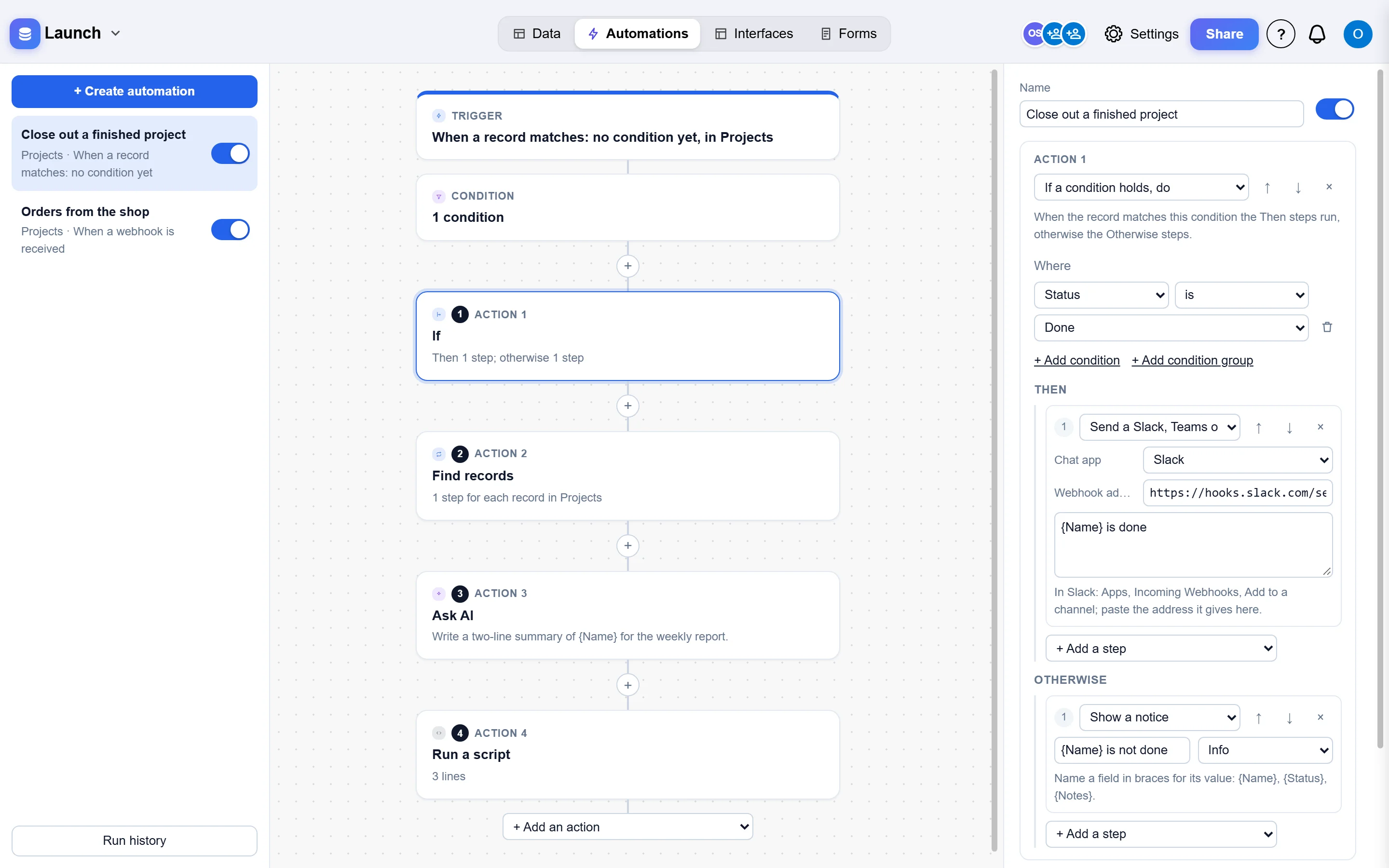
If a condition holds, do
- Add the action If a condition holds, do.
- Under Where, set the condition on the record's fields, as in a view's filter.
- Add steps under Then, run when the record matches, and under Otherwise, run when it does not.
For example: when an invoice is created, if its Amount is over 10,000 send it for approval, otherwise mark it Approved.
Find records and, for each, do
- Add the action Find records and, for each, do and pick the table under Find in.
- Narrow it under Records where, and set At most (100 to start, up to 1,000).
- Add the steps to run For each record found.
In those steps {Field} is the found record's field, {trigger.Field} the field of the record that started the automation, and {found} how many records were found. Update the record there updates the found record. For example: when a project is set to Done, find its open tasks and set each one to Cancelled.
An If or a Find records step can hold another one, but no deeper. A script and a color are steps of the automation itself, not inside these.
Send a Slack, Teams or Google Chat message
Pick the chat app, paste the address the app gives for a channel, and write the message with fields in braces: {Task} is blocked, ask {Owner}.
- Slack: at api.slack.com/apps create an app for your workspace, turn on Incoming Webhooks, click Add New Webhook, pick the channel and copy the address (it starts with
https://hooks.slack.com/). - Microsoft Teams: in the channel, open Workflows from its ... menu, choose Post to a channel when a webhook request is received, follow the steps and copy the address it shows at the end.
- Google Chat (Google Workspace accounts): open the space, click its name, choose Apps and integrations, Webhooks, Add webhook, name it and copy the address.
A message goes only to that app's own addresses, and is sent once the change is saved. The run history says whether the app took it.
Ask AI
Write a prompt with fields in braces, for example Write a two-line summary of {Name} for the weekly report or Is this message a complaint, a question or praise? Answer with one word: {Message}. Under Put the answer in pick a text field of the record, or leave it empty and use {ai} in the next steps, such as a message or an e-mail.
It uses the workspace's AI service and key, set by an owner in the workspace settings under AI; see AI assistant. A workspace runs up to 500 AI steps a day.
Run a script
A script is JavaScript, written the way Airtable's automation scripts are:
const config = input.config()            // the record's fields, as text, by name
const tasks = base.getTable('Tasks')
const query = await tasks.selectRecordsAsync()
let open = 0
for (const r of query.records) {
  const done = r.getCellValueAsString('Status') === 'Done'
  if (r.getCellValueAsString('Project') === config.Name && !done) open++
}
output.set('open', open) // {script.open} in the next stepsinput.config()holds the fields of the record that started the automation, by name, and itsrecordId.base.getTable('Name')reads and changes a table:selectRecordsAsync,updateRecordAsync(id, {Field: value}),createRecordAsync({...}),deleteRecordAsync(id)and their plural forms. A record hasgetCellValueandgetCellValueAsString.output.set('name', value)hands a value to the next steps as{script.name};console.loglines show in the run history.fetchcalls https addresses that allow it.
A script runs in the page of the person whose change started the automation, in a sealed-off sandbox, with what that person may do in the base, for up to 30 seconds. It cannot see the page, its sign-in or its storage. Because it needs that page, a script step works when a person makes the change (an edit, a button, a test), and stops with a message in the run history when the automation was started by a schedule, a webhook or the API. If the page is closed before the script runs, the run stops after 10 minutes and says so.
A webhook starts it
- Choose the trigger A webhook is received. The automation gets an address of its own; Copy it.
- Have the other system send a POST to it with a JSON body, for example your shop when an order is paid:
{"name": "Ada Lovelace", "order": {"id": 1042, "total": 59}}. - In the steps, the body's values are
{webhook.name},{webhook.order.id}and{webhook.order.total};{webhook}is the whole body. Start with Create a record to keep each call as a record.
The run has no record of its own, so its condition does not apply. Anyone with the address can start the automation: keep it secret, and use Make a new address if it gets out. An address starts at most 60 runs a minute.