Свържете Claude, ChatGPT или Le Chat с вашите бази
Обновено
Connect the chat app you already use, Claude, ChatGPT or Le Chat, to Artavolo, and work on your tables by asking in plain words: "what is due this week?", "add a client called Anna Berg", "set Status to Done for every request from Daniel". The chat acts as you, so it sees and changes only what you can.
Гледайте за минута и половина: свързване веднъж, после промяна, изтриване и отмяна на записи с молба, и какво вижда клиентът на своята страница.
The link between your chat app and Artavolo is called a connector. You add it once; after that the chat can look things up and make changes whenever you ask.
Step 1: Copy the connector's address
- Отворете база и щракнете върху снимката или инициала си горе вдясно.
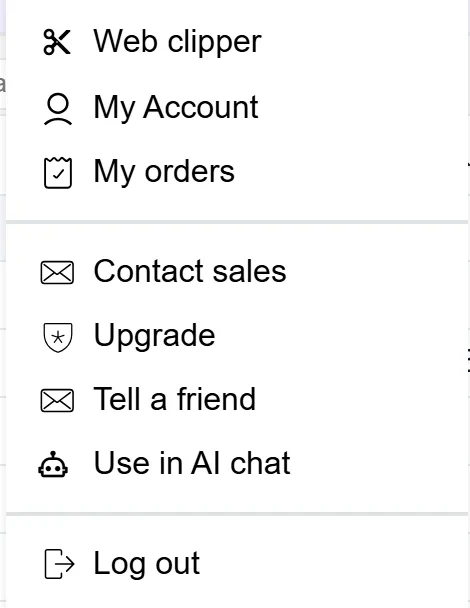
- Изберете Използвай в AI чата.
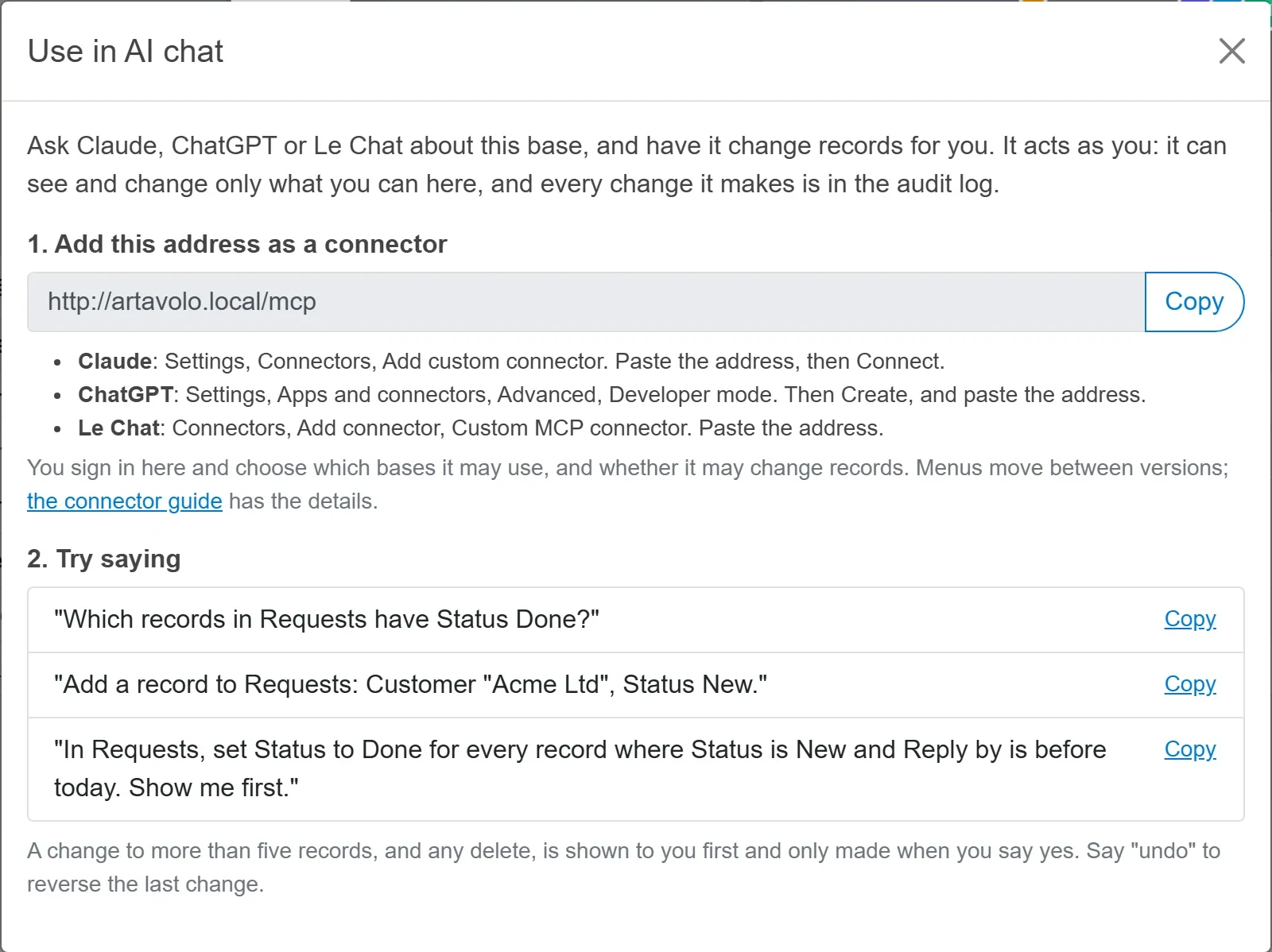
- In the window that opens, click Копирай next to the address under 1. Добавете този адрес като конектор.
Step 2: Add it to your chat app
The window gives the short way for each app:
- Claude: Настройки, Конектори, Добавяне на собствен конектор. Поставете адреса, после Свързване.
- ChatGPT: Настройки, Приложения и конектори, Разширени, Режим за разработчици. После Създаване и поставете адреса.
- Le Chat: Конектори, Добавяне на конектор, Собствен MCP конектор. Поставете адреса.
These menus belong to the chat apps and move between versions. If you cannot find one, the connector guide съдържа подробностите.
Step 3: Say yes in Artavolo
Чат приложението ви отваря страница на Artavolo. Влезте, ако бъдете помолени.
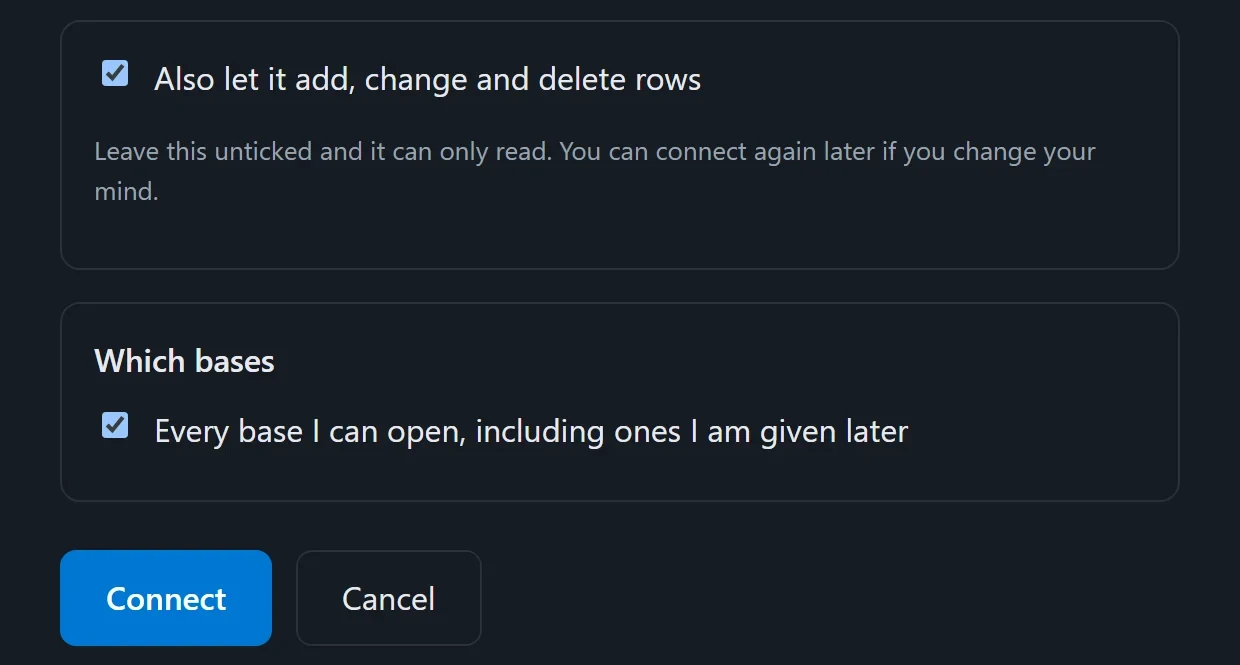
- Tick Also let it add, change and delete rows if the chat should change records. Leave it unticked and it can only read.
- Под Which bases оставете Every base I can open, including ones I am given later отметнато или махнете отметката и изберете какво може да ползва.
- Click Свържи. You are sent back to your chat app.
Изборът, когато махнете отметката от Every base I can open:
- Базите са изброени под работното си пространство. Отметнете пространство, за да дадете всички бази в него, включително добавените по-късно.
- Или отметнете отделни бази. При много бази напишете част от името във Find a base.
- Когато промените са разрешени, изберете Read and change или Само за четене до всяко отметнато пространство или база. В база с Само за четене чатът може да търси, но не и да променя.
Now ask away. The Използвай в AI чата window suggests three things to try, written from the table you have open, each with Копирай.
Какво може да прави чатът
- List your bases and describe a table's fields.
- Find records by what they hold, or search for text across every base you can open.
- Add records, up to 50 at a time.
- Change the records that match what you say, or delete records. Deleted records go to the table's trash for 30 days.
- Say "undo" to take back its latest change, and again to go further back.
Безопасно по замисъл
- Промяна на повече от пет записа и всяко изтриване ви се показват първо и се извършват само когато кажете да.
- Дневникът на промените записва вас и приложението, от което идва промяната, например „чрез Claude“.
- Text inside your records is treated as data, never as orders to the chat.
Променете какво може да ползва
- Click your picture or initial at the top right and choose Моят профил.
- Scroll to API токени and click Manage tokens.
- Под Connected assistants натиснете Change access до приложението.
- Изберете отново, както при свързването, и натиснете Запази. Важи от следващата заявка на чата; не се свързвате отново.
Спрете връзка
- Click your picture or initial at the top right and choose Моят профил.
- Scroll to API токени and click Manage tokens.
- Under Connected assistants, click Withdraw next to the app. It stops working on its next request.
Добре е да знаете
- Човек, който може само да чете в база, може само да чете и през чата.
- Всеки човек може да променя до 1000 записа на ден чрез AI чат.
- Формулите, справките и обобщенията идват с всеки запис, изчислени така, както ги показва таблицата.
- Една връзка не може да отменя промените на друга.
- A workspace owner can stop changes from AI chat for the whole workspace: Настройки, Integrations, the AI чат tab, switch off Хората могат да променят записи от AI чата. Reading keeps working.
- What the chat reads goes to that chat service, under your own account with it. The connector itself runs on Artavolo's server.
- The chat answers only when you ask; it cannot message you on its own.
- This needs no AI key in the workspace: each person uses their own chat app.
- On a server of your own, writing stays off until an administrator turns it on in the administration settings, and the connector needs an https address.