Connect Claude, ChatGPT or Le Chat to your bases
Updated
Connect the chat app you already use, Claude, ChatGPT or Le Chat, to Artavolo, and work on your tables by asking in plain words: "what is due this week?", "add a client called Anna Berg", "set Status to Done for every request from Daniel". The chat acts as you, so it sees and changes only what you can.
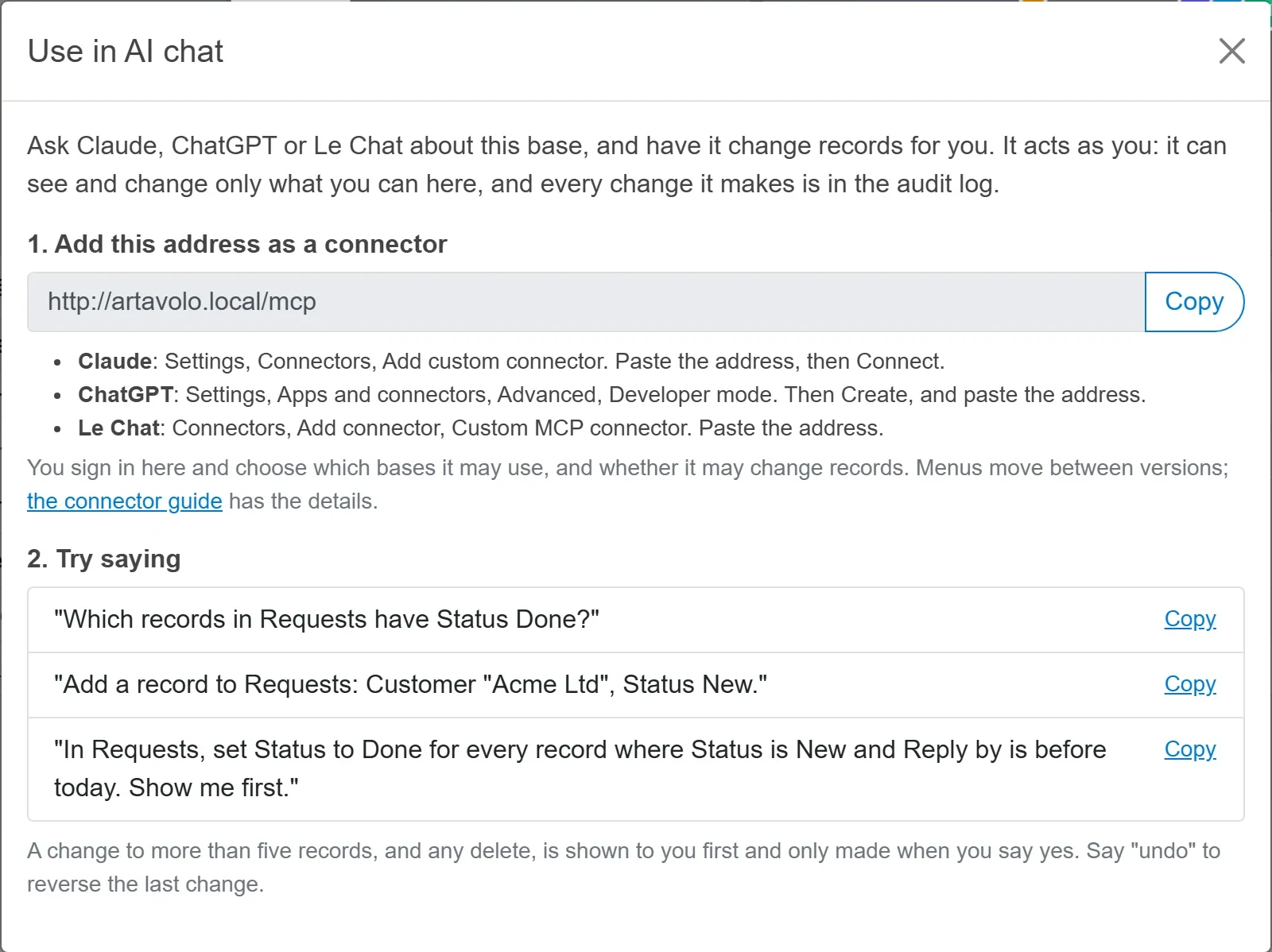
Watch it in a minute and a half: connecting once, then changing, deleting and undoing records by asking, and what your client sees on their own page.
The link between your chat app and Artavolo is called a connector. You add it once; after that the chat can look things up and make changes whenever you ask.
Step 1: Copy the connector's address
- Open a base and click your picture or initial at the top right.
- Choose Use in AI chat.
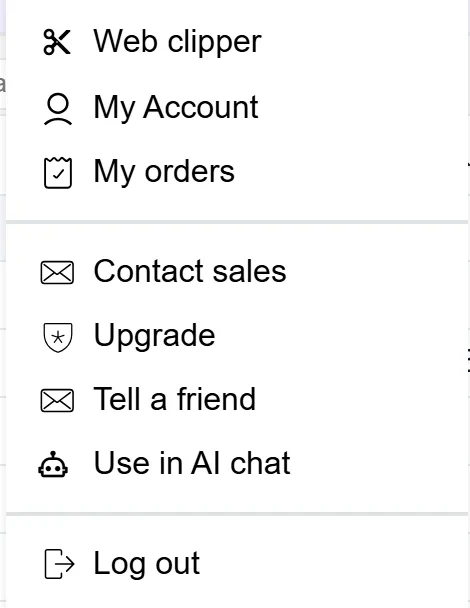
- In the window that opens, click Copy next to the address under 1. Add this address as a connector.
Step 2: Add it to your chat app
The window gives the short way for each app:
- Claude: Settings, Connectors, Add custom connector. Paste the address, then Connect.
- ChatGPT: Settings, Apps and connectors, Advanced, Developer mode. Then Create, and paste the address.
- Le Chat: Connectors, Add connector, Custom MCP connector. Paste the address.
These menus belong to the chat apps and move between versions. If you cannot find one, the connector guide has the details.
Step 3: Say yes in Artavolo
Your chat app opens an Artavolo page. Sign in if asked.
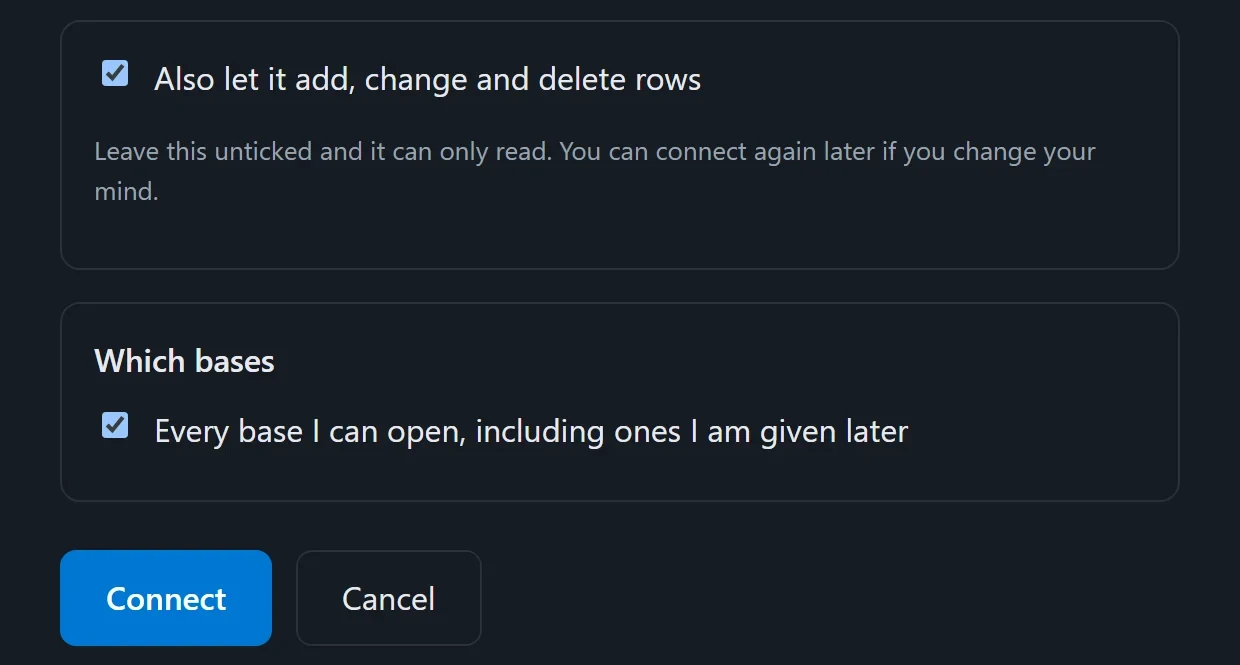
- Tick Also let it add, change and delete rows if the chat should change records. Leave it unticked and it can only read.
- Under Which bases, leave Every base I can open, including ones I am given later ticked, or untick it and choose what it may use.
- Click Connect. You are sent back to your chat app.
Choosing, when you untick Every base I can open:
- Bases are listed under their workspace. Tick a workspace to give every base in it, including bases added to it later.
- Or tick single bases. With many bases, type part of a name in Find a base.
- When changes are allowed, choose Read and change or Read only beside each workspace or base you ticked. In a base set to Read only the chat can look things up but not change them.
Now ask away. The Use in AI chat window suggests three things to try, written from the table you have open, each with Copy.
What the chat can do
- List your bases and describe a table's fields.
- Find records by what they hold, or search for text across every base you can open.
- Add records, up to 50 at a time.
- Change the records that match what you say, or delete records. Deleted records go to the table's trash for 30 days.
- Say "undo" to take back its latest change, and again to go further back.
Safe by design
- A change to more than five records, and any delete, is shown to you first and made only when you say yes.
- The audit log records you and the app the change came from, for example "via Claude".
- Text inside your records is treated as data, never as orders to the chat.
Change what it can use
- Click your picture or initial at the top right and choose My Account.
- Scroll to API Tokens and click Manage tokens.
- Under Connected assistants, click Change access next to the app.
- Choose again, as when you connected, and click Save. It counts from the chat's next request; you do not connect again.
Stop a connection
- Click your picture or initial at the top right and choose My Account.
- Scroll to API Tokens and click Manage tokens.
- Under Connected assistants, click Withdraw next to the app. It stops working on its next request.
Good to know
- A person who can only read in a base can only read through the chat too.
- Each person can change up to 1,000 records a day through AI chat.
- Formulas, lookups and rollups come with each record, worked out as the table shows them.
- One connection cannot undo another's changes.
- A workspace owner can stop changes from AI chat for the whole workspace: Settings, Integrations, the AI chat tab, switch off People may change records from AI chat. Reading keeps working.
- What the chat reads goes to that chat service, under your own account with it. The connector itself runs on Artavolo's server.
- The chat answers only when you ask; it cannot message you on its own.
- This needs no AI key in the workspace: each person uses their own chat app.
- On a server of your own, writing stays off until an administrator turns it on in the administration settings, and the connector needs an https address.