Поле потребител: възлагайте записи на хора
Обновено
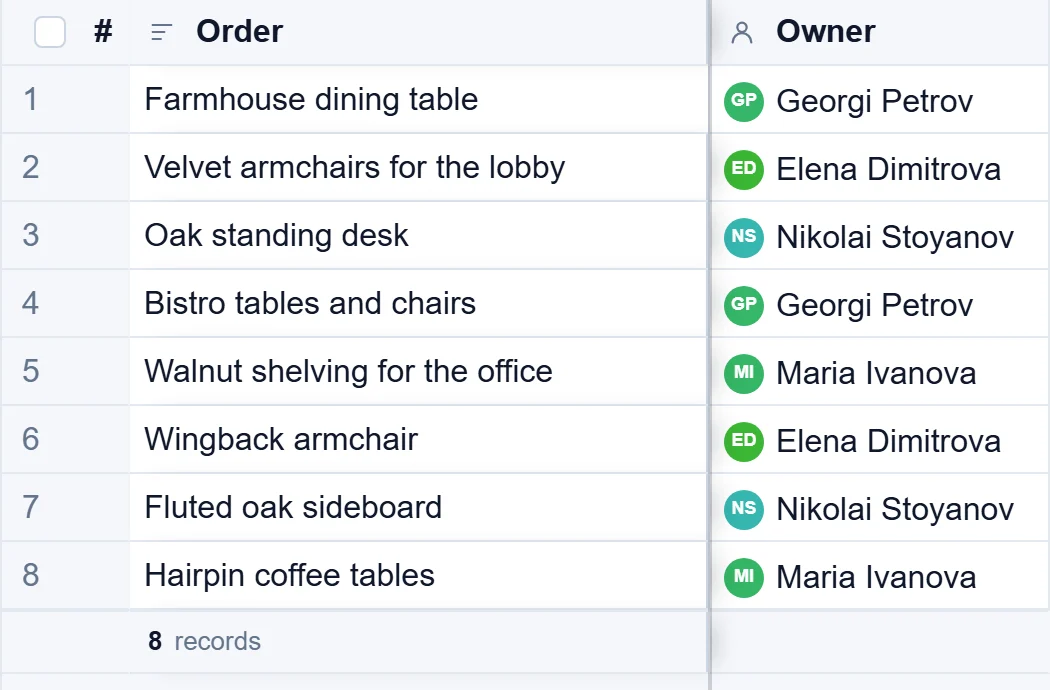
A User field holds a person, or several, from the people who work in the base. Use it to say who handles an order, who owns a task or who approved an expense. Each person shows with their photo or initials, and each of them can have a list of just their own records.
Добавете поле Потребител
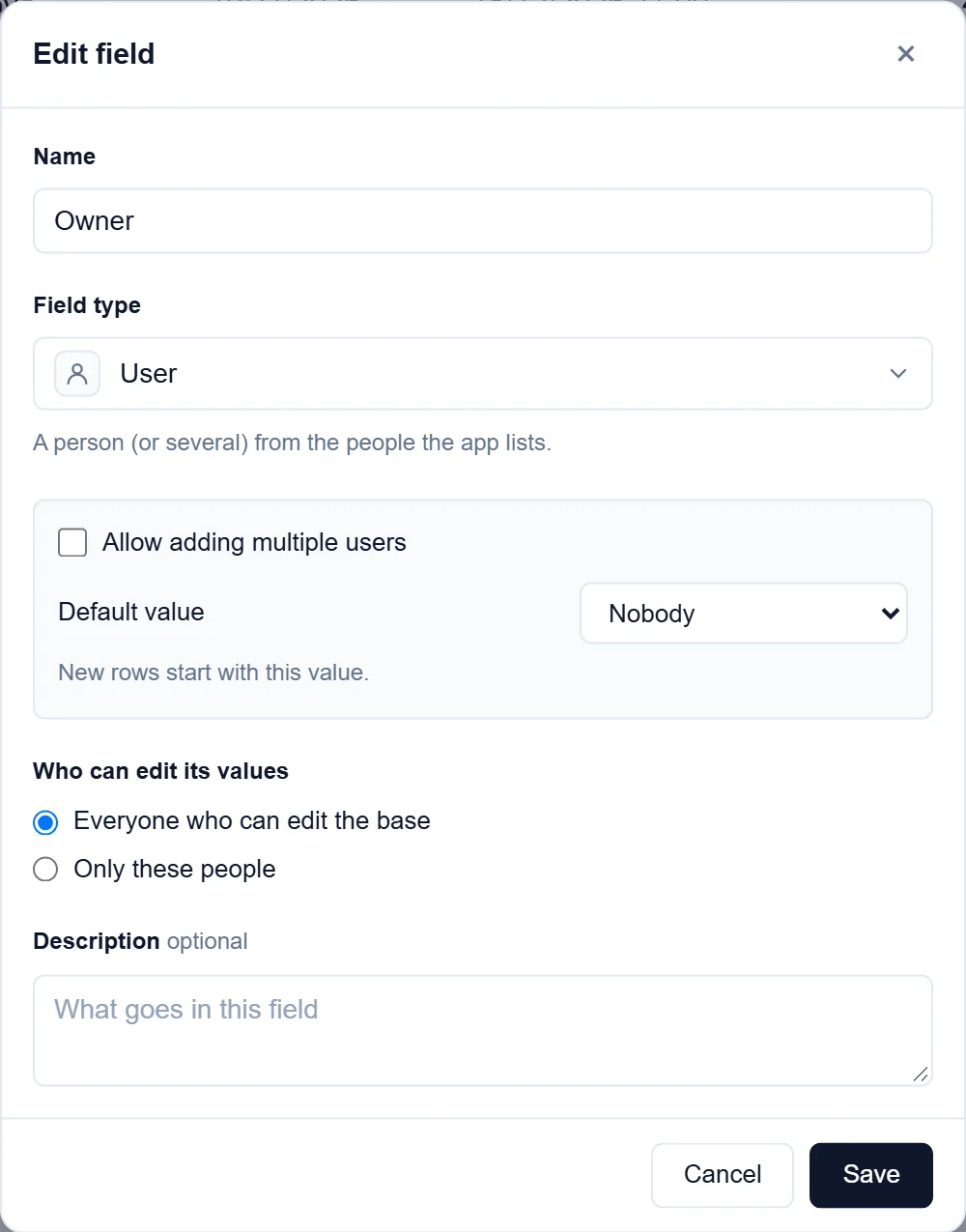
- Press the + at the right end of the column names.
- Type a Име, such as Отговорник, and choose User under Field type.
- Tick Allow adding multiple users if a record can belong to a group of people. Leave it off for one owner.
- If new records should start with someone, pick them under Default value.
- Натиснете Създай поле.
Assign a record
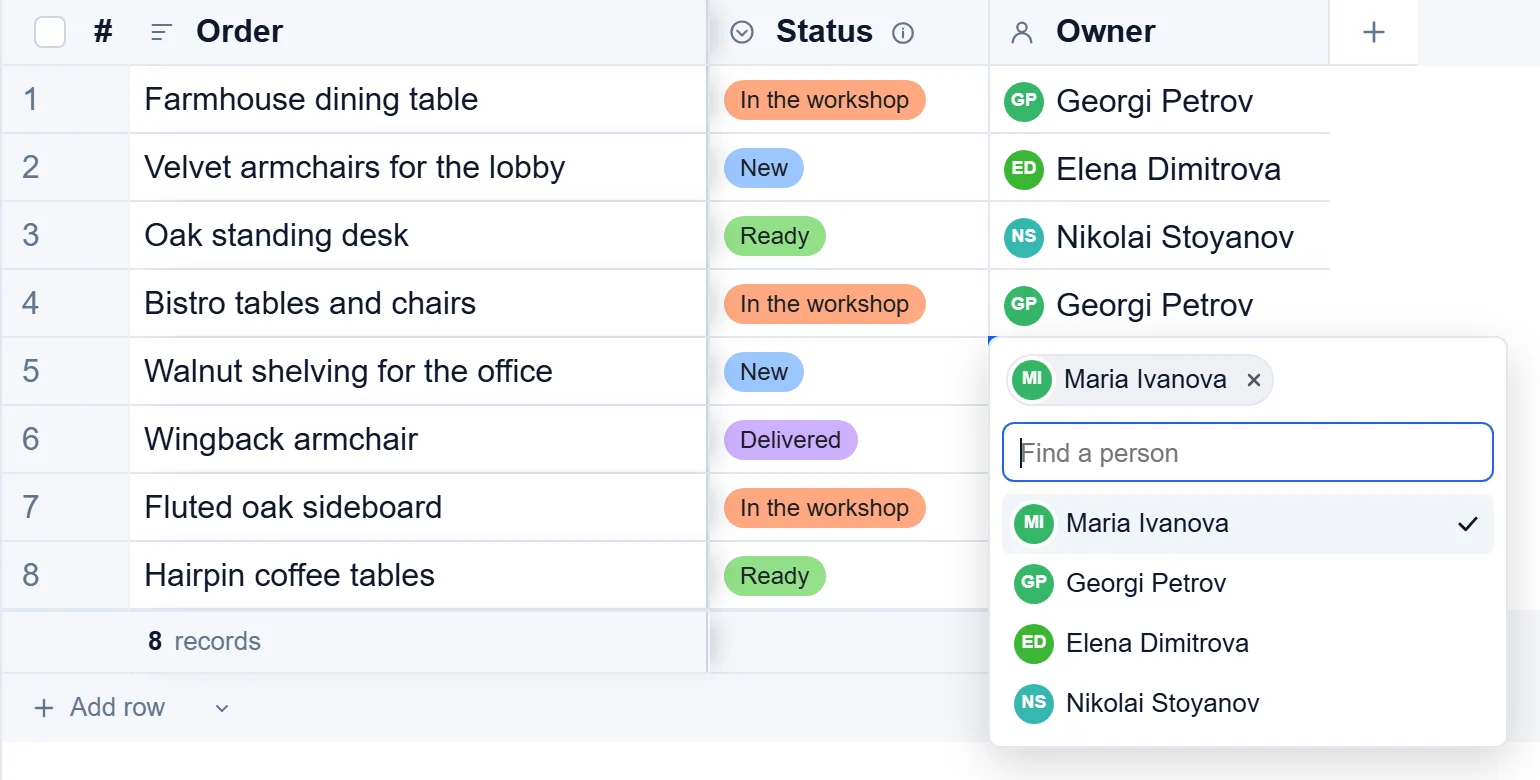
- Double-click the cell. The list of people opens.
- Click a name, or type in Find a person. To take someone off, click the × next to their name at the top.
An AI agent with access to the base is listed like anyone else, so you can hand a record to an agent.
Дайте на всеки собствен списък
- Filter a view on Owner is a person and save it as a personal view, so each person sees only their own records.
- A Kanban board can have one column per person, using a User field that holds one person. Dragging a card hands the record to someone else.
- Групирайте табличен изглед по полето Потребител, за да видите записите на всеки човек заедно.
Ограничете кой какви записи вижда
An owner can give a table a row rule, such as "only records where Owner is them". Each person then sees only the records that name them, in every view, in the API and in AI chat. Agents follow the same rules. See Roles and permissions.
Добре е да знаете
- Могат да се избират само хора с достъп до базата. Първо поканете някого; вижте Споделяне на база и покана на хора.
- Два други типа полета съдържат хора и се попълват сами: Създадено от (кой е добавил записа) и Последна промяна от (кой го е променил последно). Никой не може да ги редактира.
- За да привлечете вниманието на някого към запис, споменете го в коментар с @; той получава известие.
- На телефон списъкът с хора се отваря от долната част на екрана.
- От Airtable полетата за сътрудници идват като полета Потребител. Хората, които още не са се присъединили, се показват с име и „(още не е присъединен)“, докато не го направят.