Създайте база или таблица
Обновено
Everything you keep in Artavolo lives in a base. You make a base from Home in one of four ways, and then add tables to it for each kind of thing you keep a list of. This page shows each step.

Choose how to start
Go to Home (click the Artavolo logo, or Начало at the top). Under Започнете да изграждате there are four cards:
- Пренесете вашата база от Airtable copies your Airtable bases with their records, links, formulas, files and comments. See Преминете от Airtable.
- Започнете от шаблон opens the template gallery: ready-made bases with views and example records. Best if you are new. See Започнете от шаблон.
- Импортирайте електронна таблица makes a base from an Excel, CSV, JSON or Access file, from rows you paste, or from exports of other apps. See Импортиране на CSV, Excel или JSON файл.
- Започнете от нулата makes an empty base for you to fill.
Not sure which template fits? Under the cards, Какво организирате? lists common kinds of work, such as Проекти и задачи, Клиенти и продажби or Складови наличности и инвентар. Each opens a template made for it.
Започнете от нулата
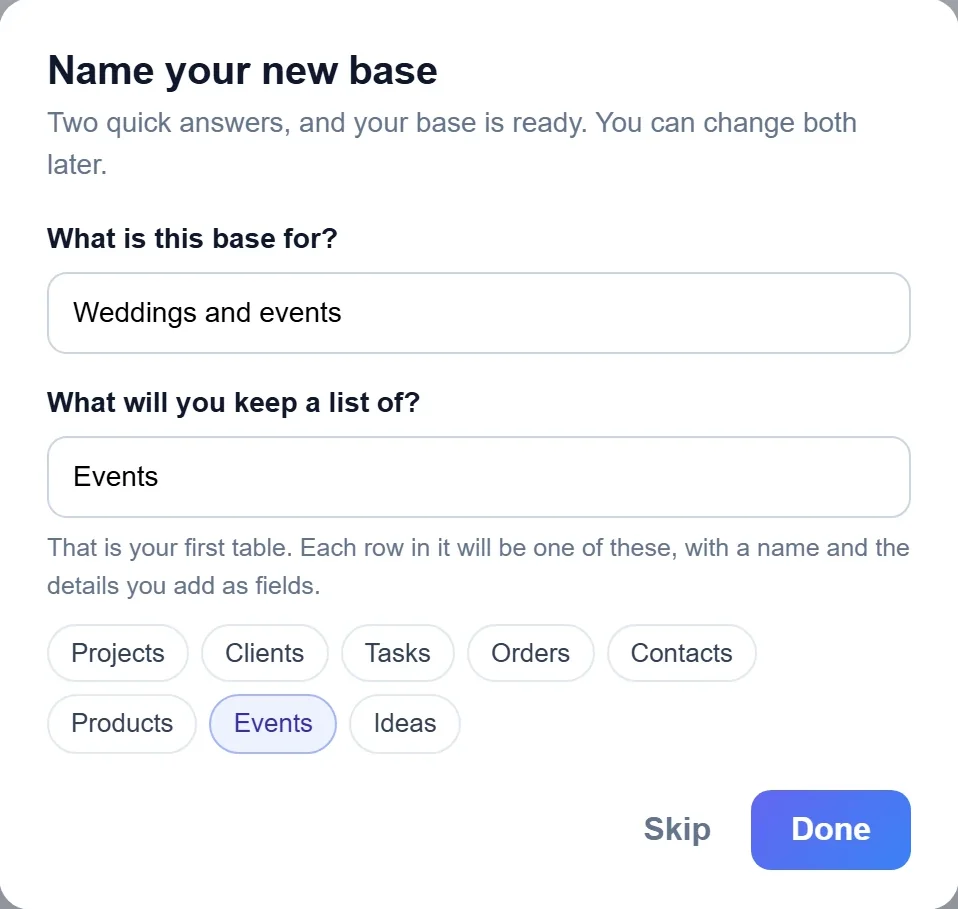
- Click Започнете от нулата. The new base opens and asks two questions.
- Under За какво е тази база?, type a name for the base, for example Weddings and events.
- Under За какво ще водите списък?, type what your first table holds, or click a suggestion such as Клиенти, Поръчки or Събития.
- Click Готово. (Пропусни keeps the names New Base; you can rename both later.)
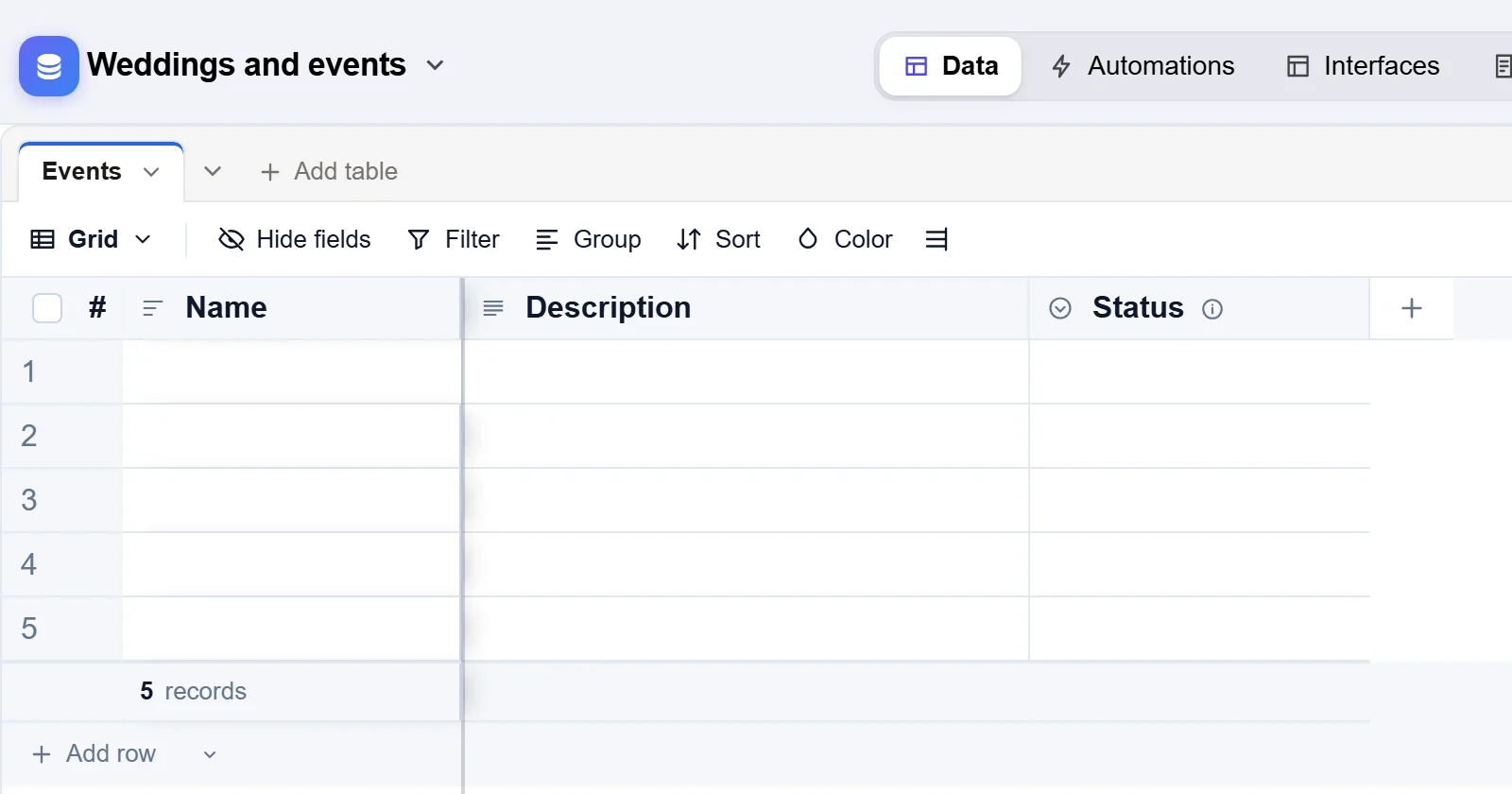
Your base is ready. Its first table has three fields to start with (Име, Описание и Статус) and a few empty rows to type in:
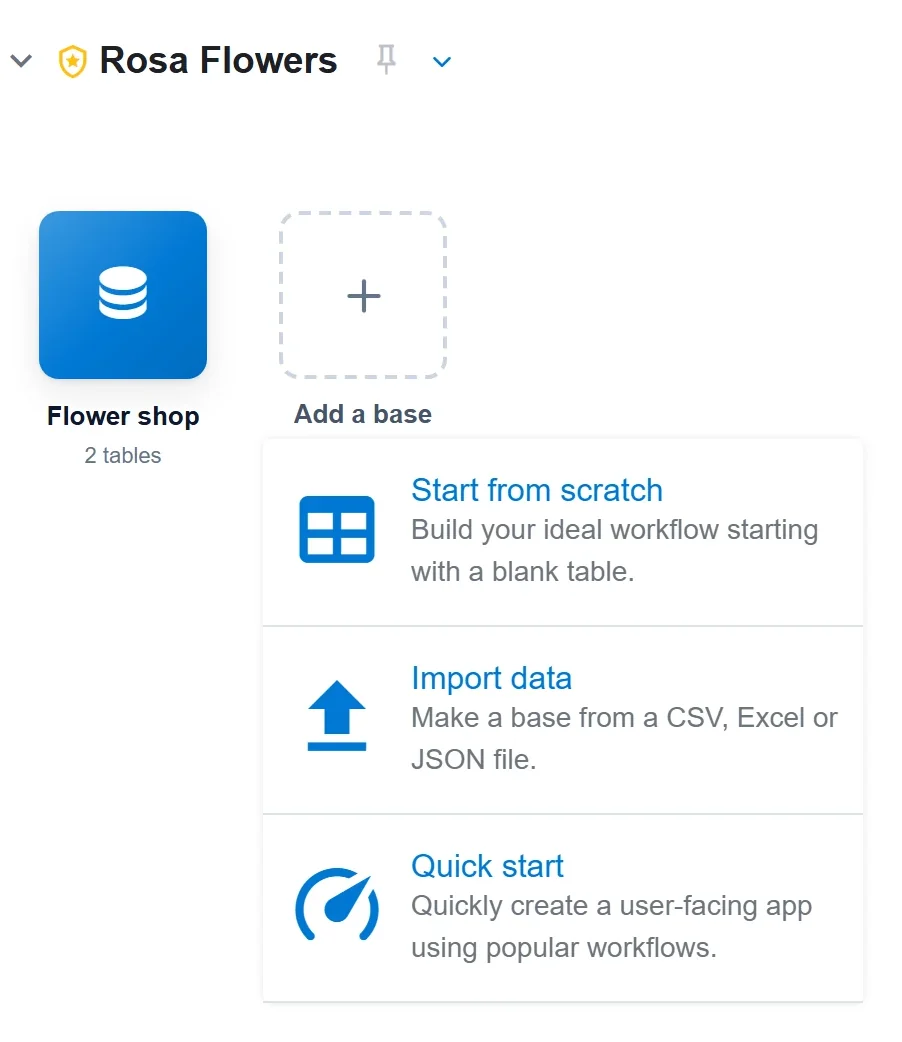
A base in another workspace
The Започнете да изграждате cards use your first workspace. To make a base in a different workspace, scroll down Home to that workspace, click Add a base after its bases, and choose Започнете от нулата or Импортирайте данни.
Добавяне на таблица към база
- Open the base. You are in the Данни section.
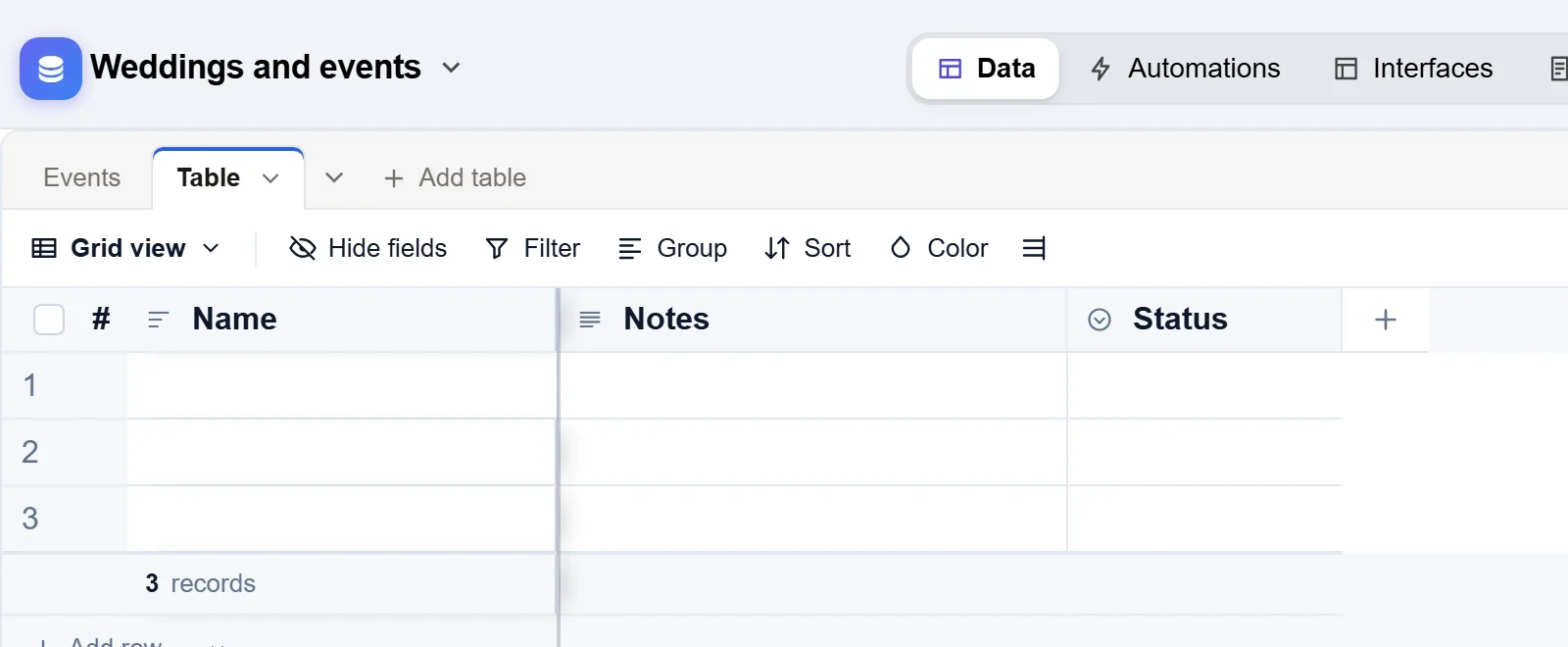
- Click Add table, to the right of the table tabs. A new table called Таблица opens at once, with a few empty rows.
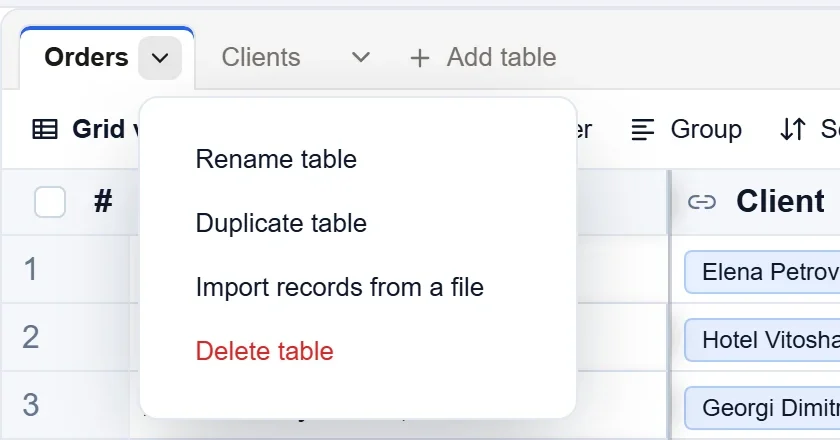
- To rename it, click the small arrow on its tab and choose Rename table.
The same arrow on a tab also has Duplicate table, Import records from a file и Delete table:
Таблицата вече е в Excel? Щракнете върху малката стрелка вдясно от Добави таблица и изберете Импортирай файл като таблица.
Добавяне на полета и записи
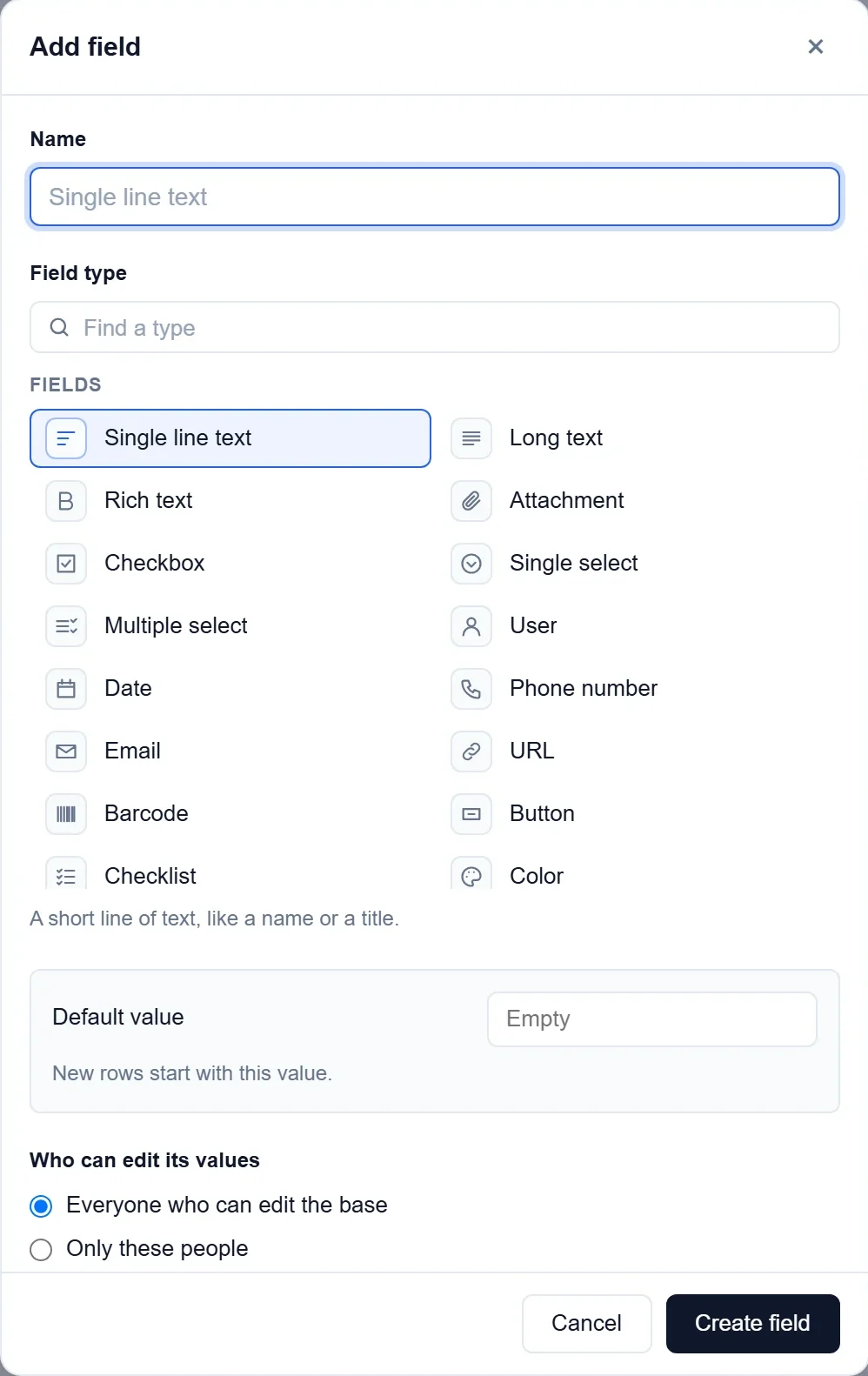
- To add a field, click the + at the right end of the column names. Type a Име, pick a Field type (type in Find a type to search the list), and click Create field.
- To add a record, click Add row under the last row and type. On a phone, tap the round + button.
- You can also copy rows in Excel or Google Sheets and paste them into the grid. If they run past the last row, Artavolo asks whether to add them as new records.
Добре е да знаете
- Only owners of a workspace create bases in it, up to the number of bases on its plan. When the limit is reached, Artavolo says so and suggests an upgrade.
- Само собствениците на база добавят, преименуват, дублират и изтриват таблици и полета. Базата винаги запазва поне една таблица.
- Изтрита таблица отива в кошчето заедно със своите записи и изгледи и може да бъде възстановена в рамките на 30 дни.
- On a phone, open the list of tables with the arrow at the start of the tab bar and choose Add table; add a field from the fields button with Add a field.