Редактиране, дублиране, преместване или изтриване на поле
Обновено
Every field has a menu with everything you can do to it: change its name, type and options, add a field next to it, copy it, move it or delete it. To open it, point at the field's name at the top of the table and click the menu button (three short lines) that appears at its right.
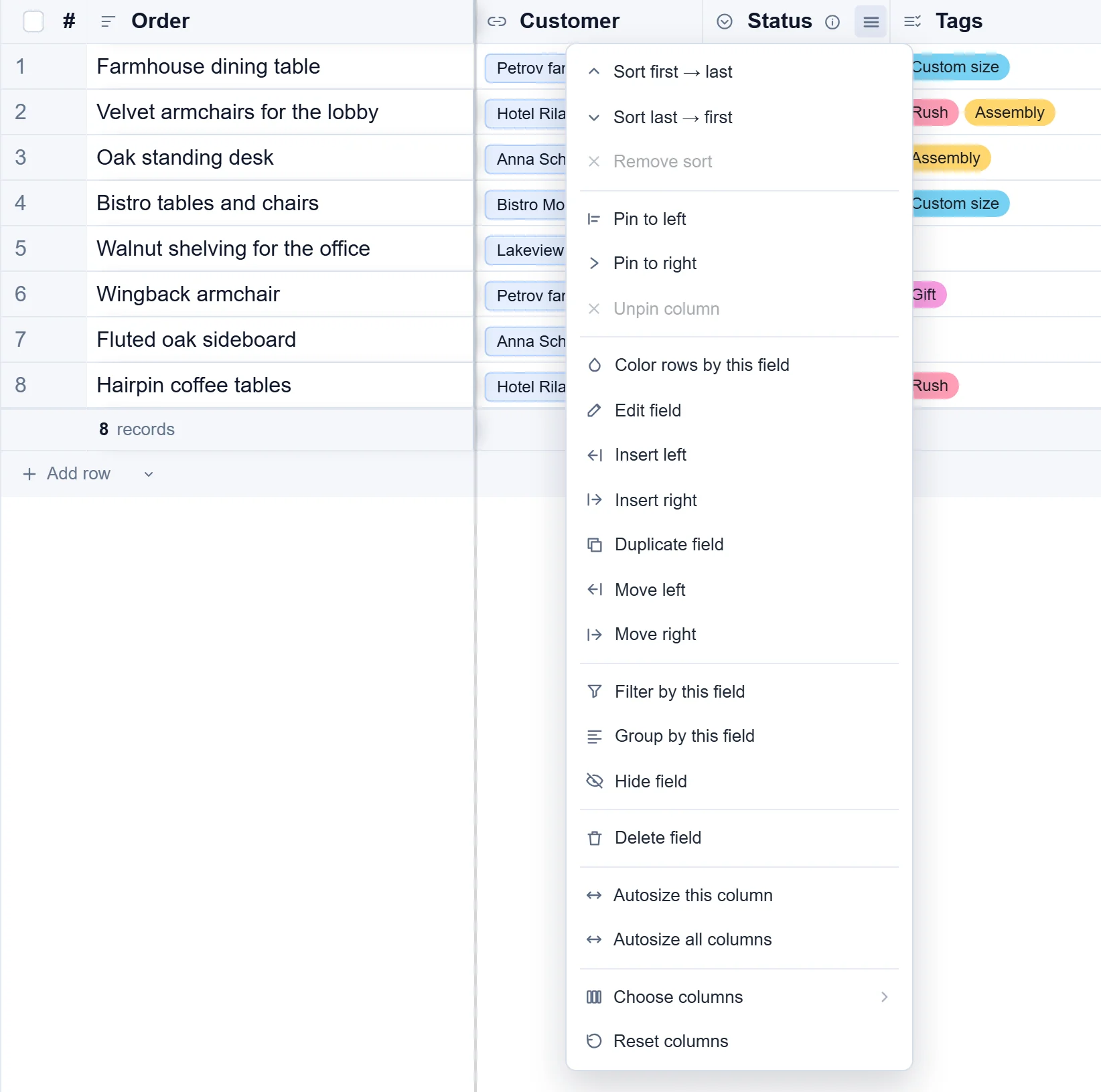
Редактиране на поле
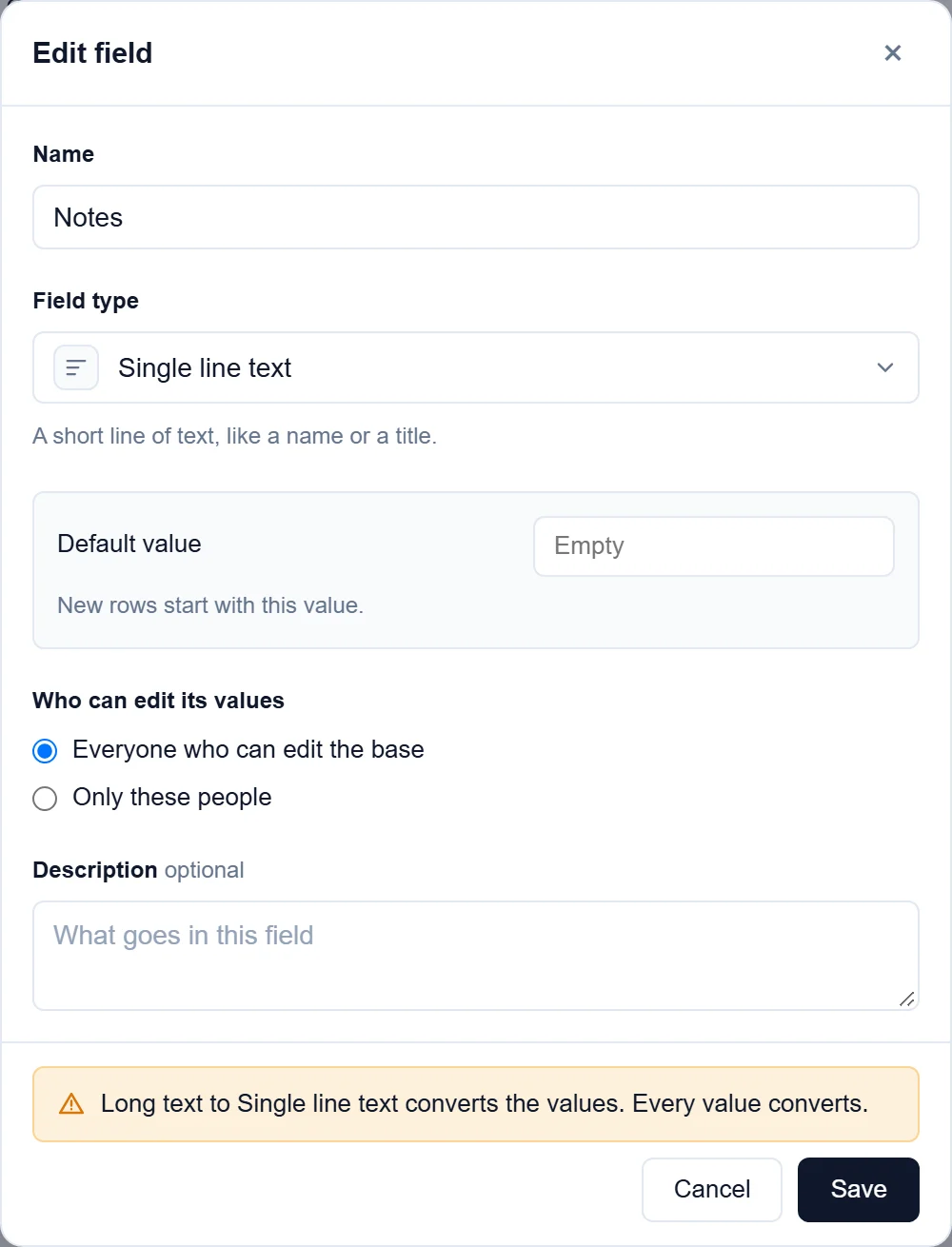
- Отворете менюто на полето и изберете Редактиране на полето.
- Change its Име, its Field type, its options, Who can edit its values or its Описание.
- Натиснете Запиши.
Changing the type converts the values where it can. Before you save, a note at the bottom of the window says what it converts and how many values would be cleared or cut short. If the result is not what you wanted, Ctrl+Z puts the field back as it was.
Add a field next to it, or copy it
- Вмъкни отляво и Вмъкни отдясно добавят ново поле до това.
- Duplicate field adds a copy beside it, named after it with "copy" added, such as Notes copy, with its settings and its values.
Преместване, закрепване и оразмеряване на поле
- Премести наляво и Премести надясно move it one place in this view. You can also drag the field's name, or drag it in Hide fields above the table.
- Pin to left or Pin to right keeps it in sight while you scroll sideways. Unpin column lets it scroll again.
- Autosize this column fits the width to the values; Autosize all columns does it for every field.
Shortcuts
The sort items at the top, Color rows by this field, Filter by this field, Group by this field и Hide field do what the buttons above the table do, for this field, in this view only.
Изтриване на поле
- Отворете менюто на полето и изберете Изтрий поле.
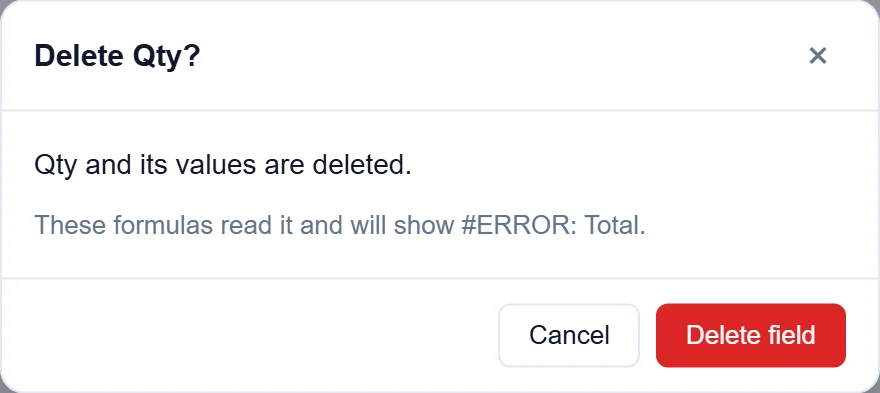
- If other fields read this one, a window asks first and names them, such as the formulas that will show
#ERROR. Press Delete field to go ahead, or Отказ.
Полето изчезва от всеки изглед и отива в кошчето със своите стойности, откъдето може да бъде възстановено в рамките на 30 дни. Ctrl+Z отменя изтриването веднага.
Добре е да знаете
- Only the base's owners edit, add, copy and delete fields. Moving and hiding a field changes the view, which owners also control.
- Changing a field changes it for every view of the table. Hiding and moving change only the view you are in.
- The first field, the record's name, is always shown and cannot be hidden.
- На телефон менюто на полето се отваря от долната част на екрана. Можете да отворите и Скрий полета, където всяко поле има молив за редактиране, а Добави поле добавя ново.