Number, currency and percent fields
Updated
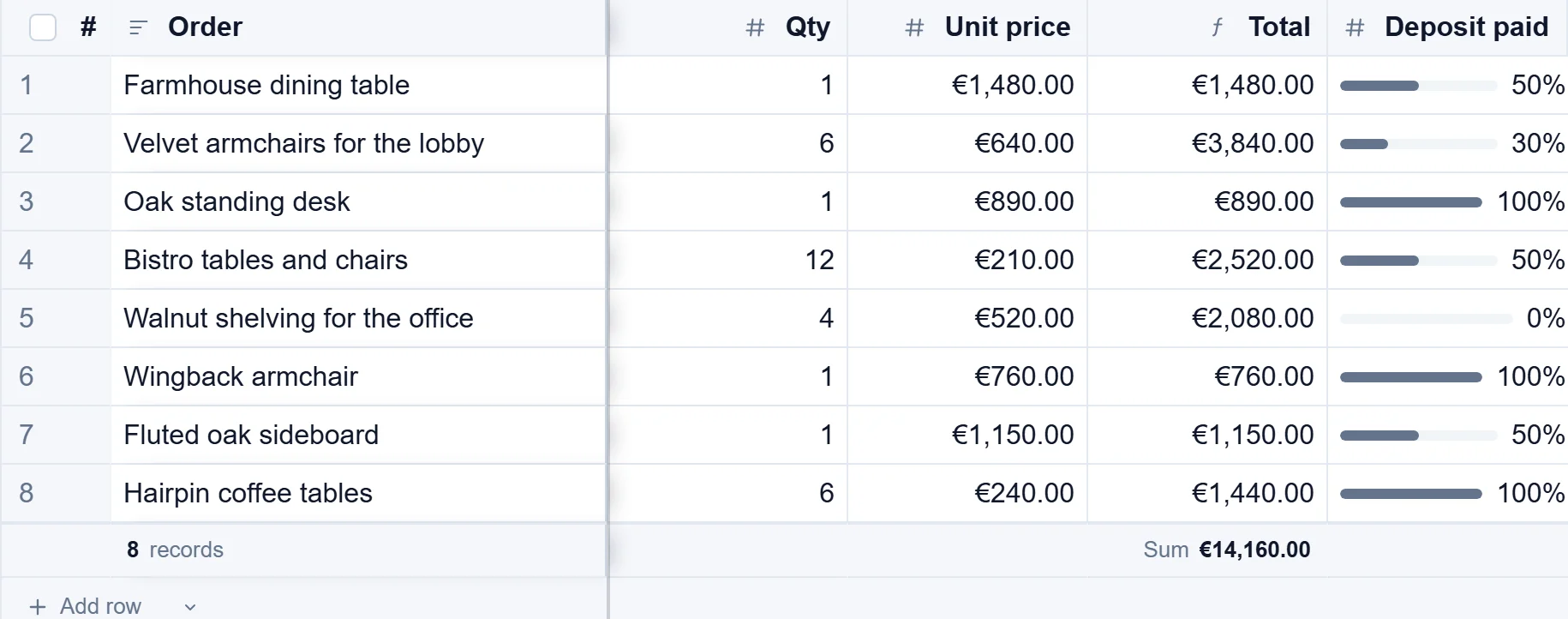
A Number field holds numbers only: a quantity, a price, a share that has been paid. Because they are real numbers, the table can add them up, sort them from small to large and filter them, such as "orders over 1,000 euros". One field type covers whole numbers, decimals, money and percentages.
Add a Number field
- Press the + at the right end of the column names.
- Type a Name and choose Number under Field type.
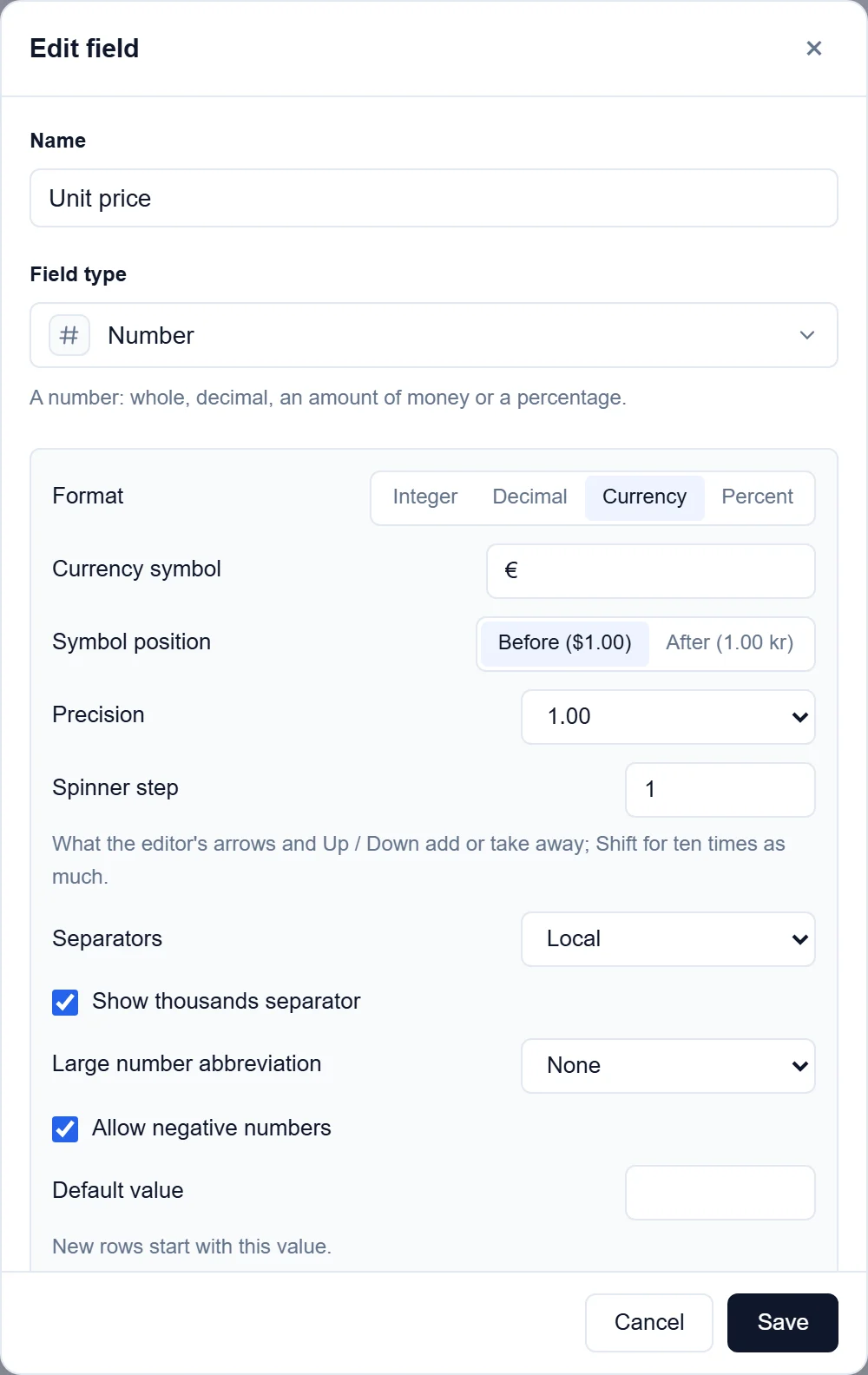
- Under Format, click Integer (whole numbers), Decimal, Currency (money) or Percent.
- Set the options that appear (see below), then press Create field.
Amounts of money
With Currency, type the Currency symbol, such as €, £, лв or CHF, and choose where it goes under Symbol position: Before ($1.00) or After (1.00 kr). Precision sets the decimal places; money starts with two.
Show a percentage as a bar
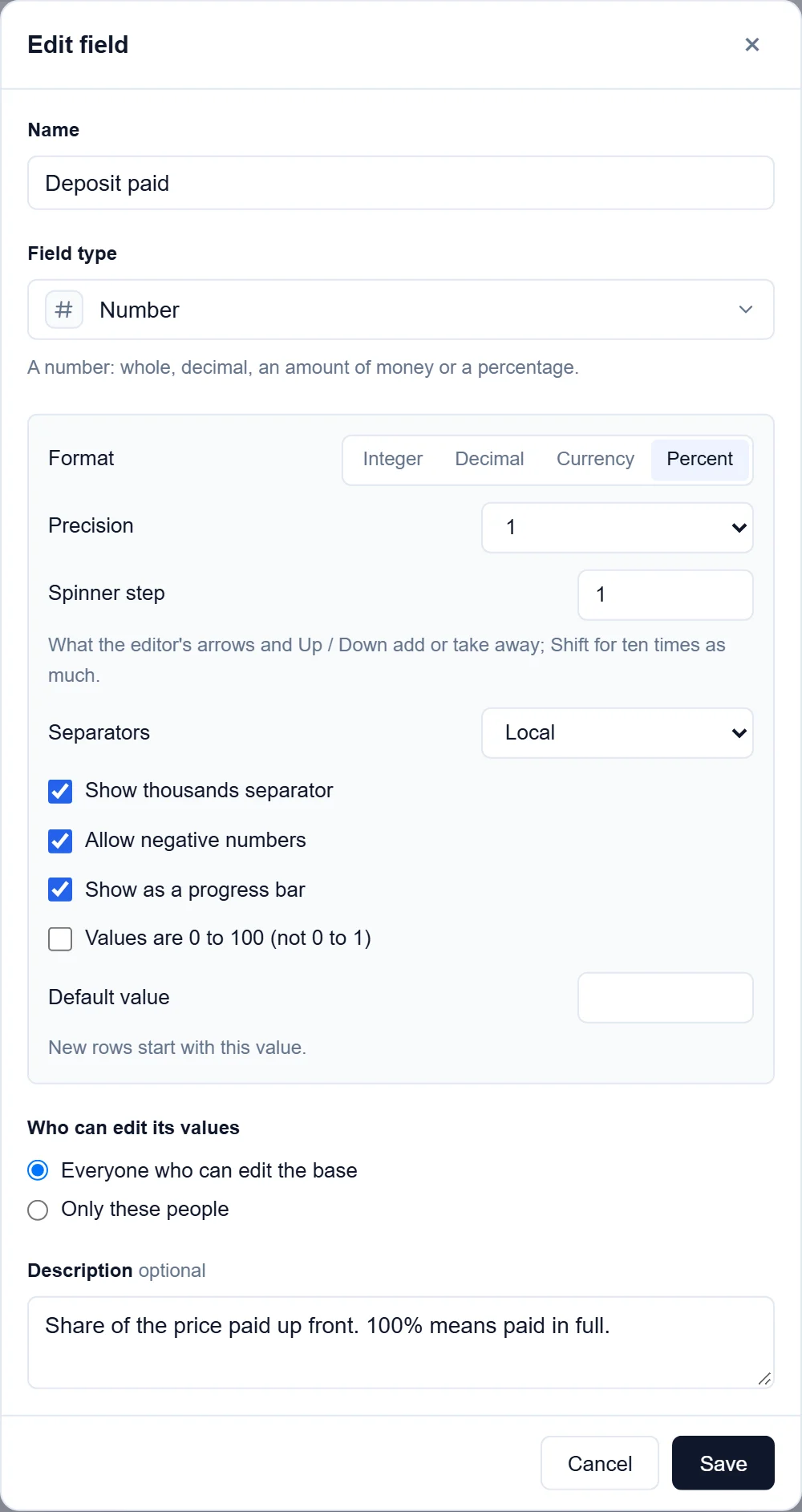
With Percent, tick Show as a progress bar to draw the value as a bar in the cell, which suits progress or how much has been paid. Typing 25% or 25 gives 25%.
Other options
- Separators: Local follows each person's own computer, or pick one way of writing 1,000,000.00 for everyone.
- Show thousands separator and Large number abbreviation (thousands as K, millions as M, billions as B) make big numbers easier to read.
- Allow negative numbers: untick it for things that cannot go below zero, such as stock.
- Spinner step: how much the arrow keys add or take away while you edit a number. Hold Shift for ten times as much.
- Default value: the number new records start with.
See the total under a column
- Point at the grey bar under the last record, below the number column, and click Summarize.
- Choose Sum, Average, Median, Min, Max or another summary.
The total counts only the records the view shows, so it follows your filters. To add up numbers from another table, such as all of a customer's orders, use a rollup.
Good to know
- Only the base's owners add or change fields. Changing the format later keeps the numbers. Changing to another type converts them where it can, and the window says first how many values would be cleared.
- Values are 0 to 100 (not 0 to 1) says how a percentage is stored. Leave it off when other tools send 0.25 for 25%.
- A field created as Currency or Percent in an older base opens as a Number field in that format.
- From Airtable, number, currency and percent fields arrive as Number fields with the same format, decimals and symbol.
- Rating, Duration and Sparkline are separate types for stars, lengths of time and small charts. See Field types.