Wholesale supplier template
Trade customers order from their own page and see where their order is, and you see every inquiry, quote and delivery on one board.
See it at work Quick start: about 15 minutes
- Category
- Sales & CRM, Small business, Operations
- Tables
- Orders, Order lines, Products, Customers, Contacts
- Views
- Grid, Kanban, Calendar, Gallery, Client portal

See it at work
Quick start
From the template to clients signing in to their own page in about fifteen minutes. Each step says exactly what to click.
-
Click Use template
It is at the top of this page. New to Artavolo? Sign up with Google or your e-mail: it is free and takes a minute. Your own copy opens right after.
Use template
-
Look around for a minute
Your copy opens on Order board in Orders. The clients in it are made up: they show how it looks with work going on. Click Order lines, Products, Customers and Contacts at the top to see the other lists.

-
Clear the examples
When you have seen enough, click Clear the examples in the box at the bottom right, then Clear them. Do this before you type anything of your own, because it clears every example, even one you changed. They wait in the trash for 30 days.

-
Add your clients
Click Customers at the top. Click Add row at the bottom: one row for each client company.

-
Add the people who sign in
Click Contacts at the top. One row for each person: fill in Name and Email, pick their company in Customer, and tick Portal access. Only ticked people can sign in.

-
Link their work to them
In Orders, pick the client in each record's Customer column. Each client sees only the records linked to their company, never anyone else's.

-
Open the portal
Click Interfaces at the top, then Customer portal, then Client portal at the top right. Type an Address (your company's name, say) and click Save address. Then switch on Open the portal to clients.

-
Send your clients the address
They type their e-mail, get a code, and they are in: no password and no account. Client users are free, however many you have.

-
Sign in once as a client
Add yourself in Contacts with your own e-mail and Portal access ticked. Open the address in a private window and sign in: you see exactly what your clients see.

-
Invite the people you work with
Click Share at the top right, then Base / Group. Type their e-mail under E-mail address and click Send the invitation. They get an e-mail with a link, and see every change as it happens.

From now on your clients check their own work and send their requests themselves, and you answer them all in one place.
Use templateAbout this template
Your trade customers stop calling to ask for prices and where their order is. Each customer signs in to their own page with a code sent to their e-mail, sees your price list and what is in stock, sends an order or a cutting list, and follows it from quote to delivery. You see every order on one board, from inquiry to delivered; add its lines and the total adds up by itself. Inside: a timber and board supplier with ten products, eight trade customers, their people and this month's orders. Tick Portal access on a person to let them in.
- Sample records to see how it works; delete them when you start
- Every field, view and link can be changed
- No record limit on paid plans

Questions about this template
Is the wholesale supplier template free?
Yes. The template costs nothing, and neither does the Free plan: no card, and up to 10,000 records a base. Standard and Pro have no record limit.
What is in the wholesale supplier template?
Tables: Orders (16 fields), Order lines (6 fields), Products (12 fields), Customers (9 fields) and Contacts (5 fields). Views: grid, Kanban, calendar and gallery. Sample records show how it works; delete them when you start.
Can my clients sign in and see their records?
Yes. It comes with a client portal where each client signs in and sees only their own records. Client users are free. The portal stays off until you give it an address and turn it on.
Can I change it to fit my business?
Yes. Every field, view, form and link can be changed, and you can add tables of your own. Your copy is yours; the template stays as it is.
Can I bring my own data?
Yes. Import a CSV or Excel file into any table, or bring a whole base from Airtable with its records, links and formulas.
More sales & crm templates
View all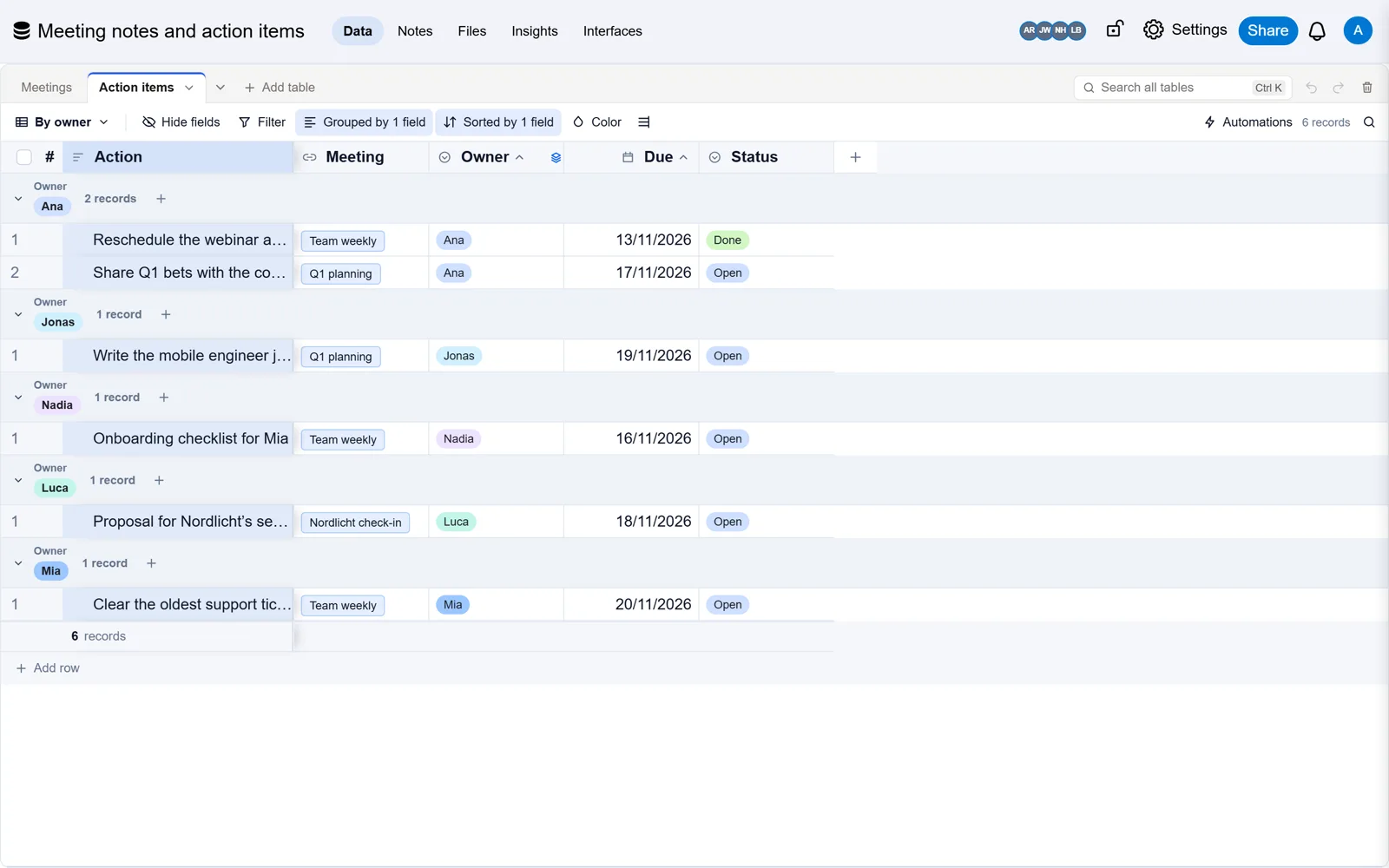
 Meeting notes and action items templateAfter every meeting, everyone knows what they promised to do and by when, and nothing agreed gets forgotten.

 Marketing campaign tracker templateSee which marketing campaign brings leads for the least money, and what still has to be designed before launch.

 Inventory tracker templateKnow what is in stock and what to reorder before you run out, for a shop, workshop or warehouse.
Already built it in Airtable?
Bring your base with every record, link and formula, checked against Airtable. Free, and Airtable stays as it is.