Use Artavolo on your Windows PC
Updated
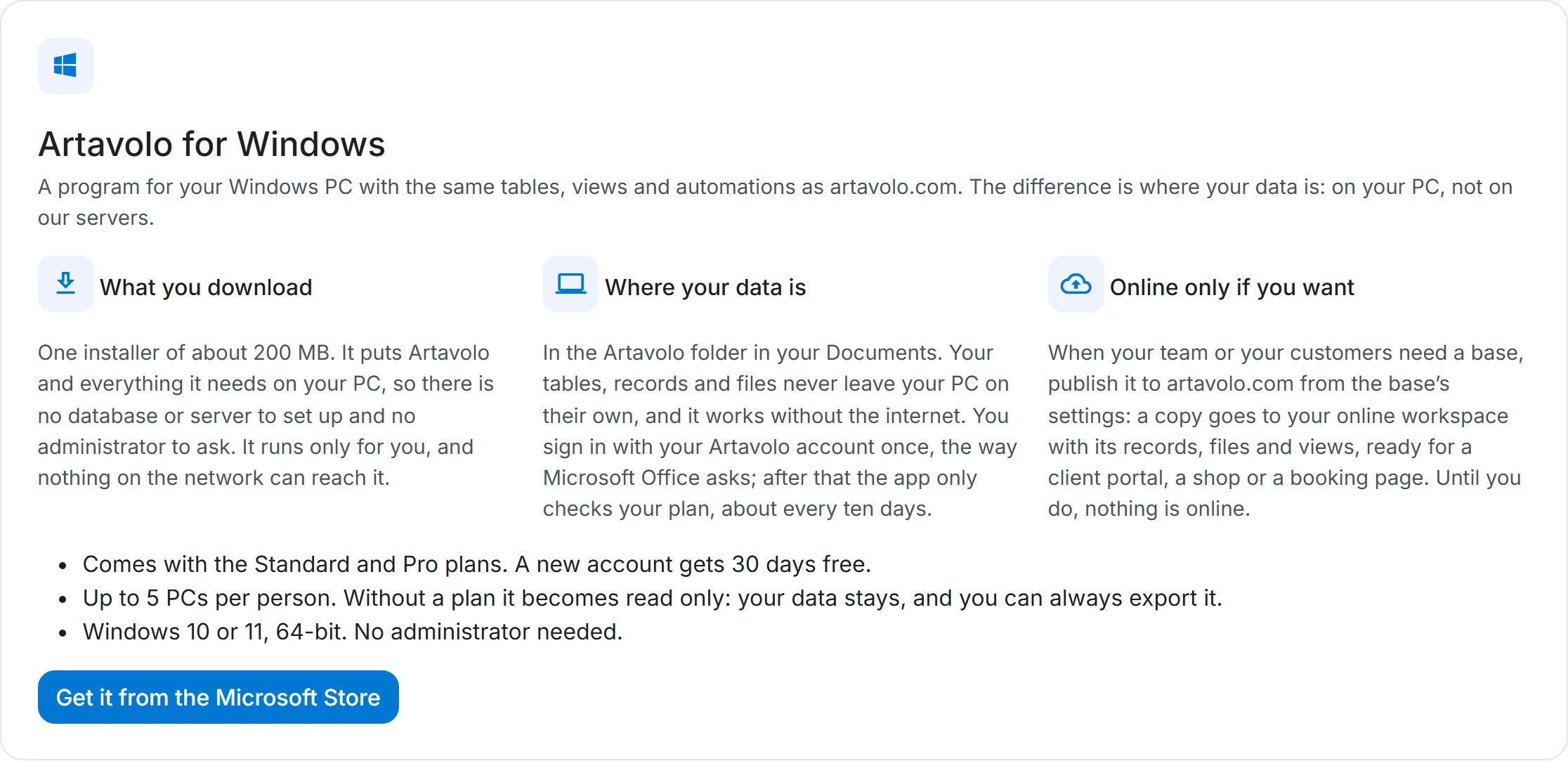
Artavolo for Windows puts your tables on your own PC. You sign in once with your Artavolo account, the way Microsoft Office asks. After that your data stays on your PC: only the sign-in goes to artavolo.com, never a table or a record.
The app comes with the Standard and Pro plans. A new account can try it free for 30 days.
Install it
- Open Artavolo in the Microsoft Store, or the Downloads page and choose Get it from the Microsoft Store.
- In the Store, choose Get. Windows installs it for you; no administrator is needed.
- Open Artavolo from the Start menu. It starts in a few seconds and shows a small Artavolo icon by the clock.
Is the Store turned off on your PC, as it is on many company PCs? The Downloads page has an installer for that. Windows warns that it does not know it: click More info, then Run anyway, or ask your IT department to allow it.
Sign in
- Choose Sign in with Artavolo. Your browser opens artavolo.com.
- Sign in as you always do, then choose Allow under Use Artavolo on this PC?
- The app opens on Home. Under New, choose Blank base, Take a tour, Excel or CSV to bring a spreadsheet, or one of the templates.
To open a spreadsheet straight in Artavolo, right-click it in File Explorer, choose Open with, then Artavolo. Excel files (.xlsx, .xls, .xlsm), CSV and OpenDocument (.ods) files work.
The first account that signs in owns the data on that PC. Someone else using the same Windows account cannot sign in as themselves and see it.
Where your data is
Everything is in the Artavolo folder in your Documents (or C:\Artavolo when your Windows user name has letters outside the English alphabet). Right-click the Artavolo icon by the clock and choose Open the data folder to see it. Uninstalling the app leaves this folder alone unless you say otherwise.
Backups
The app makes a backup of everything once a day while it runs. Right-click the Artavolo icon by the clock and choose Backups... to see the last one, choose Back up now, or pick where they go: this PC, OneDrive, Google Drive or another drive. A folder in OneDrive or Google Drive keeps a copy safe if the PC is lost.
To bring one back, choose Restore next to it on the same page, or Restore a backup... on the icon's menu for a copy on a USB stick or from your old PC. What you had before is kept in the Before restoring folder first.
Updates
The Microsoft Store updates the app by itself. If you installed it with the installer from the Downloads page, a note at the bottom of the window says when a new version is ready: choose Restart and update.
Without the internet
The app works offline. It checks your plan with artavolo.com about every ten days when it can. If it cannot for a while, a note at the bottom of the window says so (close it with ×; it comes back the next day), and after two weeks more it becomes read only until it can check again. Near the end of a free trial the same note says how many days are left.
The same happens when your plan ends or your trial is over: the app becomes read only. You can still open and export everything; nothing is deleted.
What works only online
Client portals, shops, booking pages, forms for the public, records by e-mail, Outlook, incoming webhooks, sales signals, social posts, your own domains, payments, text messages and e-mail campaigns need the internet to reach your PC, so the app does not offer them. Publish the base to artavolo.com and use them there.
Work with other people: publish a base online
On your PC, Artavolo is for you alone: nobody else can reach it, so there is no Share button. To work on a base with your team or your customers, put a copy of it on artavolo.com and share it there.
- Open the base and choose Publish to artavolo.com at the top right (it is also in the base's Settings).
- Choose OK.
- A copy of the base, with its tables, records, links, lookups and files, appears in your Standard or Pro workspace on artavolo.com. Invite people to it there. The base on your PC stays as it is.
Publishing makes a copy once. Changes you make on your PC afterwards stay on your PC; publish again to send a new copy.
Your PCs
You can use the app on up to 5 PCs. To see them, or to sign one out, open Your PCs on artavolo.com. A PC you sign out keeps working until its licence ends, then becomes read only.