Coming from Excel: what is the same and what is different
Updated
A table in Artavolo looks like a spreadsheet, and your hands can work the way they do in Excel or Google Sheets: the arrow keys, typing over a cell, copy and paste, the fill handle, Ctrl+Z. What is different is how the data is kept. In a spreadsheet any cell can hold anything. In a base every column is a field with one kind of value (a number, a date, a choice from a list), and every row is a record. That is what lets the same data feed forms, client portals, a shop and automations without breaking.
When you do something the spreadsheet way, Artavolo keeps what you did and shows a short note at the bottom of the screen with a button that does it the base way. This page lists those moments.
What works the same
- Click a cell and type to replace it, or press Enter or F2 to edit it. Enter keeps the change and goes down, Tab goes right, Escape drops it.
- Select a block with Shift+arrows or by dragging, then copy, cut and paste with Ctrl+C, Ctrl+X and Ctrl+V, also to and from Excel.
- Drag the small square at the corner of a selection (the fill handle) to copy a value down. Two numbers or two dates go on as a series: 1, 2 becomes 3, 4, 5.
- Ctrl+D fills down, Ctrl+Arrow jumps to the edge of the data, Ctrl+; types today's date, Delete empties the selected cells.
- Ctrl+Z undoes, also a deleted record or field. Ctrl+F finds.
The full list is in Keyboard shortcuts.
A formula is a field, not a cell
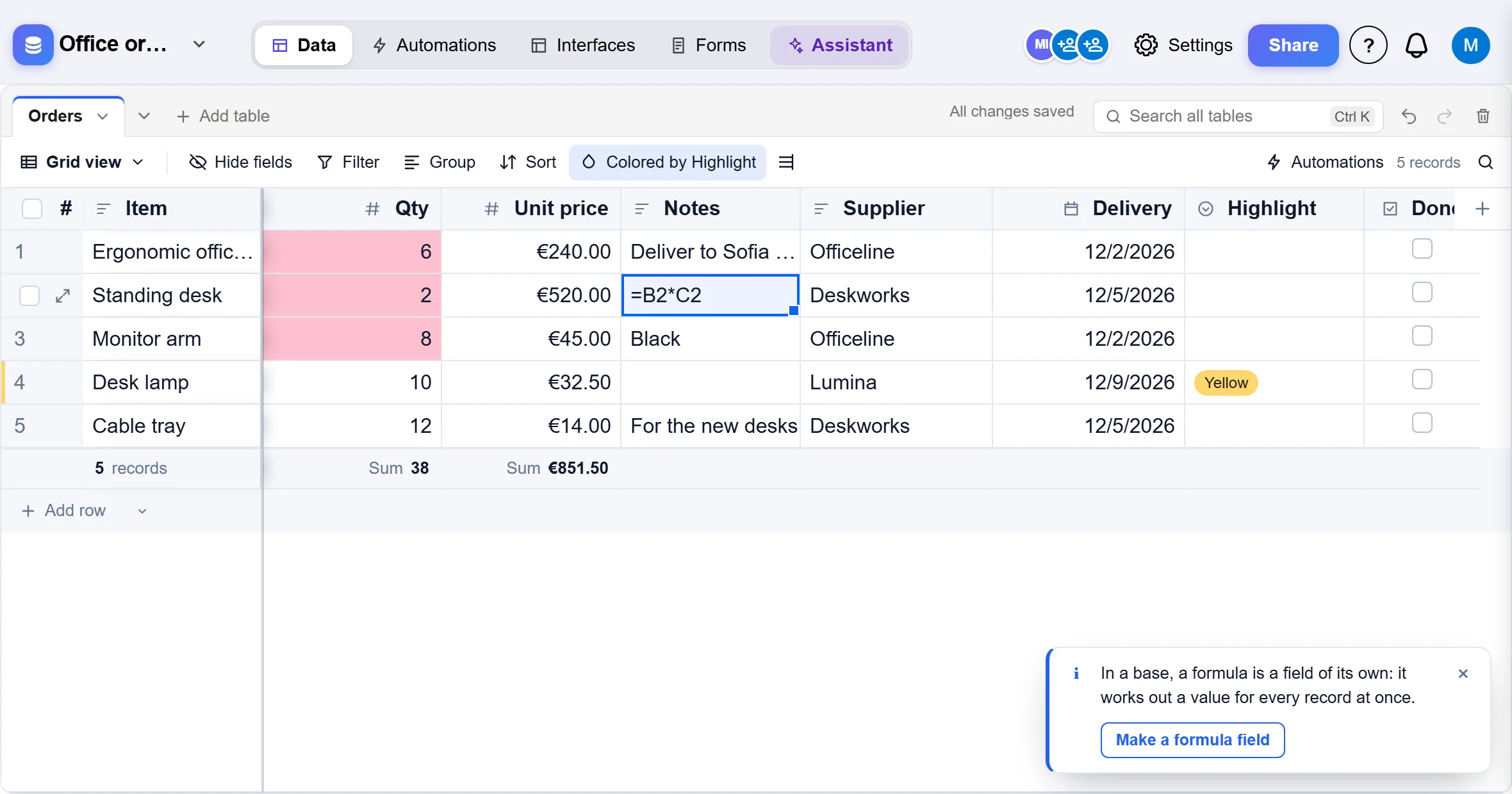
In Excel you type =B2*C2 into one cell and copy it down. In a base you write the formula once, in a Formula field, and every record shows its own result. A new record gets it too, without copying.
If you type a formula into a cell anyway:
- Type it as you would in Excel, such as
=B2*C2, and press Enter. In a text field the text stays as you typed it; in a number field the number does not change. - A note appears at the bottom of the screen. Click Make a formula field.
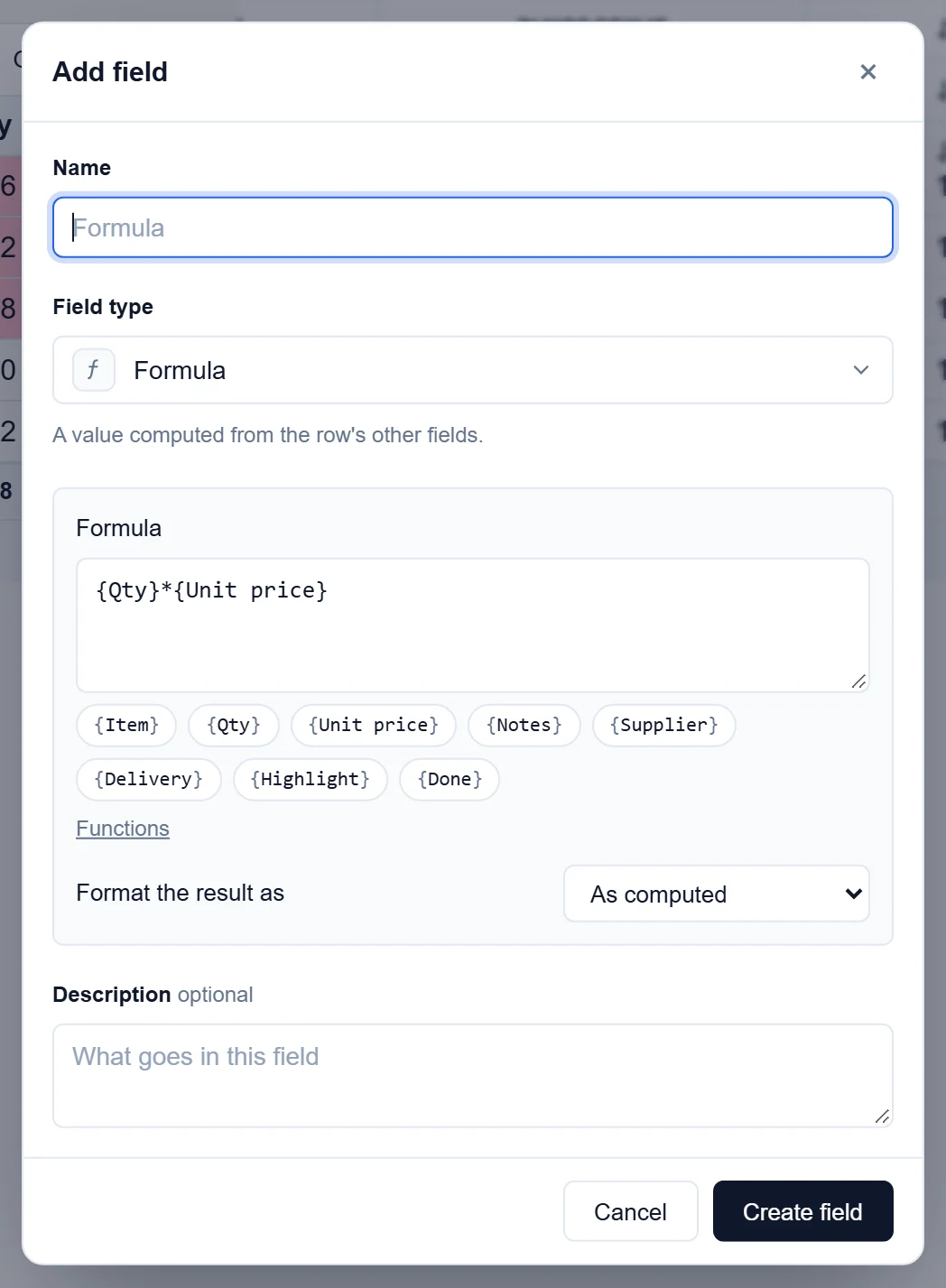
- The new field window opens with Formula chosen and your formula written the base way, with field names instead of cell names:
=B2*C2on the Standing desk row becomes{Qty}*{Unit price}. Column A is the first column you see. - Give the field a Name, such as Total, and click Create field.
A formula written with semicolons, as Excel writes them in Bulgarian and many other languages (=IF(B2>5;"Big";"Small")), is read the same way. If you typed a formula into a text cell, delete that text afterwards, or press Ctrl+Z.
Totals go under the table, not in a row
In a spreadsheet you add a "Total" row at the bottom. In a base that row would be a record like any other: it would show up in forms, reports and exports as if it were an order. Instead, the grey row under the last record works out a total for each field and keeps it up to date.
- Select a cell in a number field and press Alt+=, the AutoSum keys in Excel. The sum of that field appears under the last record.
- Type
=SUM(C2:C6)into a cell and the note offers Show it for Unit price, which does the same.AVERAGE,MIN,MAXandCOUNTwork too. - Name a record "Total" and the note offers Show the sums, which shows the sum under every number field.
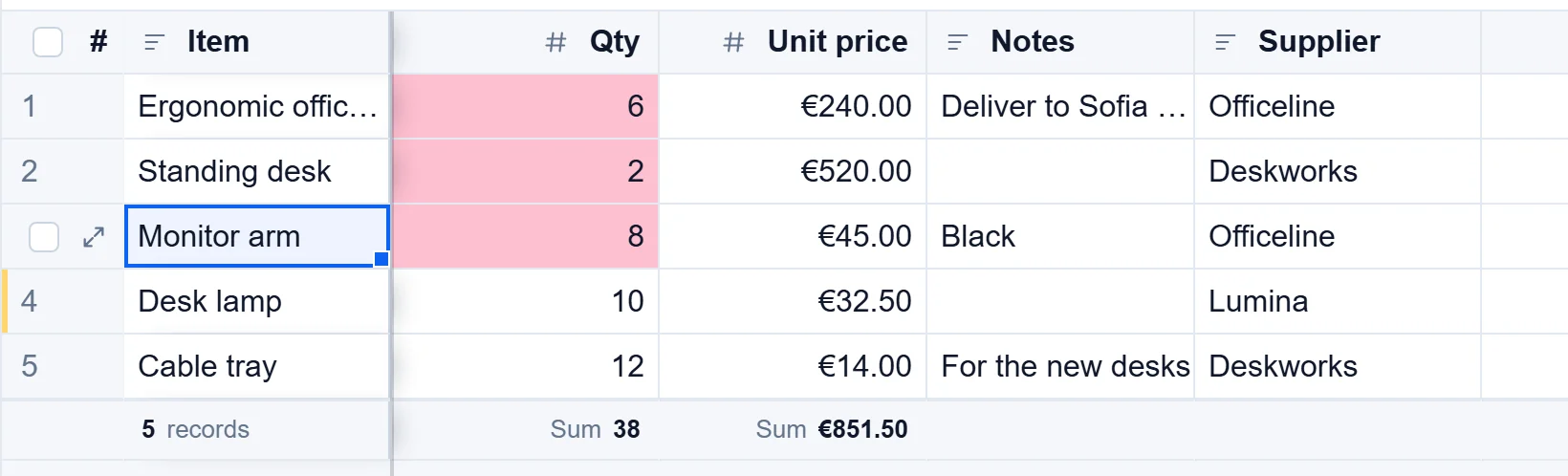
To pick a different total, or to turn one off, click it under the field and choose from the list. See Number field.
Pasting from a spreadsheet
- If the first line you paste is the names of the fields (you copied the headings too), it is left out, so it does not become a record.
- Lines past the last record become new records.
- If you paste more columns than the table has, Artavolo asks before pasting: Add 2 fields for this paste? It lists each new field with the kind it will be (Number, Date, Single line text and so on), named from your headings. If your first line was not recognized as headings, tick The first line holds the names of the fields. Click Add 2 fields and paste, or Paste without them to paste only what fits.

To bring a whole sheet or workbook in at once, use Move from Excel or Access or Import a CSV, Excel or JSON file instead.
One kind of value per field
A number field takes only numbers, so you can add them up and sort them properly. If you type text into one, the cell tells you it is not a number and keeps what it had. To keep notes beside a number, add a text field next to it. To change what a field holds, click the arrow next to its name and choose Edit field.
Good to know
- There are no merged cells, and no bold or colors typed into a cell (Ctrl+B says so, with Open Color). Colors come from rules instead: Color in the bar above the records colors rows, or cells like conditional formatting, and Mark records by hand lets you pick a color for a record yourself. See Use the grid view.
- Members who may not change fields get what fits when they paste, and a note says how many columns were left out.
- The notes appear only in a table's grid, when you type or paste. Nothing is changed until you click their button.