See a calendar view in Google Calendar, Outlook or Apple Calendar
Updated
Any calendar view of a base can be a calendar you subscribe to. Its records show in Google Calendar, Outlook or Apple Calendar on their dates, next to your meetings, on your computer and your phone. When a record changes in Artavolo, the calendar app shows the change the next time it reads the link.
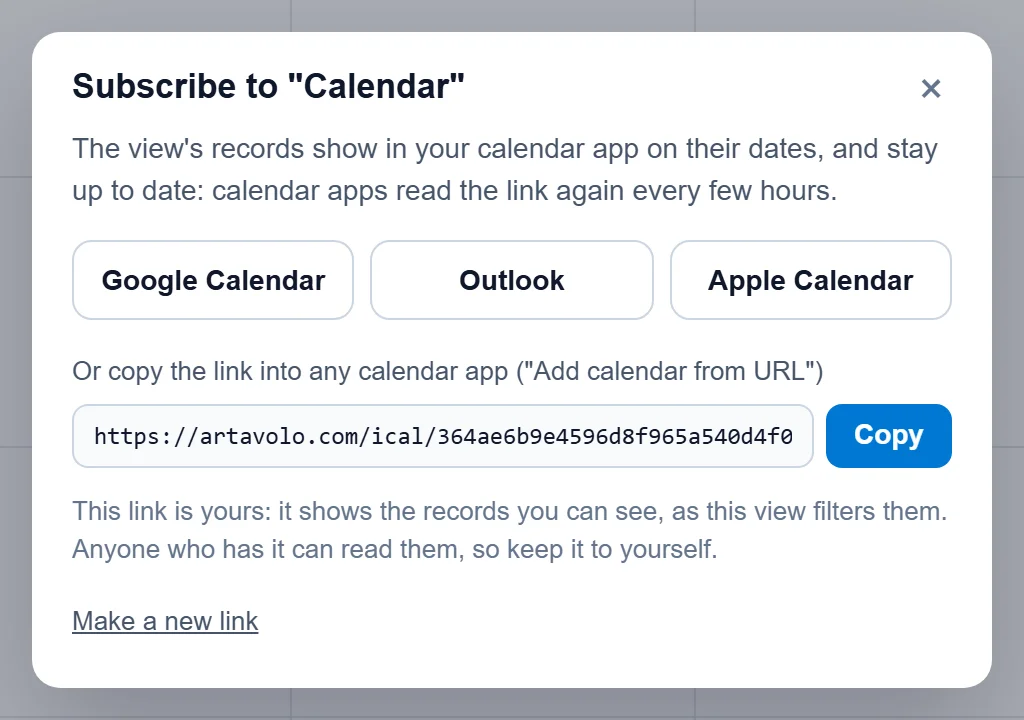
Get your link
- Open the base and the table, and click the view's name at the left of the view bar to open the list of views.
- Point at the calendar view in the list and click its calendar button, Subscribe in your calendar app.
- A window opens with your link and a button for each calendar app.
Every person gets a link of their own. It shows the records that person may see, as the view filters them.
Google Calendar
- Click Google Calendar in the window. Google Calendar opens in a new tab and asks whether to add the calendar.
- Click Add. The calendar appears on the left under Other calendars, with the base, table and view in its name.
Or add it yourself: copy the link, open calendar.google.com on a computer, click + next to Other calendars, choose From URL, paste the link and click Add calendar.
The Google Calendar app on your phone shows the calendar once it is added on the web. If it does not, open the app's Settings, tap the calendar and turn on Sync.
Outlook
- Click Outlook in the window to add the calendar to Outlook.com.
- With a work or school account (Microsoft 365), copy the link instead. In Outlook on the web open Calendar, then Add calendar, Subscribe from web, paste the link, give it a name and click Import.
Apple Calendar
- On a Mac: click Apple Calendar in the window and confirm with Subscribe. Or in Calendar choose File, New Calendar Subscription, paste the link and click Subscribe. Set Auto-refresh to every hour.
- On an iPhone or iPad: copy the link, then open Settings, Calendar (on recent versions Apps, Calendar), Calendar Accounts, Add Account, Other, Add Subscribed Calendar, and paste it.
What each event shows
- The record's name (its first field) is the event's title.
- The view's date field is the start, and its end date field, when the view has one, is the end. A date with no time is an all-day event; a time with no end is an hour long.
- The event's description lists a few of the record's other fields, the ones the view shows, and a link back to the base.
- Records with no date, and records the view's filter leaves out, are not in the calendar.
Good to know
- Calendar apps decide how often they read the link. Apple Calendar and Outlook read it every hour or so; Google Calendar can take several hours, up to a day, and has no button to read it sooner.
- The calendar is read only: an event moved in Google Calendar does not move the record. Change the record in Artavolo.
- Anyone who has your link can read what it shows. Keep it to yourself. If it gets out, open the window again and click Make a new link: the old link stops working at once, and you add the new one to your calendar app.
- When you lose access to the base, your link stops working.
- A calendar holds up to 2,000 records. Narrow the view with a filter (for example dates from last month on) if the table has more.
- On a server of your own, the calendar apps must be able to reach it from the internet; Google Calendar reads the link from Google's servers, not from your computer.