Use the Gallery view
Updated
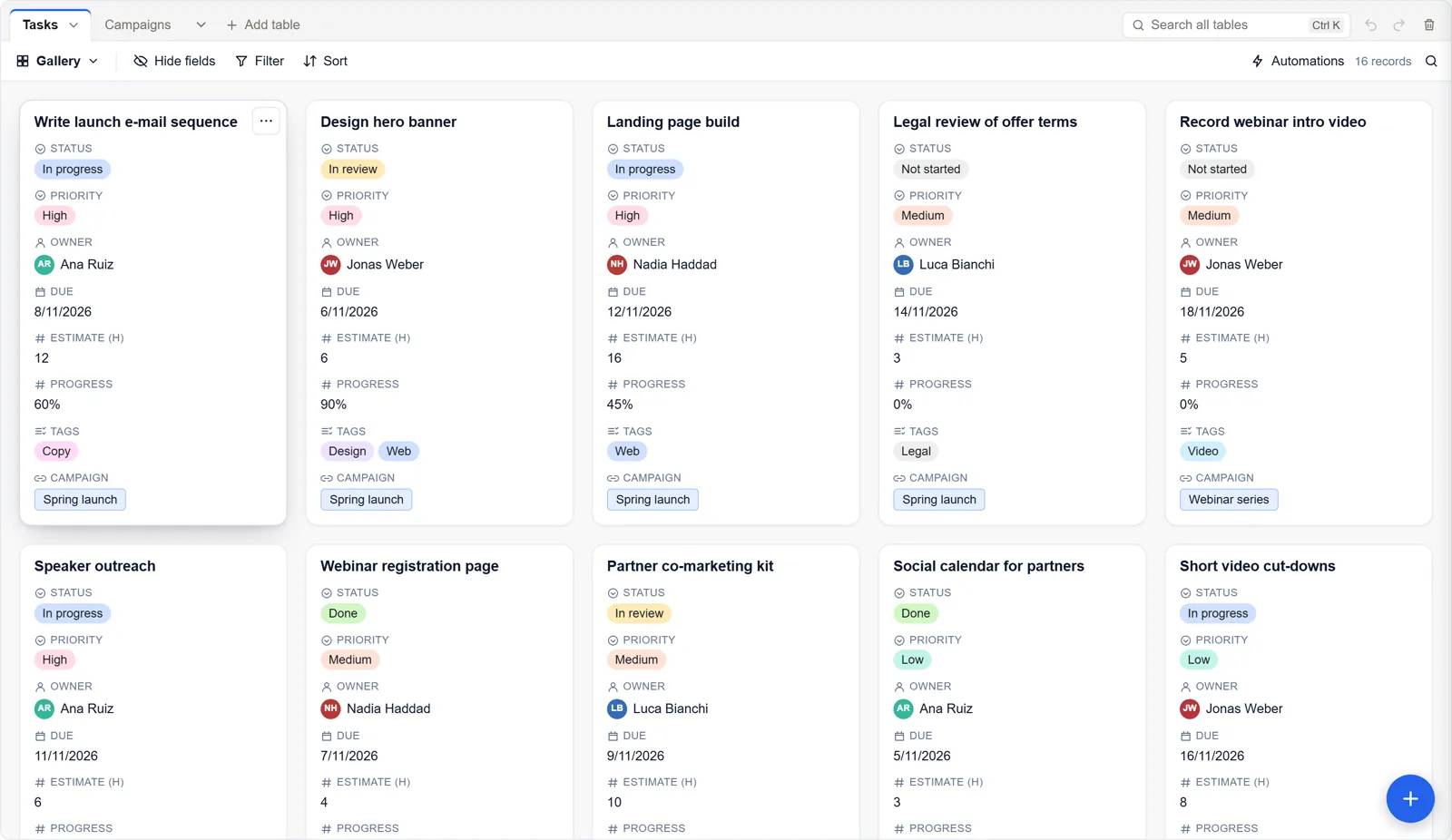
A Gallery view shows one card per record, with its fields listed down the card and, if you like, a picture on top. It is easier to read than a grid when records have images, long text or many fields.
Make a gallery
- Open the views menu (the view's name at the left of the view bar).
- Under Create, choose Gallery.
- Under Cover image, pick an attachment field to show its first image on each card, or leave None.
- Press Create view.
Tidy the cards
Each card shows the primary field as its title, then every field the view shows, in the view's order. A card showing fifteen fields is as hard to scan as the grid was: use Hide fields to keep only what matters for the decision you are making, and drag fields there to change their order. Filter and Sort work as they do everywhere else.
Open and change records
Click a card to open the record and edit it. The menu on the card, or a right-click, has the record's actions, such as expand, comment, duplicate and delete. The round + adds a record.
When a gallery is the better choice
- Images: a product catalogue, design mock-ups, property photos.
- Long text: a card has room for a paragraph a cell cannot show.
- Reviewing rather than typing: going through applications or ideas one at a time.
For entering a lot of data, the grid is still faster.
Good to know
- On a phone the cards are one column, and each field's name sits beside its value so more records fit on the screen.
- Cards are for reading; values are changed in the open record.