Use AI in your bases with your own AI key
Updated
Let AI fill in a field for you: a one-line summary of a long message, a category, a score. You turn it on once for your workspace with your own key from an AI service, and from then on an AI field writes its value in every record by itself.
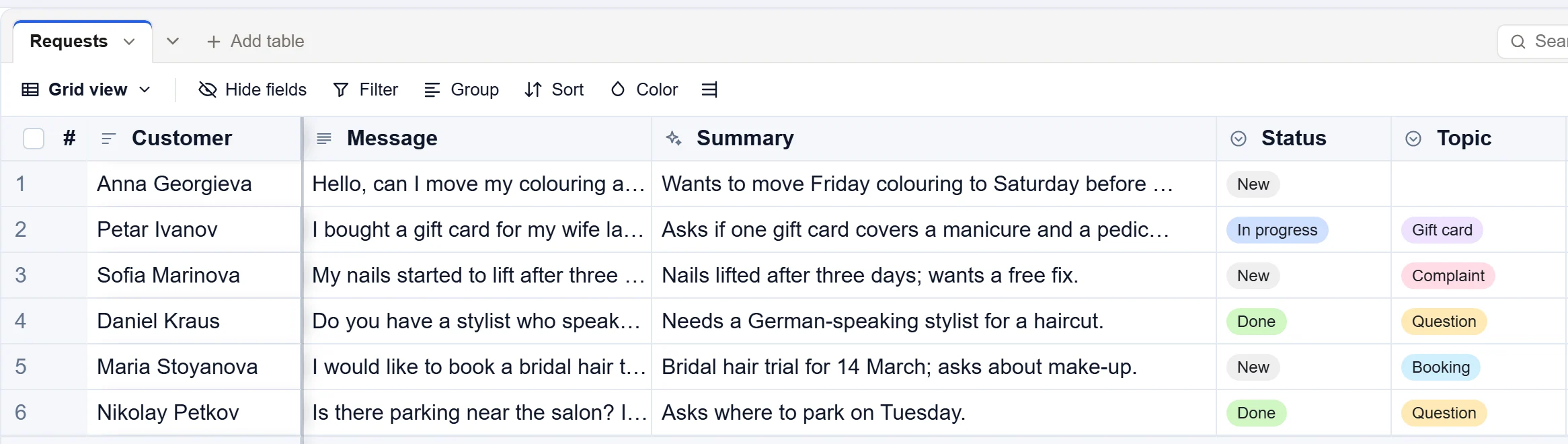
The AI runs on your own key. A key is a password from an AI service (OpenAI, Anthropic's Claude, or Mistral AI in the EU) that lets Artavolo send it questions on your behalf. You pay that service directly for what you use, usually cents. Nothing is sent to a service you did not pick.
Step 1: Turn on AI for your workspace
A workspace owner does this once. It then works in every base of the workspace.
- Create a key with the service you choose: at console.mistral.ai, platform.openai.com or console.anthropic.com. Copy it.
- In Artavolo, open any base and click Settings at the top right.
- In the list on the left, click Integrations.
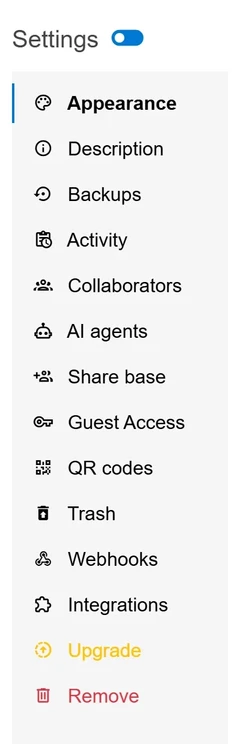
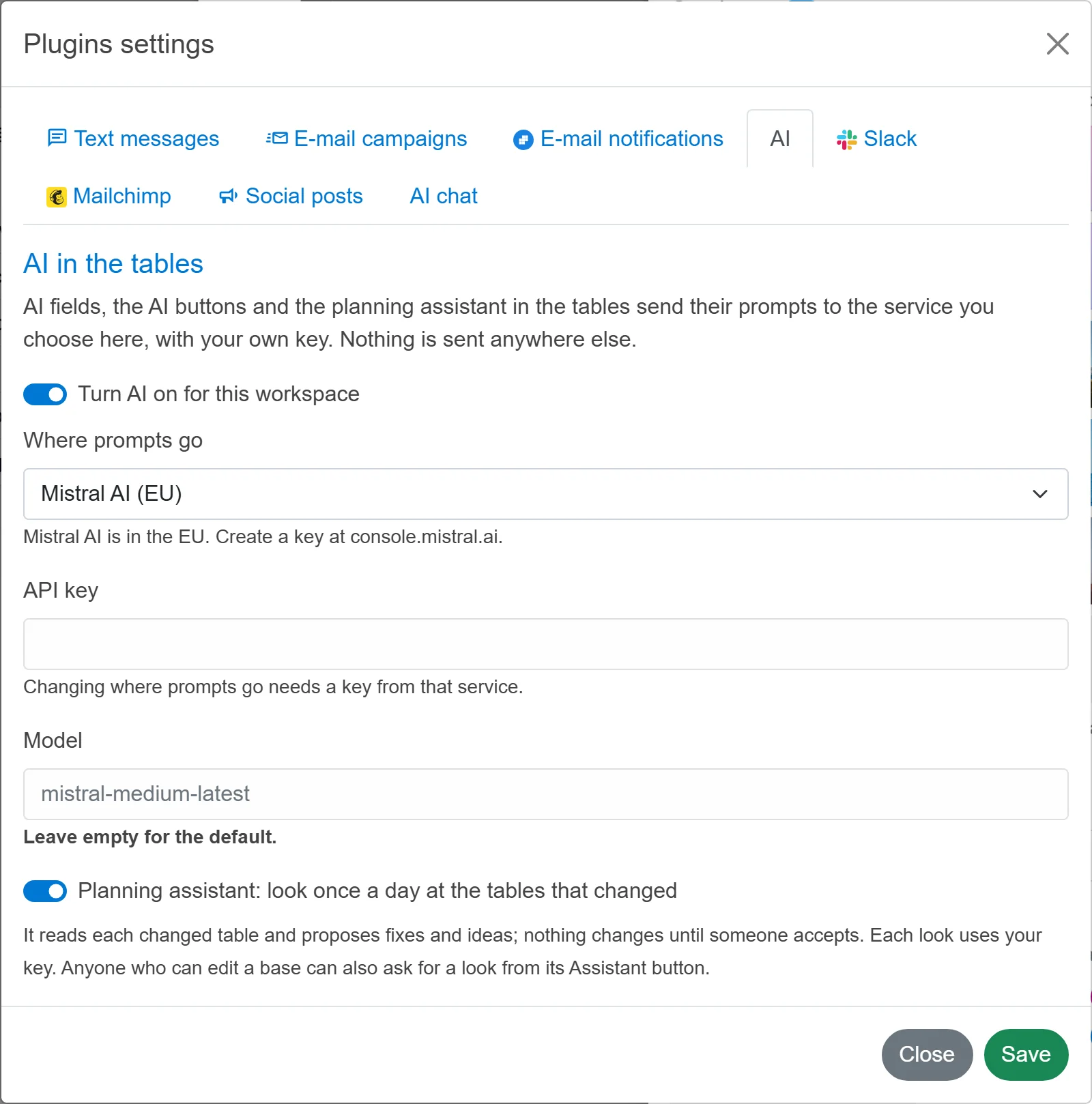
- The Plugins settings window opens. Click the AI tab.
- Switch on Turn AI on for this workspace.
- Under Where prompts go, pick the service your key is from. The line under it says where that service is: OpenAI and Anthropic are in the United States, Mistral AI is in the EU.
- Paste your key into API key. Leave Model empty.
- Click Save.
Step 2: Add an AI field
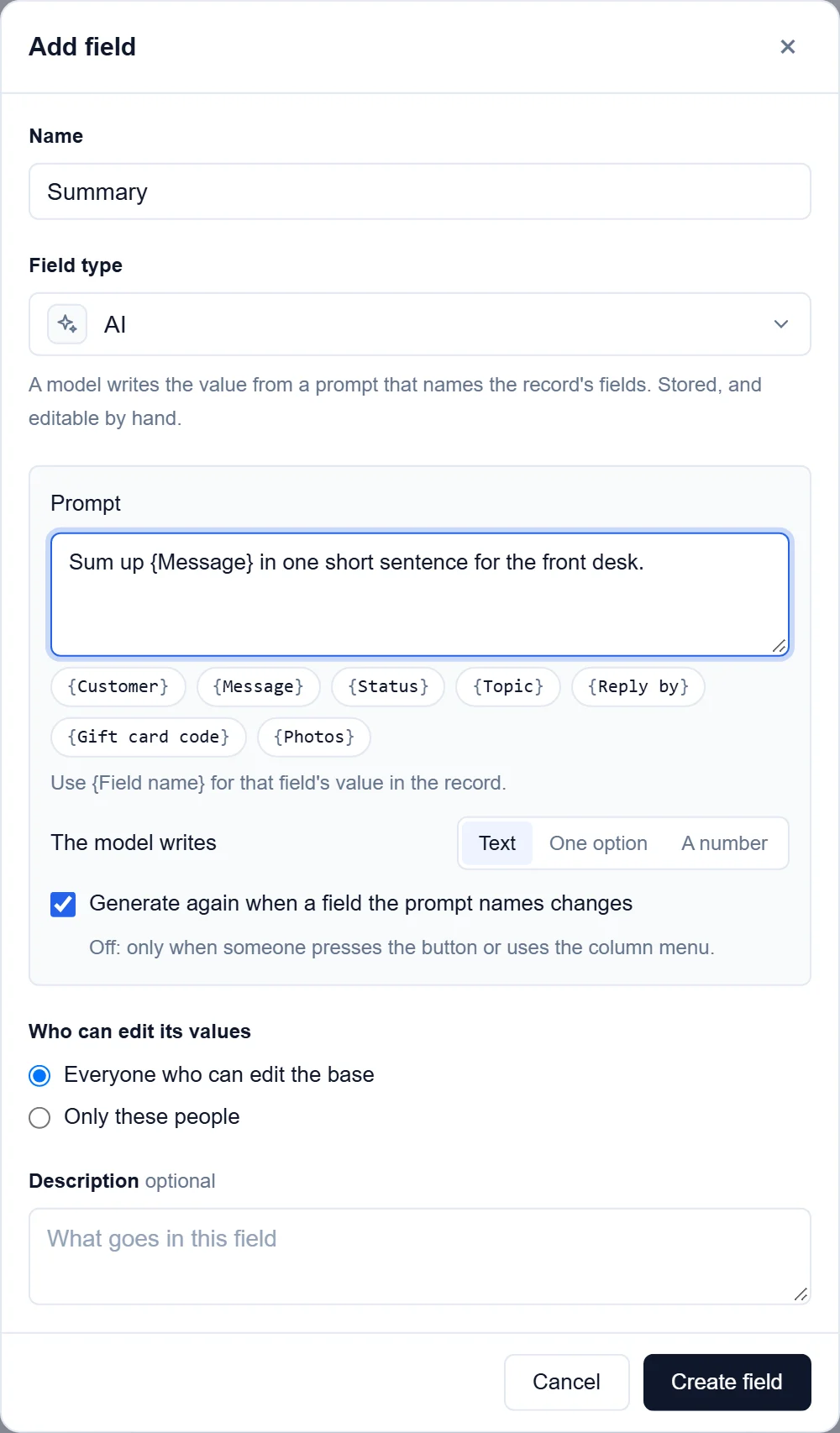
- Open the table and click + at the right end of the field names.
- Type a Name, such as Summary.
- Under Field type, choose AI.
- In Prompt, write what the AI should do, in plain words. Put a field's name in curly brackets, such as
{Message}, to use that field's value from each record. You can also click a field's name under the box to put it in. - Under The model writes, choose Text, One option (then list the options it may pick from) or A number.
- Click Create field.
Click Generate in a cell to fill in one record. To fill in many at once, right-click the field's name to open its menu, and choose Generate for ... empty records or Generate for all ... records.
The value is kept in the record like any other, and you can still change it by hand.
Where your data goes
- An AI field sends its prompt, filled in with the values of the fields it names, for the record it fills in. Nothing else.
- Your key stays on Artavolo's server. It never reaches anyone's browser.
- Each AI request is noted in the audit log: who made it, the service and the model, never the prompt itself.
Good to know
- Only workspace owners can turn AI on or change the key. People who can edit a base can use AI fields; people who can only read cannot.
- With Generate again when a field the prompt names changes ticked, the value is written again when, for example, the message changes. Untick it to generate only when someone asks.
- Generate for all ... records replaces what the records hold and sends one request per record, so Artavolo asks first. One Undo puts the old values back.
- Each request is paid by your key, at the service's prices.
- The same key also runs the planning assistant. It reads a table's fields, up to 200 of its records, the names of its views, automations and interfaces, and the names of the people its person fields can hold. Never keys, files or other tables' records.
- Asking Claude, ChatGPT or Le Chat about your records is separate and needs no workspace key: each person connects their own chat app. See Connect Claude, ChatGPT or Le Chat to your bases.
- Changing Where prompts go needs a key from the new service.
- On a server of your own, an administrator can add a model that runs inside your own network. It then appears under Where prompts go, needs no key, and prompts never leave your network.