Use Artavolo on your phone
Updated
Artavolo works on your phone: check a booking on the way to work, update a record at a customer's door, or add a photo straight from the camera. The screens are the same as on a computer, laid out for a small screen, and you can install Artavolo as an app with its own icon.
Install the app from your browser
- Open Artavolo in Chrome or Edge on Android, or in Safari on an iPhone, and sign in.
- Open the browser's menu (in Safari, the Share button) and choose Install app or Add to Home Screen. The words depend on your phone.
- Open Artavolo from its new icon. It runs in its own window, without the browser's address bar.
Press and hold the icon for three shortcuts: Home, Find a base and Interfaces. Find a base opens Home with the search box ready, so you can type a base's, a table's or a workspace's name at once.
There are also Android and iPhone apps: see The Android and iPhone apps.
Sign in on your phone without typing a password
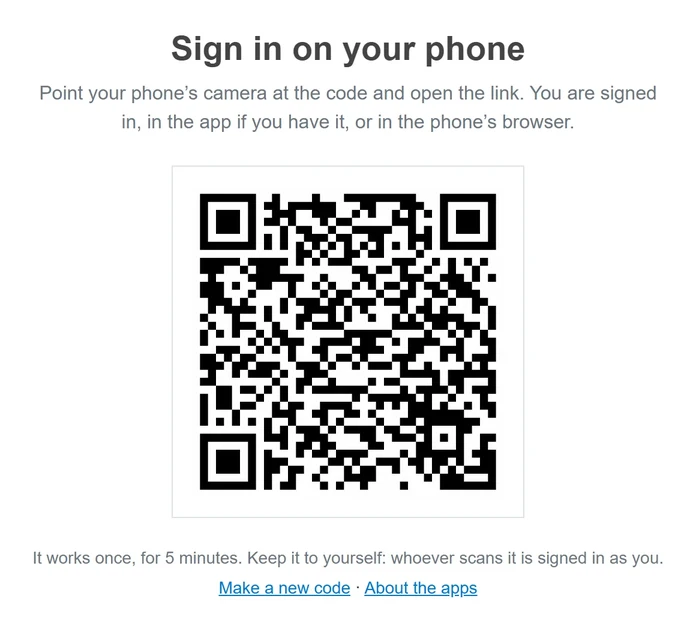
- With a QR code from your computer: on your computer, open Home, click your picture or initial at the top right and choose Sign in on your phone. Point the phone's camera at the code and open the link.
- By e-mail: on the phone's sign-in page, tap E-mail me a sign-in code, then type the 6-digit code from the e-mail, or tap the link in it.
- With Google, Microsoft or Apple: tap the button on the sign-in page. In the Android and iPhone apps it opens in the phone's browser, where you are usually signed in already, and brings you back to the app.
Find your way around a base
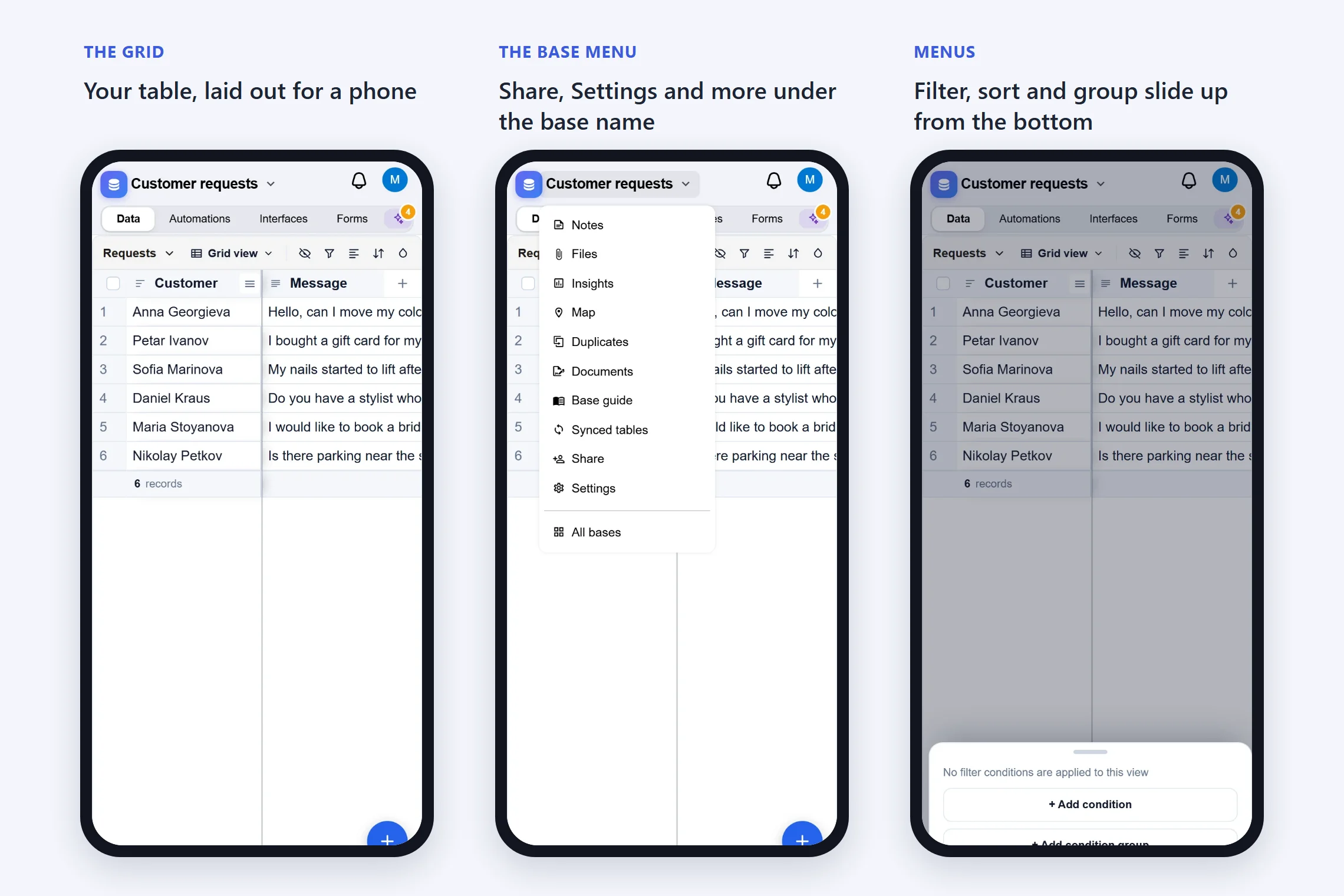
- The top line holds the base's name, the bell and your picture. Under it are Data, Automations, Interfaces, Forms and the assistant's star button.
- Share and Settings are in the menu under the base's name.
- The table's name (for example Requests) opens a menu with your other tables.
- The icons next to it are hide fields, filter, group, sort and colour. Swipe that line to the left for more, such as search.
- The grid stays a grid: the first field stays in place as you scroll sideways. Tap a cell to select it, and tap again to change it.
- Tap a record's number to open the whole record. The arrows at the bottom move to the previous or the next record.
- The round + button adds a record.
- Menus such as filter, sort, group and hide fields slide up from the bottom of the screen. Drag the handle down to close them.
Share to Artavolo from another app
Once the app is installed, Artavolo appears in your phone's share menu. Share a photo, a file, a link or some text to it, then tap the table to put it in. Artavolo makes a new record from it.
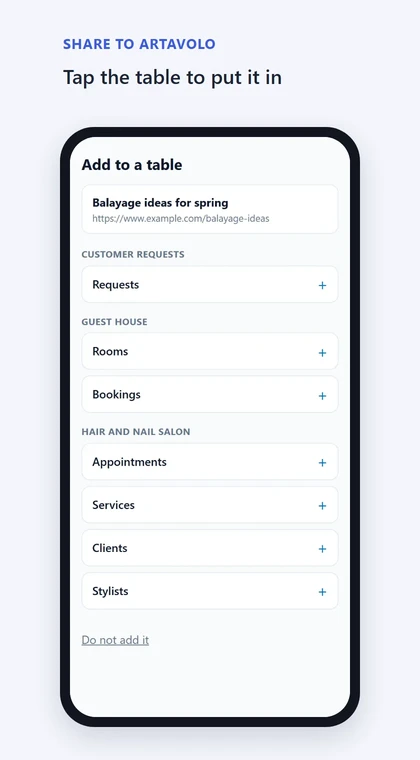
To cancel, tap Do not add it.
Good to know
- Artavolo needs an internet connection. With none, you see a No connection page that tries again as soon as you are back online. Your data stays safe on the server, but you cannot view or change records offline.
- The QR code works once, for 5 minutes, and whoever scans it is signed in as you. An e-mailed sign-in code is good for 10 minutes.
- Status, person and date pickers open without the keyboard.
- When you share to Artavolo, the title, the first line of the text, the link or the file's name becomes the record's name; the text goes into a long text field, the link into a URL field and the files into the first file field.
- A share holds up to 10 files of up to 25 MB each. If you are signed out, sign in and the share is still waiting; a share you never save is cleared after a day.
- Sharing from another app needs a phone that lets installed web apps receive shares, such as Android with Chrome.
- Links to a base, an interface or a form can open in the Android and iPhone apps when they are installed.