Take photos and scan barcodes on a phone
Updated
On a phone, Artavolo can use the camera in three ways: take a photo straight into a file field, scan a barcode or QR code into a barcode field, and scan a code to find and open the record that holds it. This makes stock counts, site visits, asset checks and deliveries quicker to record on the spot.
Take a photo into a file field
- Open the file field for editing: tap the cell to select it and tap again, or tap the field in an open record.
- Tap Take a photo.
- Take the picture with the phone's camera and confirm it.
The photo is added to the field like any upload, and kept in the base's files. Before it is sent, it is made at most 2000 pixels wide, so it uploads quickly on a mobile connection.
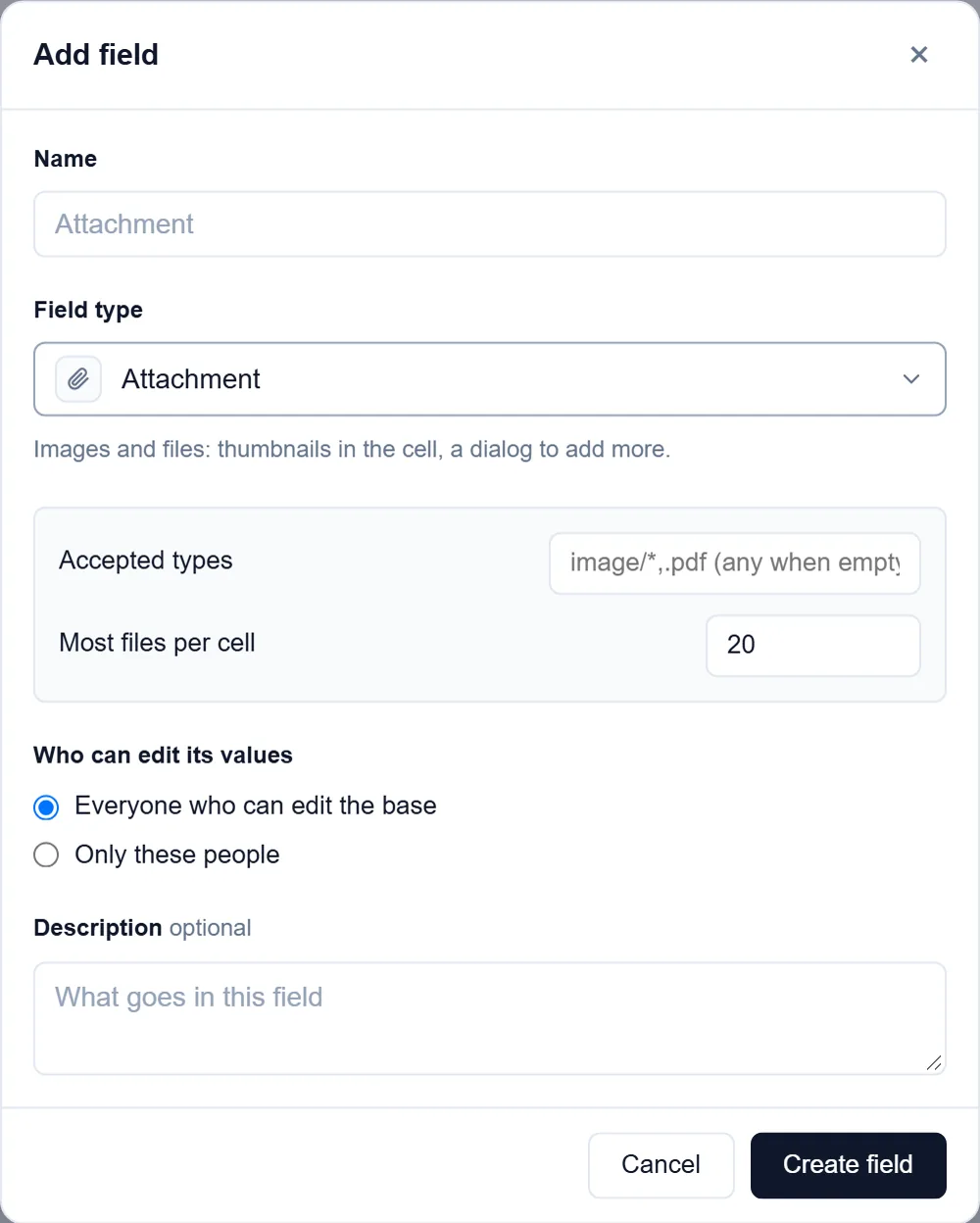
Take a photo appears on touch screens, for file fields that accept images. If a field's Accepted types lists only other kinds of file, such as .pdf, the button is not offered.
Scan a code into a barcode field
- Open the record and go to its barcode field.
- Tap Scan a code.
- Point the camera at the barcode or QR code. The first code it reads is put in the field.
Tap Cancel to close the camera without scanning. You can always type or paste a code into the field instead.
Scan a code to find its record
- Open the view you want to search.
- Tap the scan button next to search in the bar above the records (its label is Scan a code to find its record).
- Point the camera at the code.
Artavolo searches the view for the code. If exactly one record matches, it opens. If several match, the view shows them so you can pick one.
Good to know
- Scanning works where the browser can read codes from the camera, such as Chrome on Android. Safari on an iPhone cannot today, so the scan buttons do not appear there; type the code instead.
- The first time, the browser asks to use the camera. If you said no, allow the camera for this site in the browser's settings. Another app using the camera can also block it.
- You need permission to edit the field: people who can only read do not see Take a photo or Scan a code.
- To add a barcode field, choose the field type Barcode. It holds the code's text, from a scanner or typed.