Talk to the AI in your base
Updated
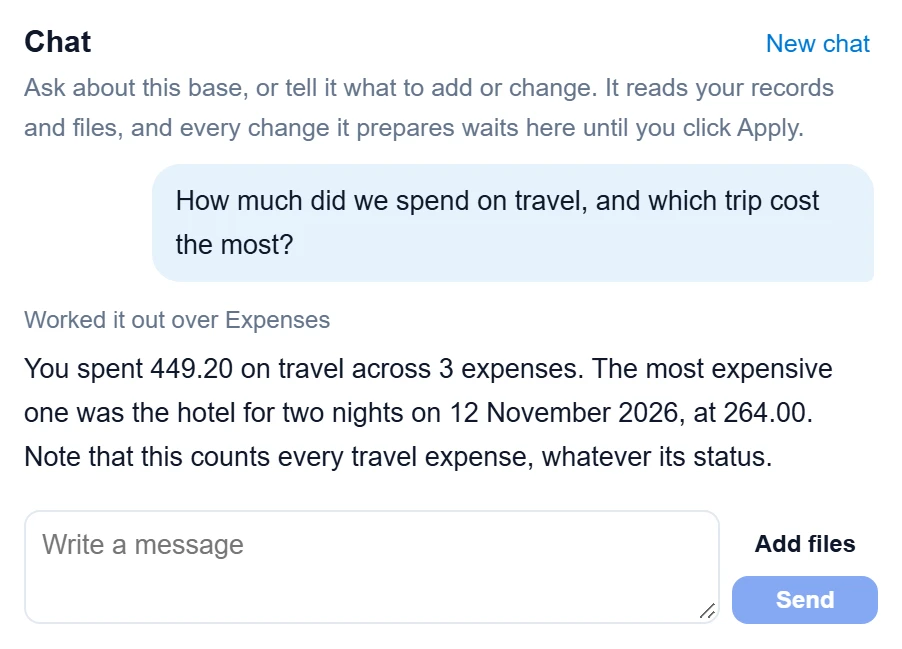
Open the chat in any base and write what you want, the way you would ask a colleague: "How much did we spend on travel?", "Add this receipt", "Put a category on every expense". It reads your records and files, works out the answer, and prepares the changes. Nothing in your base changes until you click Apply.
Open the chat
- Open a base and click Assistant at the top, next to Data, Automations, Interfaces and Forms.
- The AI assistant panel opens on the right, with Chat at the top. Click one of the examples, or write your own message in Write a message.
- Click Send, or press Enter. While it works, it says what it is doing, such as "Working it out over Expenses...".
Ask about your records
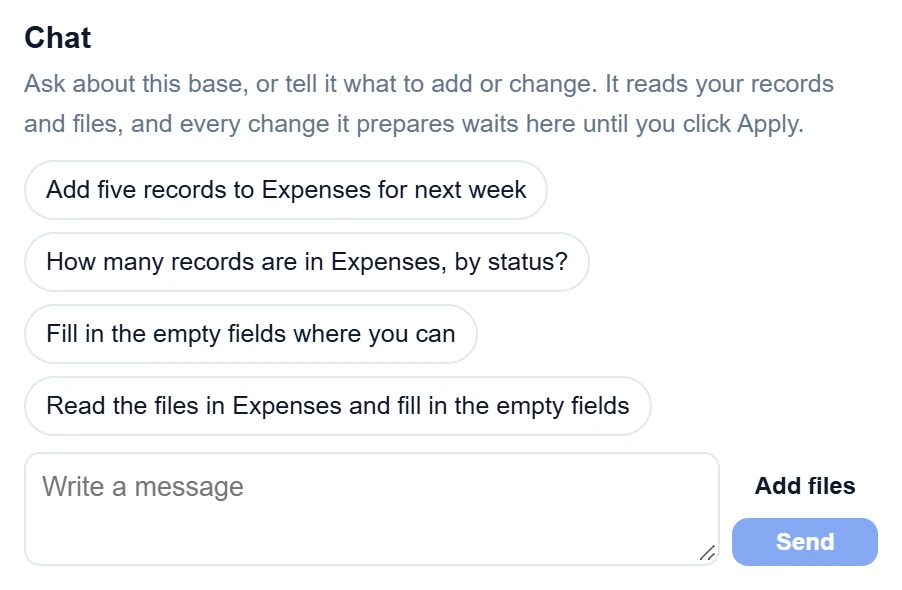
Ask anything about a table: totals, counts, the biggest or the newest, what customers wrote. For sums and counts, Artavolo works the numbers out itself over every record you can see, and the AI only explains them, so the figures are exact even in a table of thousands of records. "Worked it out over" above the answer tells you which table it used.
Add or change records
- Write what to add, change or remove, for example "Mark the spring sale ready and remove the old teaser".
- The chat answers with the changes it prepared, each in plain words.
- Click Apply to make them, or Discard to drop them.
- Changed your mind after Apply? Click Undo last change. Click it again to take back the change before that.
The changes are made as you, so you can only change what you are allowed to change in the base, and the record's history says "via AI chat".
Read invoices, receipts and photos
- Click Add files and pick up to 5 files, or drag them onto the chat, or paste a picture. PDF files, pictures (JPG, PNG, WebP, GIF) and text files (TXT, CSV) work, up to 10 MB together.
- Write what to do with them, for example "Add this receipt to the expenses and keep the PDF in the record", and click Send.
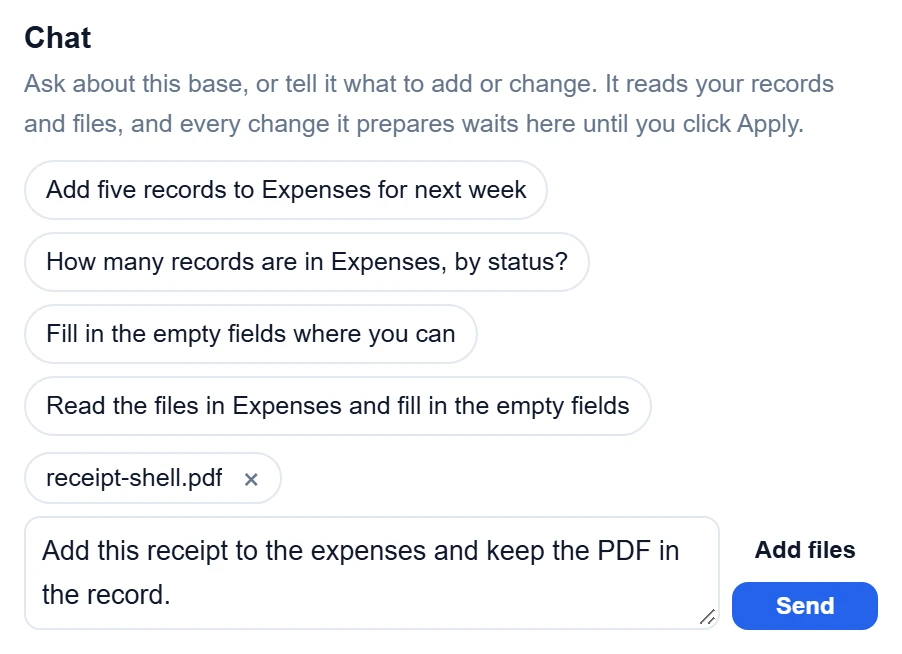
It reads the file and prepares the record with what the file says. When it cannot be sure of something, it leaves it empty and tells you. The file is kept only if you ask for it to go into a record, as here, where it goes into the Receipt field when you click Apply.
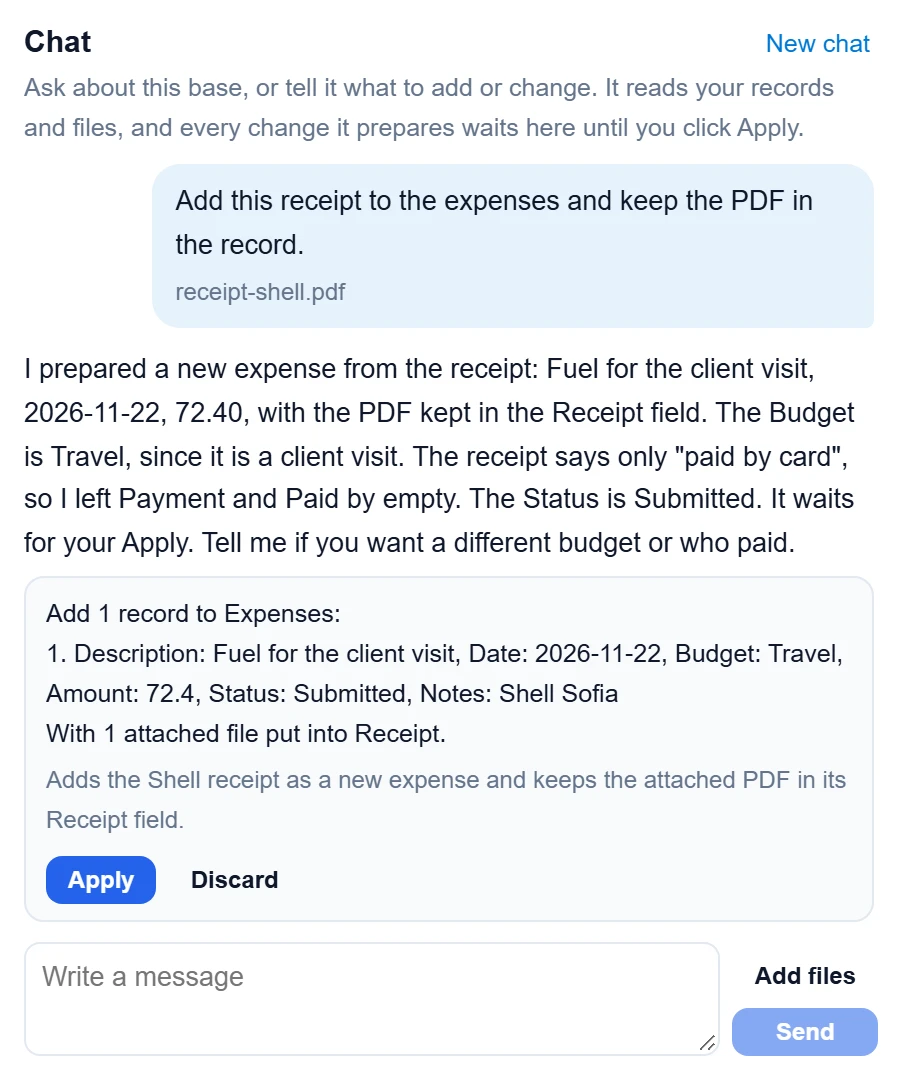
It also reads files already in your records: "Read the invoices in Orders and fill in the amounts".
Fill a field in every record
For work on many records at once, such as "Put a category in Notes for every expense" or "Write a one-line summary of every lead", the chat prepares a job that runs in the background. Click Apply to start it.
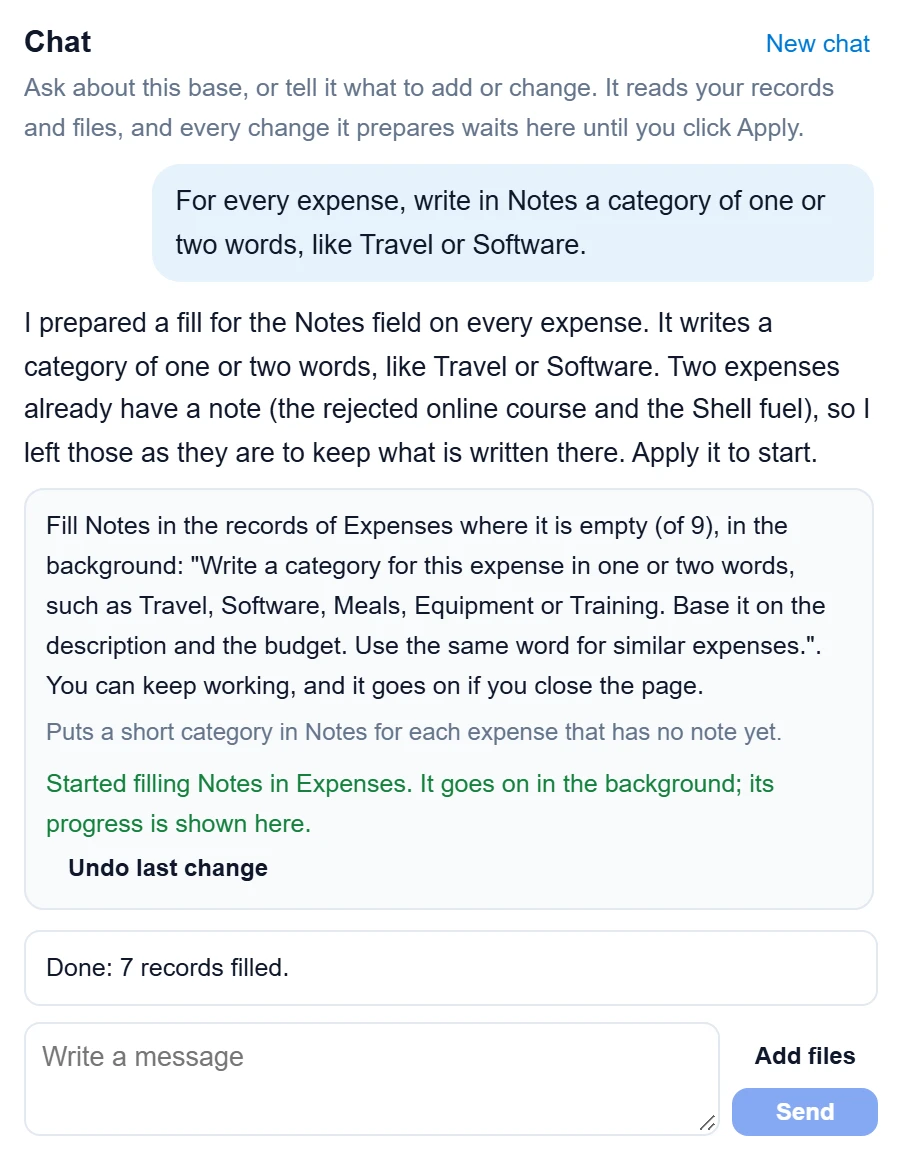
- Under the chat you see how far it is, with Stop to end it early.
- You can keep working, or close the page: it goes on.
- Where a record does not say enough, the field is left as it was.
- Undo last change takes back the newest 25 records it filled; click again for the 25 before.
Change the table: fields, views, automations
Ask for "a Priority field with High, Medium and Low", "a board by status" or "a calendar of the deliveries". These wait for Apply too. Only the owners of a base can change its fields, views, automations and interfaces.
The chat can also set up work that repeats, for example "Every Monday at 8, write next week's three posts and add them to the calendar". It makes an automation that runs on that schedule and asks the AI each time. Repeating AI work like this needs the workspace's own AI key (see below). You find it, and can switch it off, under Automations.
Start over
The chat remembers your conversation in each base, also on your phone or another computer, so you can come back to it and still click Apply on what waits. Click New chat at the top to start over. Changes already made stay.
Which AI it uses, and what it costs
- With no setup, the chat uses Artavolo's built-in AI: 20 messages a month for each person, on every plan, Free included. A background job on the built-in AI uses one of your 100 AI fills a month for each record it fills.
- With the workspace's own AI key (from OpenAI, Claude or Mistral), there is no limit and you pay that service directly, usually cents. A workspace owner adds it in Settings, Integrations, on the AI tab. See Use AI in your bases with your own AI key.
- Claude and OpenAI read PDF files and pictures. Mistral reads pictures, not PDF files.
- Only the files you add and the records the chat looks at are sent to the AI service. Your key stays on Artavolo's server.
Good to know
- Each person has their own chat in each base. Others in the base do not see it.
- People who can only read a base can ask questions, but the chat makes no changes for them.
- To avoid mistakes, read each change before you click Apply. The chat writes only what the records or files say, and tells you when it is not sure.
- Each person can change up to 1,000 records a day with Apply in the chat. A background job is not stopped by this, but the records it fills count toward it for the rest of the day.