Set up a voice, your brand and a pictures AI for the AI chat
Updated
Make every picture and video the AI chat makes look like yours: your logo, your colours, your font and the way you talk. You can also give its videos a real voice that reads the words aloud, and let it put new photos and illustrations in your posts. A workspace owner sets these up once, and they then work in every base of the workspace.
All three are optional. Without them, the chat still makes pictures and videos, in colours and fonts it chooses, with music but no voice.
Open the settings
- Open any base of the workspace and click Settings at the top right.
- In the list on the left, click Integrations.
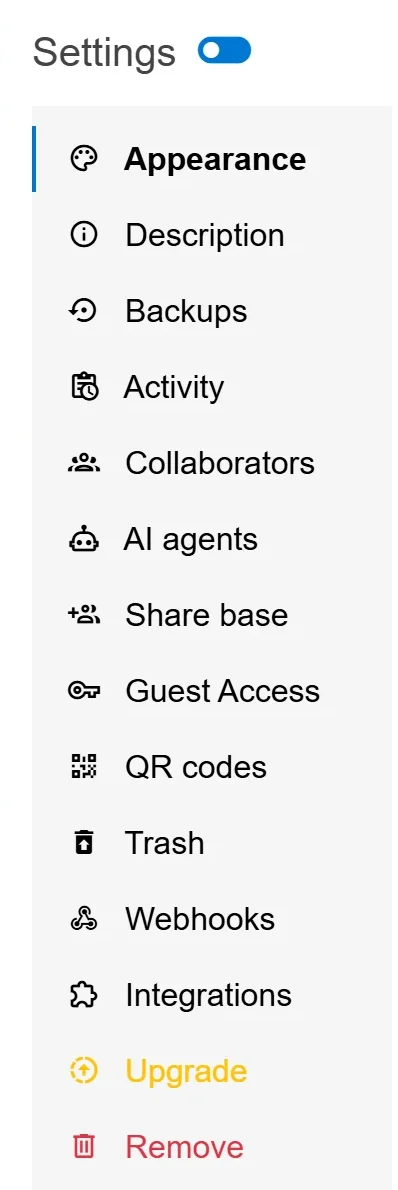
- The Plugins settings window opens. The three tabs for the AI chat are Voice, Brand and Pictures AI.
Only the owners of the workspace can save these settings.
Your brand
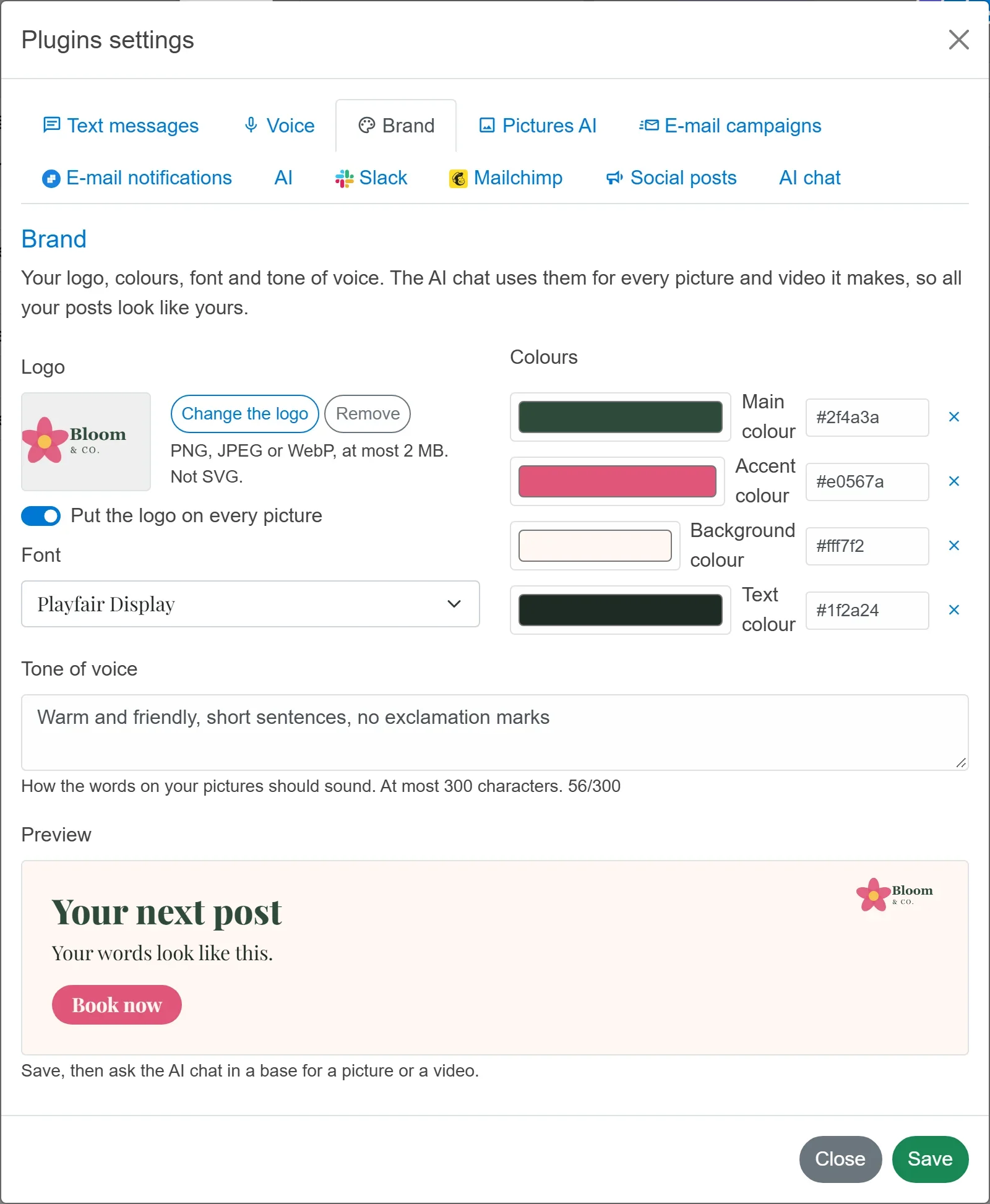
- Click the Brand tab.
- Click Choose a logo and pick your logo: a PNG, JPEG or WebP file of at most 2 MB. A logo with a see-through background looks best.
- Switch on Put the logo on every picture if you want it on every picture and every slide of a video. Leave it off, and the chat adds it only where it fits, such as the first or last slide.
- Under Font, pick one of the six fonts, or leave Let the AI choose.
- Under Colours, set your Main colour, Accent colour, Background colour and Text colour. Click the colour box to pick one, or type its code, such as #2f4a3a. The small cross clears it.
- Under Tone of voice, say in a few words how your posts should sound, for example "Warm and friendly, short sentences, no exclamation marks". At most 300 characters.
- Check the Preview, then click Save.
The brand costs nothing. The logo is kept with your workspace's files, so it counts toward your plan's storage, and only people in the workspace can open it.
A voice for your videos
The chat's videos can have a voice-over: a voice reads a few words over each slide. The voice comes from ElevenLabs, a company that turns text into natural speech, on your own ElevenLabs account. You pay ElevenLabs directly for the characters it reads.
- Sign in at elevenlabs.io (or make a free account). Go to Developers, API keys, and make a key with the rights Text to Speech and Voices (read). Copy it. A key is a long password that lets Artavolo use your account.
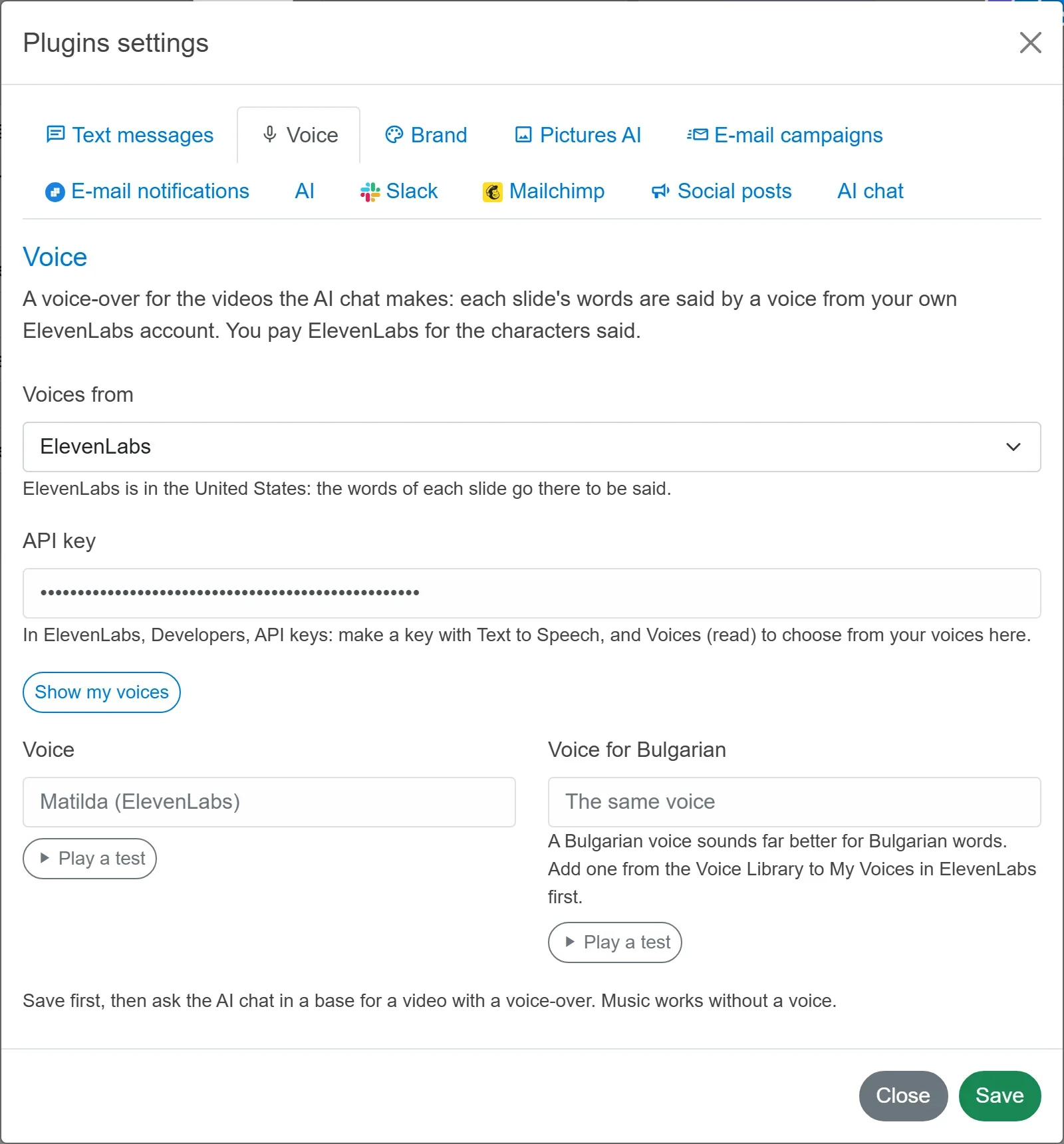
- In Artavolo, click the Voice tab.
- Under Voices from, choose ElevenLabs.
- Paste the key into API key.
- Click Show my voices to choose a voice from your account in the Voice list. Leave it as it is for Matilda, a clear voice every ElevenLabs account has.
- Making videos in Bulgarian? Pick a Bulgarian voice under Voice for Bulgarian. It reads every slide written in Cyrillic and sounds far better than an English voice reading Bulgarian. First add one from ElevenLabs' Voice Library to My Voices in ElevenLabs. Leave it empty to use the same voice.
- Click Play a test to hear a short sentence in the voice you picked.
- Click Save.
Where the words go: the words of each slide are sent to ElevenLabs, in the United States, to be read aloud. Nothing else from your base is sent there.
Music needs no setup: the chat's videos can have calm or lively music, made in your browser, with or without a voice.
A pictures AI for new photos
Without a pictures AI, the chat designs pictures from text, colours, shapes and the photos already in your records. With one, it can also put a new photo or illustration on a slide, such as a bunch of peonies or a cosy shop window. These pictures are made by OpenAI or Google, on your own account with them, and they charge your account for each picture.
- Make a key: at platform.openai.com under API keys (OpenAI may ask you to verify your organization before it makes pictures), or in Google AI Studio with Get API key, in a project with billing turned on.
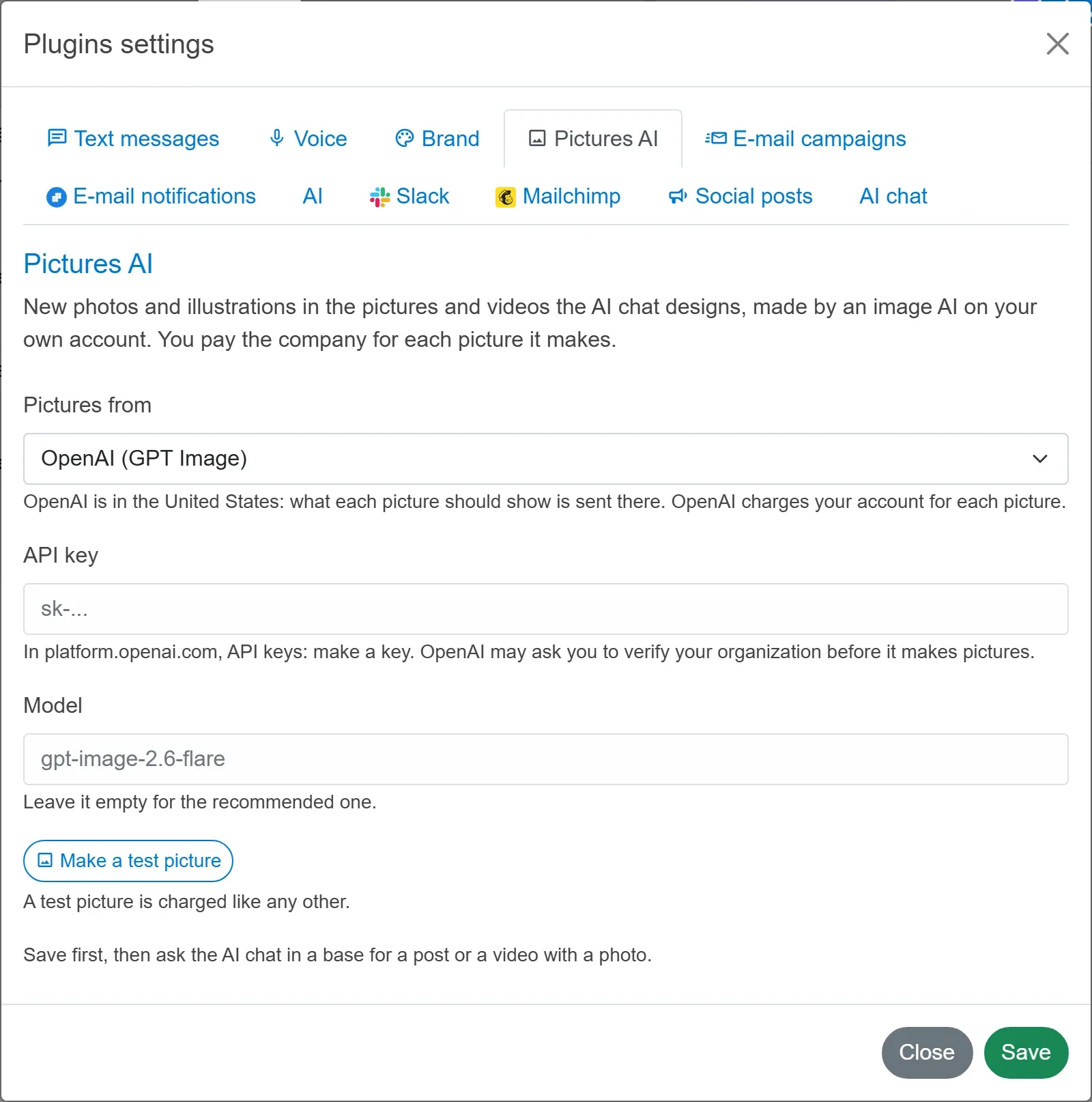
- In Artavolo, click the Pictures AI tab.
- Under Pictures from, choose OpenAI (GPT Image) or Google (Gemini, Nano Banana).
- Paste the key into API key. Leave Model empty for the recommended one.
- Click Make a test picture to see that the key works. The test picture is charged like any other.
- Click Save.
Where the words go: what each new picture should show is sent to OpenAI or Google, both in the United States. Google's pictures carry an invisible SynthID mark that says they were made by AI. The chat is told never to ask for faces of real people, logos or words inside these pictures, and asks for at most four new pictures in one request.
Good to know
- Save first, then ask the chat. It reads these settings each time you send a message.
- Your keys stay on Artavolo's server. The windows show them as dots.
- If Show my voices says the key may not do that, the key lacks Voices (read). Add that right in ElevenLabs, or paste the voice's ID from ElevenLabs into the Voice box.
- To stop voice-overs or new pictures, choose No voice-overs or No new pictures and click Save. To stop using the logo, click Remove.
- These settings are for the whole workspace: everyone who uses the chat in its bases gets the same brand, voice and pictures AI.