Build or change your base by asking the AI chat
Updated
Tell the AI chat what you need to keep track of, in your own words, and it sets up the tables and fields for you: "add tables for my customers and their orders", "show how much each customer spent", "add a field for a photo of the finished job". It can also rename a field, change its choices or delete it. Nothing changes until you click Apply, and Undo last change takes it all back.
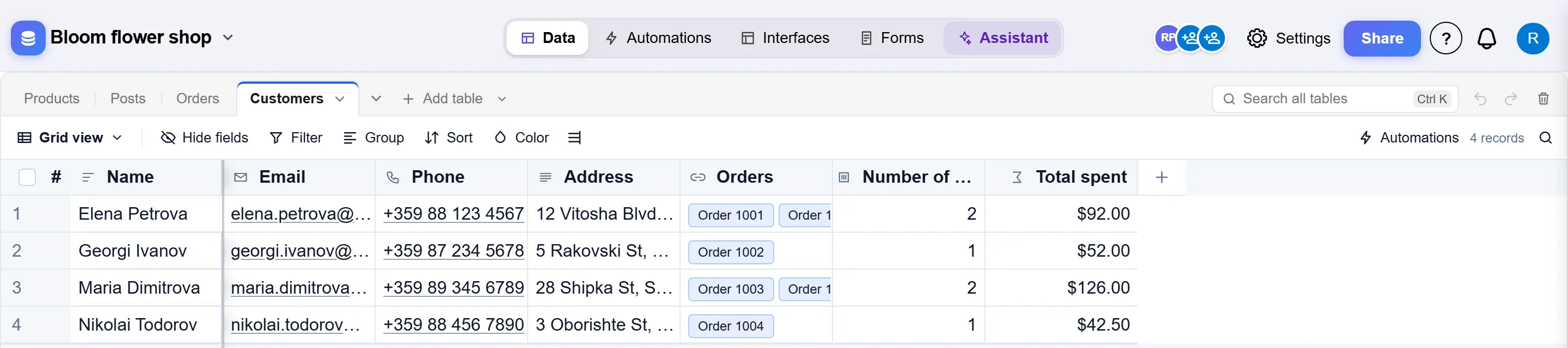
Ask for new tables
- Open a base and click Assistant at the top. The AI assistant panel opens on the right, with Chat at the top.
- In Write a message, say what you want to keep and how things belong together. For example: "Add tables for my customers and their orders. Each order has a customer, the products, the delivery date and time, a status (To make, Ready, Delivered) and a total. On each customer, show how many orders they made and how much they spent in all."
- Click Send. After a few seconds the chat answers and lists the changes it prepared, one by one, with the fields of each new table.
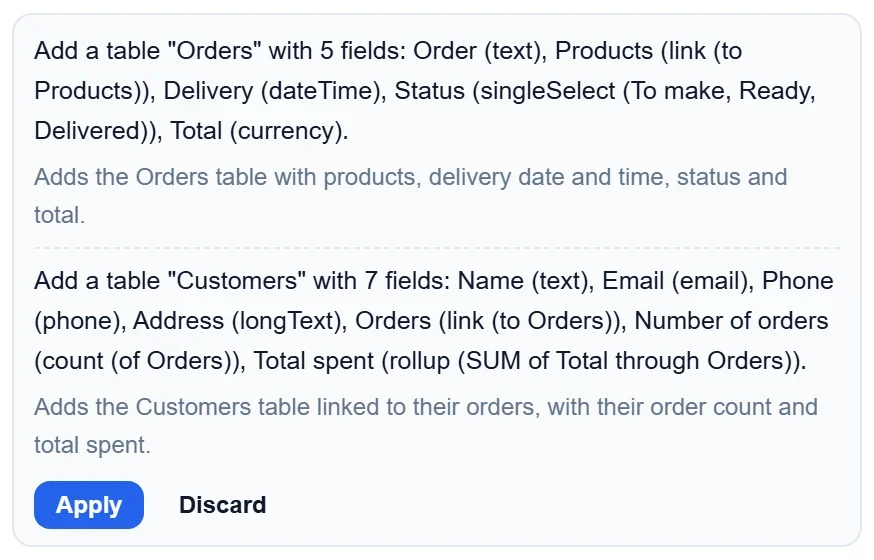
- Read the list. If something is not right, write what to change ("call it Clients, not Customers") and click Send again. To drop it all, click Discard.
- Click Apply. The new tables appear next to your other tables, at the top of the screen.
Several tables asked for in one message can link to each other, as here: each order points to its customer, and each customer shows their orders. When a field links to another table, that table gets a field back by itself, so you can see the link from both sides.
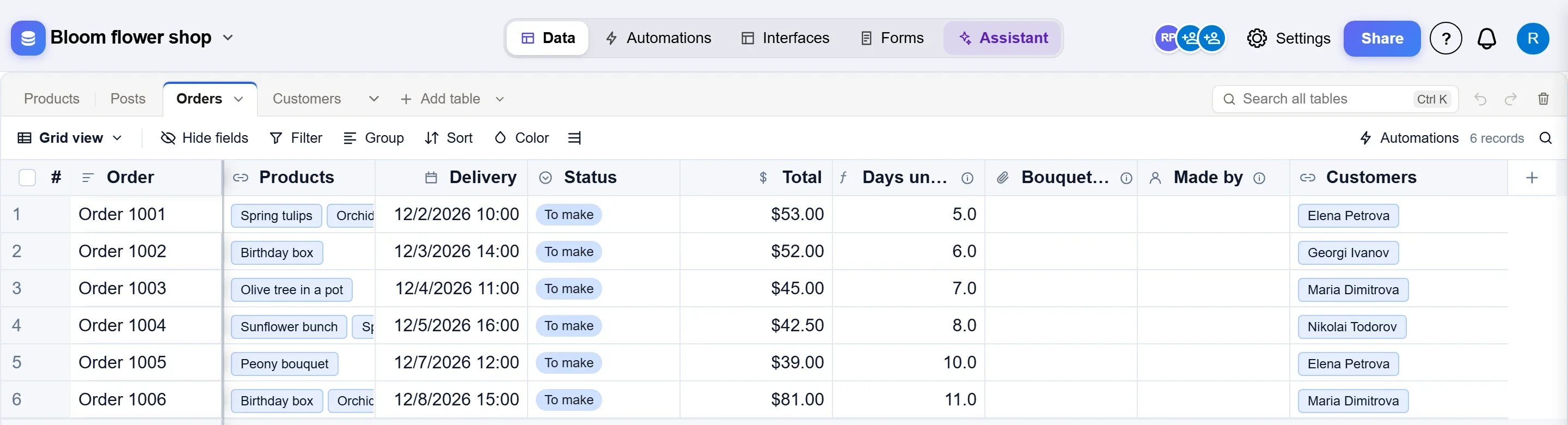
Want some records to try it with? Ask "Add four sample customers and six orders for them". The chat can link records to records that are already in the base. Records it adds in the same message are not there yet, so it adds them first and links them when you ask again after Apply.
Add fields to a table you have
Say what the field is for, and the chat picks the right kind:
- "Add a field that shows how many days are left until the delivery" makes a formula that works the number out for every record.
- "Add a field for a photo of the finished bouquet" makes a files field.
- "Add a field for the person on our team who makes it" makes a person field, where you pick people who can open the base.
- "On each client, show the total of their invoices" makes a rollup: it adds up a field of the linked records.
It can make every kind of field you can make by hand: text, long text, number, money, percent, a choice (one or several), a date, a date with a time, a tick box, e-mail, web link, phone, rating, files, a person, a duration, a link to another table, a lookup (a value shown from the linked record), a rollup (a sum, an average, the smallest or the biggest of the linked records), a count of linked records, a formula, an automatic number, the time a record was made or last changed, who made it, a barcode and a button.
Rename, change or delete a field
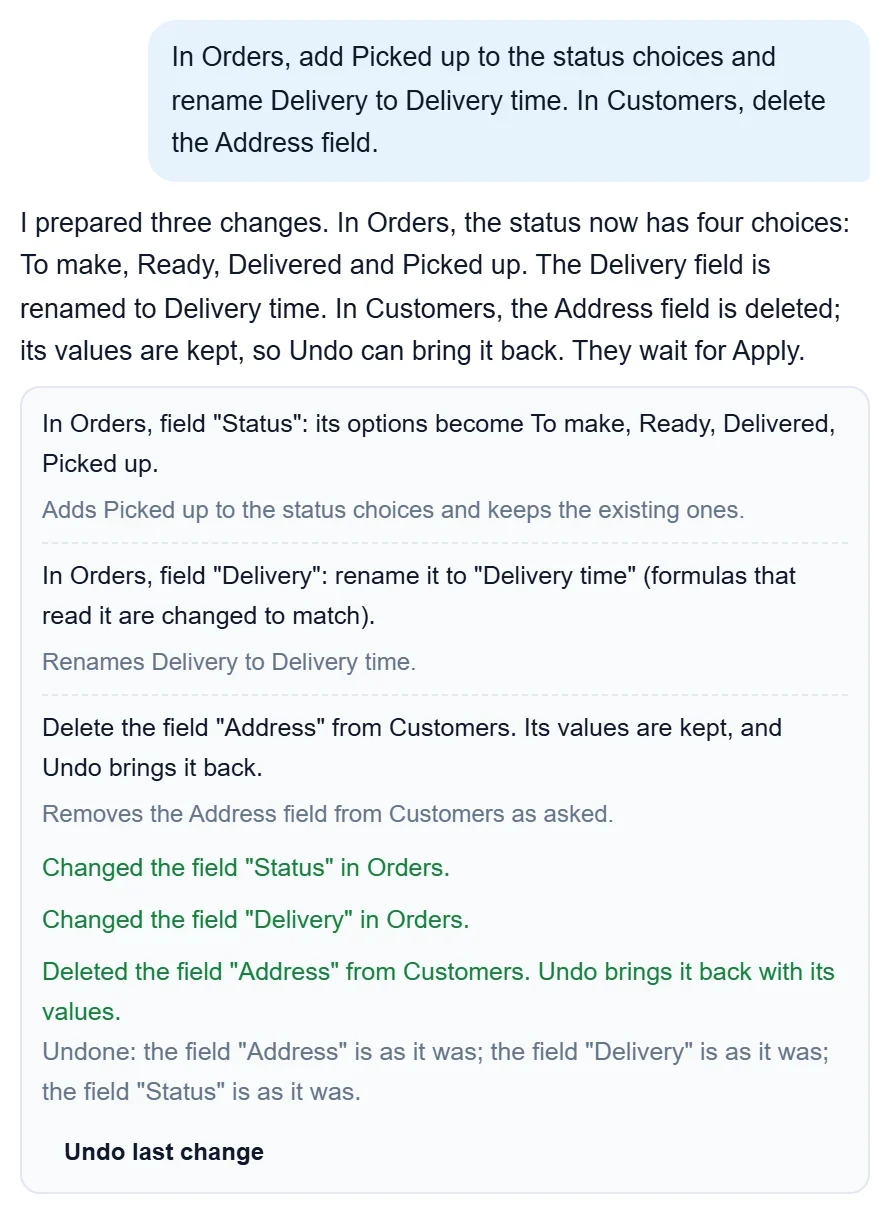
- Write the change, for example: "In Orders, add Picked up to the status choices and rename Delivery to Delivery time. In Customers, delete the Address field."
- Click Send, read the changes and click Apply.
The chat can:
- Rename a field. Formulas that use it are changed to match.
- Give a choice field a new list of choices.
- Change a formula.
- Change a field into a close kind: between text, long text, e-mail, web link and phone; between number, money and percent; or between a date and a date with a time. For other kinds, it adds a new field instead.
- Delete a field. Its values are kept, so Undo last change brings the field back with everything that was in it.
Take a change back
Changed your mind after Apply? Click Undo last change under the change. Each field goes back to how it was, a deleted field comes back with its values, and a new table goes to the trash. Click it again to take back the change before that.
Good to know
- Only the owners of a base can add or change its tables and fields. Anyone else can ask, and the chat tells them that an owner can do it.
- The first field of a table names each record (like a customer's name or an order number), so the chat does not delete it. Rename it instead.
- A field that a formula, lookup or rollup reads cannot be deleted while they use it. The chat tells you which ones, so you can change or delete those first.
- A new table can start with up to 40 fields. You can add more afterwards.
- A button is added once its table is there: ask for the table first, then for the button.
- Each change is made in your name, just as if you had made it by hand.
- The chat uses the workspace's AI. See Talk to the AI in your base for which AI that is and what it costs.