Make pictures and videos for your posts with the AI chat
Updated
Need a picture for Instagram, a carousel for LinkedIn or a short video for Reels or TikTok? Ask the AI chat in your base. It writes the words, designs the pictures in your colours and puts the finished files into the record, ready to post. It can even make one picture or video for every product or client in a table.
What you need
- A table with a files field (an attachment field), where the pictures and videos go. For example a Posts table with a Pictures field. No such field yet? Ask the chat: "Add a Pictures field to Posts".
- Optional: your logo, colours and font, so every picture looks like yours. A workspace owner adds them once on the Brand tab. See Set up a voice, your brand and a pictures AI for the AI chat.
Make pictures for a post
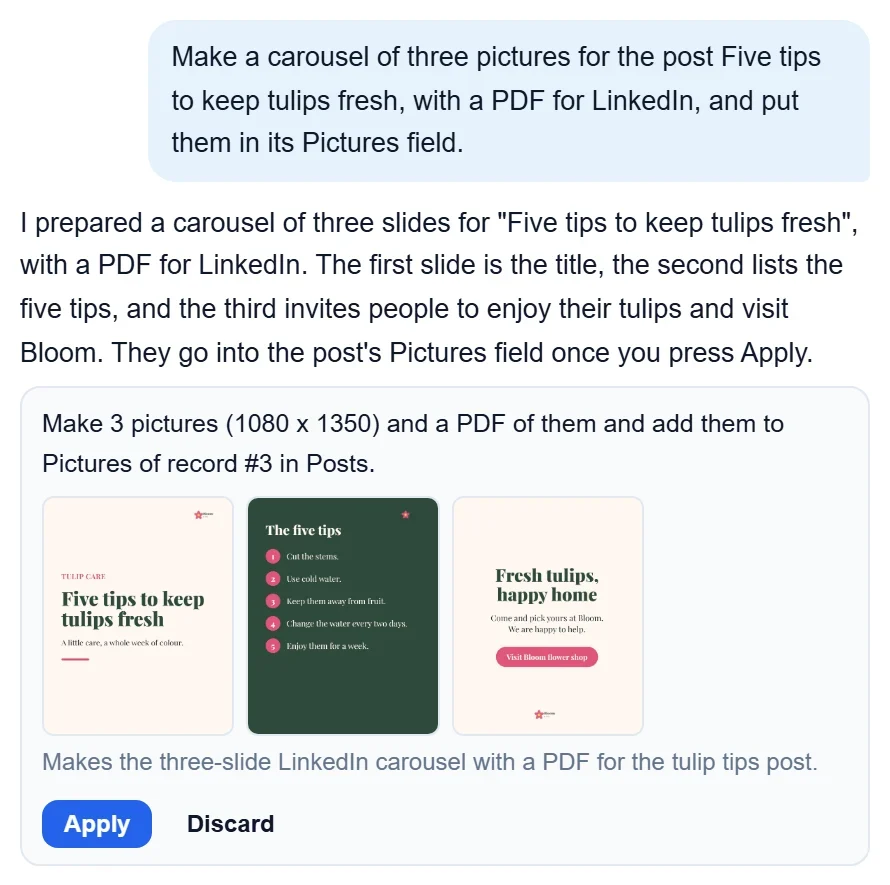
- Open the table, click Assistant at the top, and write in Write a message what you need and for which record. For example: "Make a carousel of three pictures for the post Five tips to keep tulips fresh, with a PDF for LinkedIn, and put them in its Pictures field."
- Click Send. The chat writes the words and designs each picture, and your browser draws them. After a few seconds you see the finished pictures under the answer. Click one to see it full size.
- Not quite right? Write what to change ("make the first one darker", "shorter words on the second") and click Send.
- Click Apply. The pictures go into the record's files field, after any files already there.
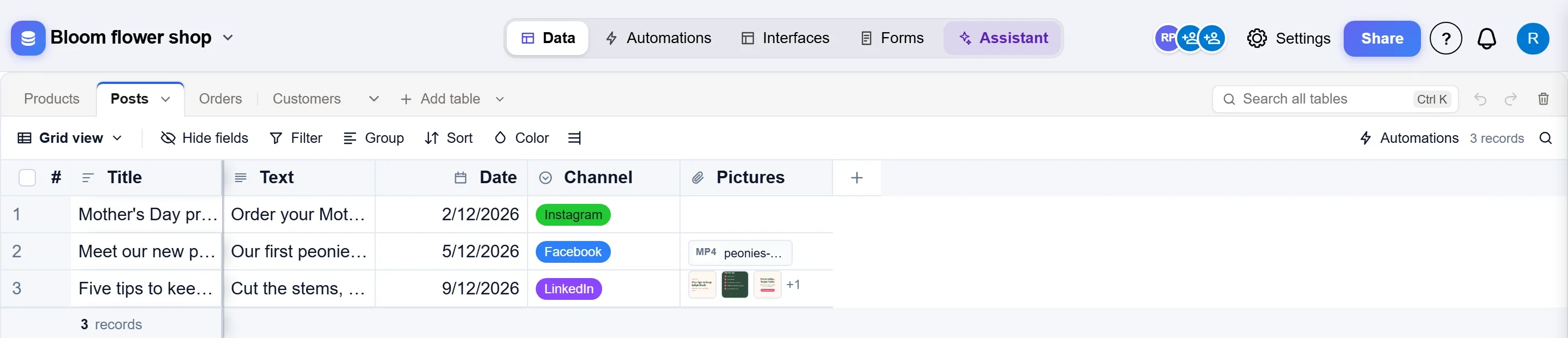
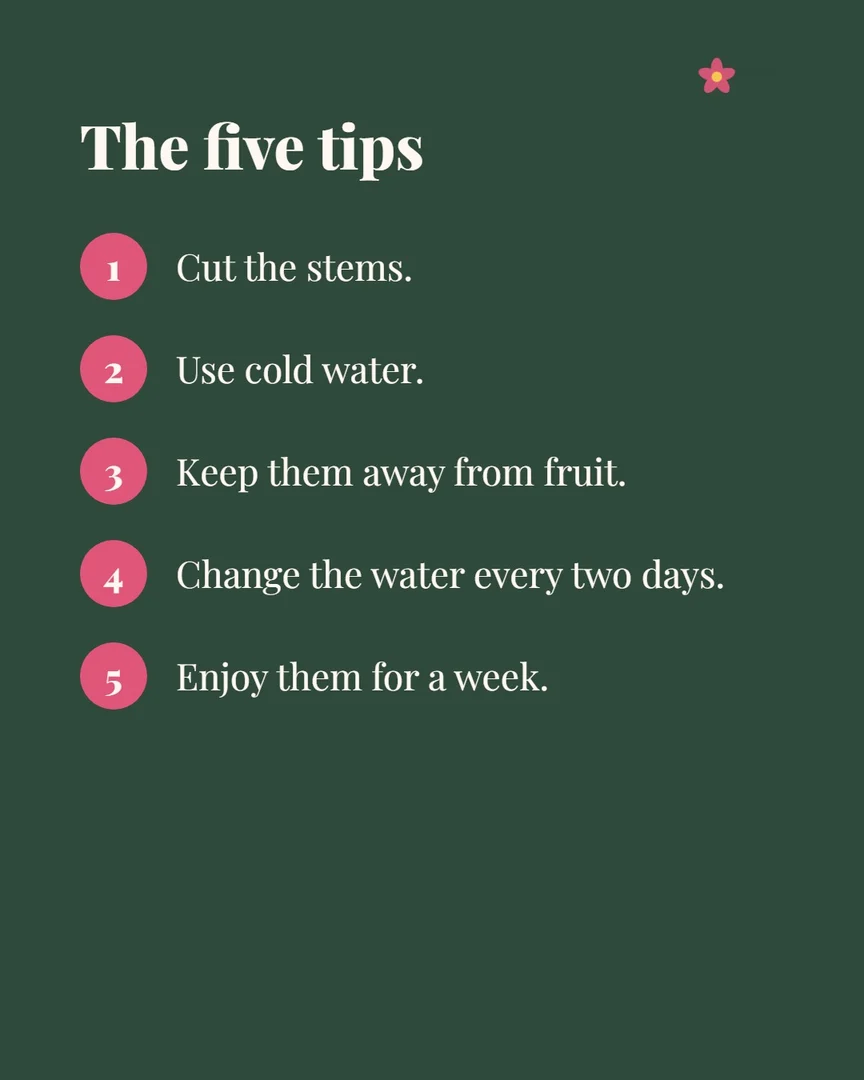
Say the shape you need, or the chat picks it:
- Portrait, 1080 x 1350, the usual post for Instagram and Facebook.
- Square, 1080 x 1080.
- Story, 1080 x 1920, for stories, Reels and TikTok.
- Landscape, 1200 x 628, for a wide post or a link preview.
A carousel is up to 10 pictures in a row. Ask for "a PDF" too, and you also get one PDF file of them all, which is how LinkedIn shows a carousel.
Make a short video
The chat makes slideshow videos: 3 to 12 slides designed like its pictures, each shown for a few seconds with a slow zoom or pan and a soft fade into the next, up to 60 seconds in all. It cannot film or make moving footage.
- Ask for it, for example: "Make a short video for the post Meet our new peonies, for Instagram Reels, with calm music, and put it in its Pictures field."
- Click Send. The chat writes the slides, and you see them under its answer.
- A video with music or a voice says This browser starts sound only after a click. Click Make the video.
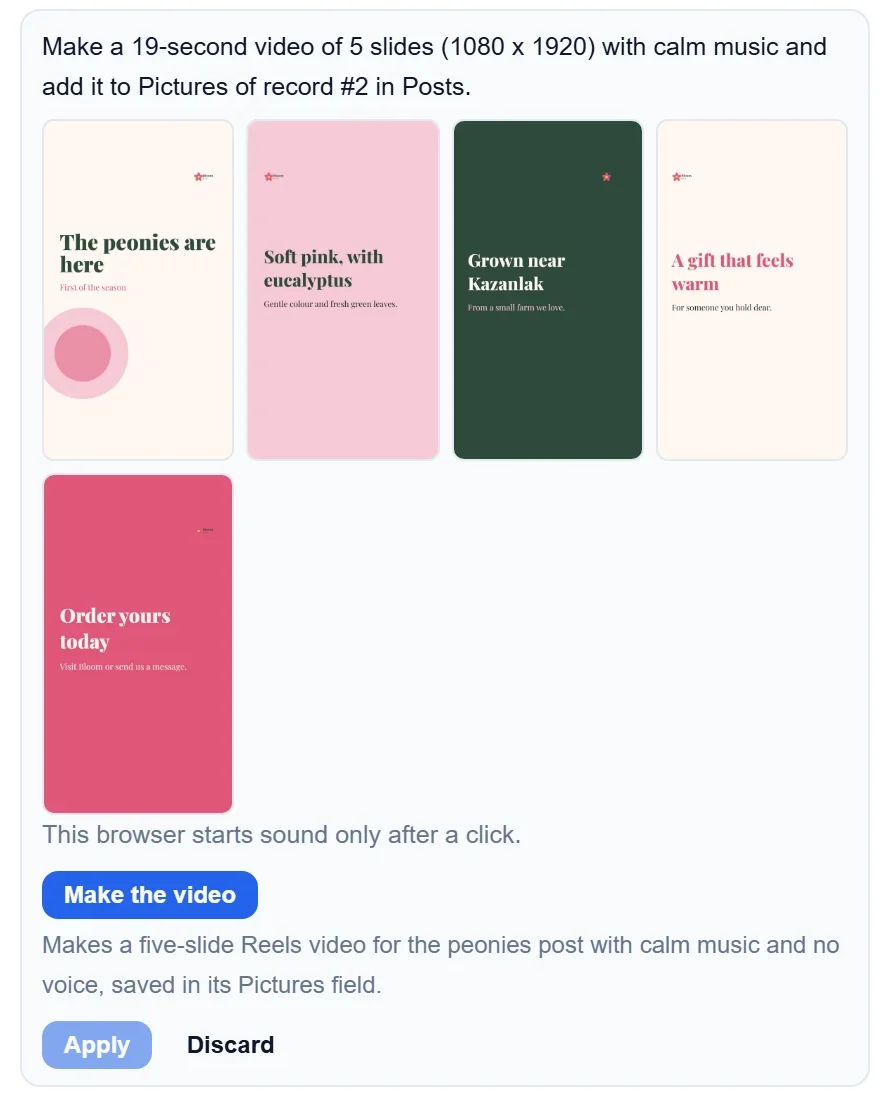
- Your browser records the video as it plays and shows how far it is, as Making the video: 40%. Keep this tab open. It takes about as long as the video lasts.
- When it is ready, the video plays right in the chat. Watch it, then click Apply to put it into the record.
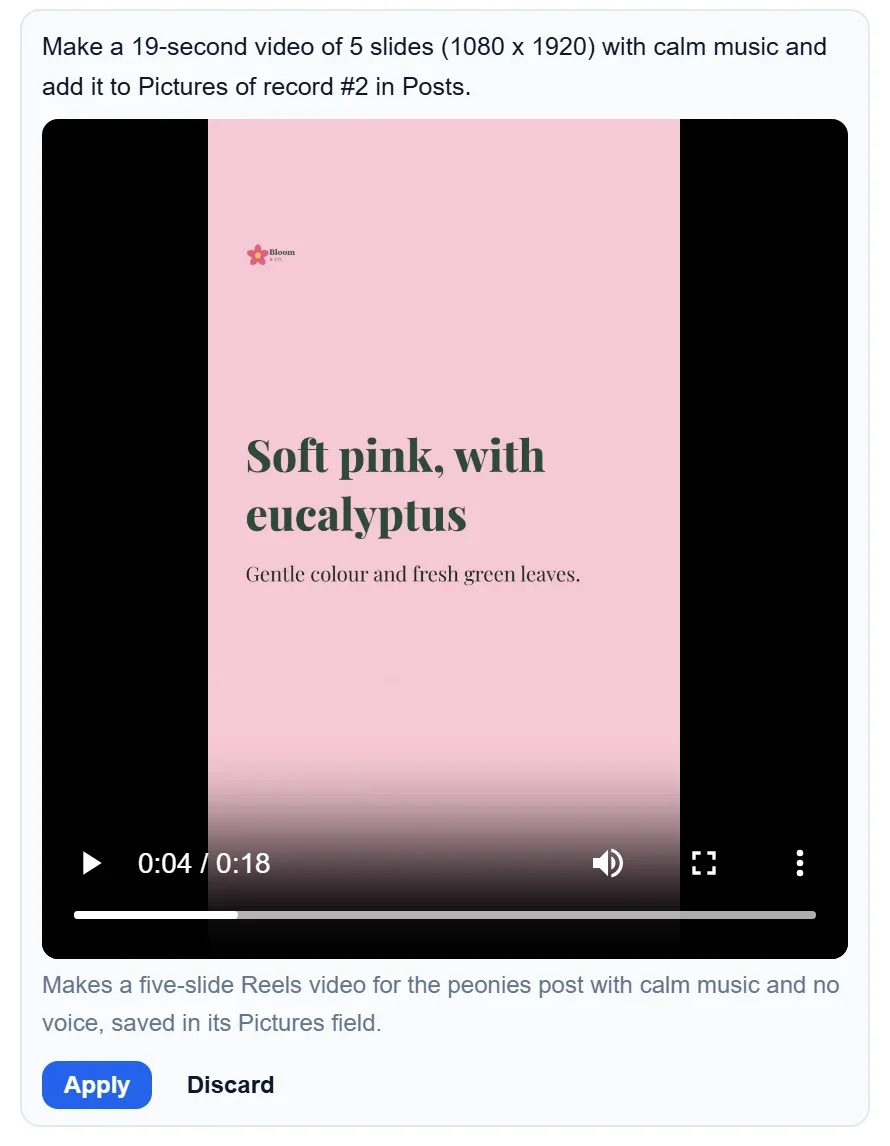
Sound in a video:
- Music: ask for calm or lively music. It is made in your browser, so it costs nothing and needs no setup.
- A voice-over: ask for "a voice-over", and a voice reads a few words over each slide, in your language. The words also show on the video as captions, since most people watch with the sound off. Say "no captions" to leave them out. A voice-over needs the workspace's own ElevenLabs voice: see Set up a voice, your brand and a pictures AI for the AI chat.
One for every record
Ask for the same kind of picture or video for many records at once, for example "Make a square post picture for each product, with its name and price, and put it in Post picture". The chat designs it once, and each record gets its own copy with its own name, price or photo.
- Write what you want and for which records: every record of the table, or only some ("each product in Bouquets").
- Click Send. Under the answer you see how far it is, such as Drawing 12 of 40..., with Stop to end it early.
- When it is done, the chat shows the first few pictures and how many were made. Click Apply to put each one into its own record.
- Up to 100 pictures, or 20 videos, in one request. For more, ask again for the next ones.
- Stopped early? Apply adds the ones already made.
- Videos made for each record have music, but no voice-over.
- One Undo last change takes them all back.
Change your mind
Before Apply, click Discard, and nothing is kept. After Apply, click Undo last change to take the files out of the record again.
Good to know
- The pictures and videos are drawn in your own browser, not on another service. The AI only writes their design.
- The chat uses the brand of the workspace if one is set: the logo, colours, font and tone of voice.
- Without a pictures AI, the chat designs with words, colours, shapes and the photos already in your records. With one, it can add new photos and illustrations. See Set up a voice, your brand and a pictures AI for the AI chat.
- The chat is told never to draw logos, or faces of real people, that you did not give it.
- Pictures are JPG files and videos are MP4 files where your browser can make them (otherwise WebM). They count toward your workspace's file storage.
- Keep the tab open while a video is being made: it is recorded as it plays.