Build a form and collect answers
Updated
A form is a page people fill in to add a record to one of your tables. The people you allow can answer with no account and no seat, and each answer arrives as a new record with the time it came in.
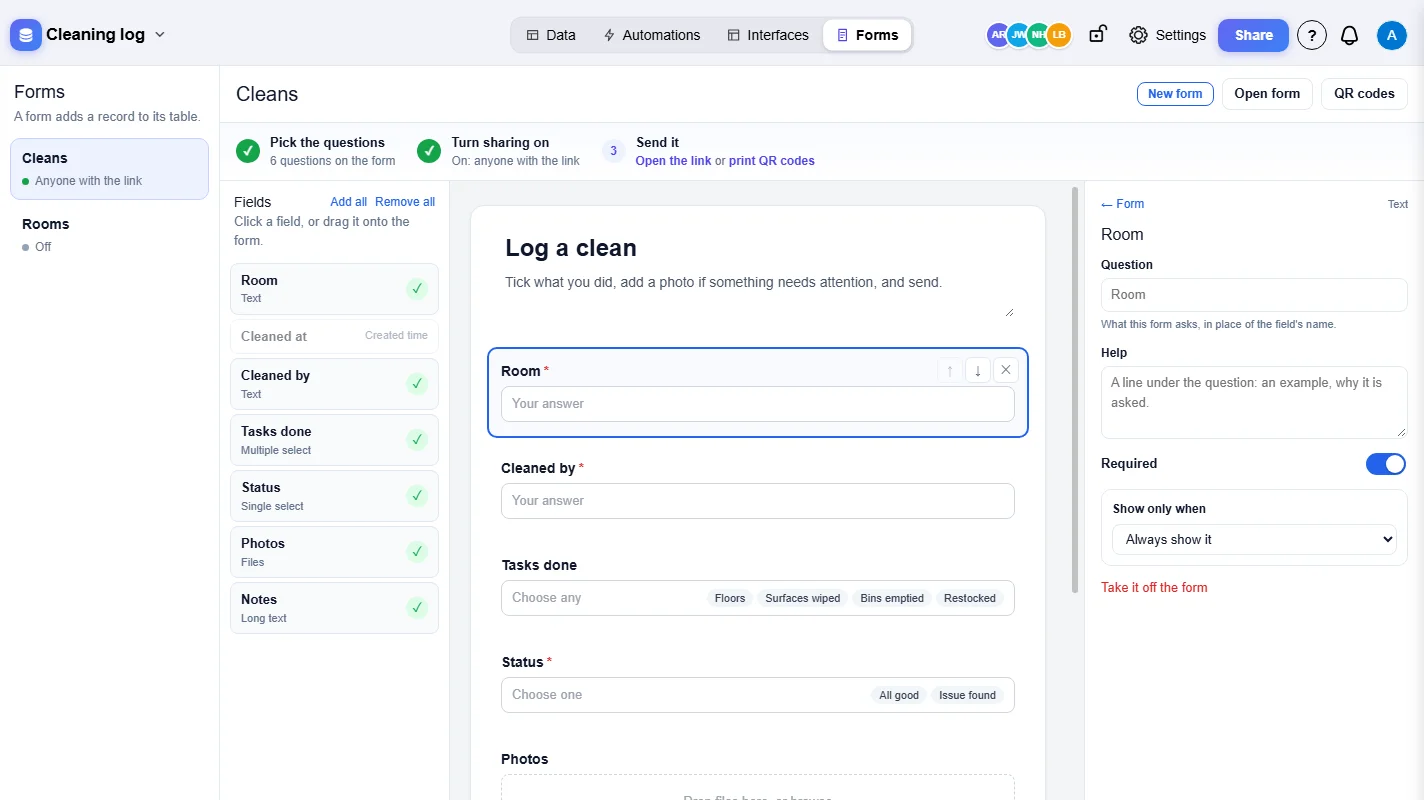
Build the form
- Open Forms at the top of the base and pick the table on the left. Each table shows whether its form is off, for members only or open to anyone with the link.
- Click a field in the Fields list, or drag it onto the form, to ask it as a question. Add all and Remove all do every field at once.
- Type the form's title and description straight onto the form.
- Click a question to change its wording, add a line of Help under it, make it Required, or set Show only when to ask it only after a given answer to another question. A hidden question is never required.
- Drag a question, or use its arrows, to change the order.
With no question picked, the Form tab on the right holds the form's name, title and description, the Button text and a Line under the button. The three steps across the top, Pick the questions, Turn sharing on and Send it, tick themselves off as you go. New form adds another form to the same table, for example a short one for visitors and a longer one for staff.
Change how it looks
Open Look on the right. The form beside the panel shows each change as you make it.
- Layout: All on one page, or One at a time with a progress bar, Back and Next. Enter goes on to the next question, which slides or fades in. Choose the width, and place the form Centred, on the Left, or on half of a Split screen.
- Background: plain, a colour, a gradient, A picture of ours or Your own picture. A picture can be darkened and blurred so the questions stay easy to read.
- Card and type: the card's opacity, light or dark, its corners and shadow, the font, and the colour of Buttons and highlights.
- Logo and cover, a Welcome screen before the first question, and After sending: a thank-you message, A button to send another, or Then go to another page.
Share it
- Open Sharing on the right.
- Turn on Share the form. Members of the base who may add records can now fill it in.
- Turn on Anyone with the link to open it to people without an account.
- Optionally type a Password and press Set, and turn on Ask for reCAPTCHA to stop robots sending it.
- Copy the Link to the form, paste the Embed in a website code into a page of your site, or press QR codes to print codes.
Open form shows the form exactly as people see it.
Hear about each answer
While a base has no automations, the Automations section offers a ready-made E-mail me when the form is sent. Any automation can also start with A form is sent.
Good to know
- Only the owners of a base see the Forms section and can build and share its forms.
- Links to other tables, person fields and fields the base fills in itself (formulas, lookups, created time and similar) cannot be asked: their pickers would show your records or members to anyone.
- Your own pictures can be JPEG, PNG, GIF or WebP, up to 5 MB.
- A password is asked of people who open the link. Printed QR codes open the form without it.
- Ask for reCAPTCHA needs the reCAPTCHA keys in Settings, Integrations first.
- On a phone, the builder shows one pane at a time (Form, Questions, Settings), and its ... menu holds New form, Open form and QR codes. People filling in the form on a phone see the background as a band above the questions.