Keep notes beside your data
Updated
Notes are the base's notebook: meeting notes, a plan for Saturday, a shopping list for supplies. They sit next to the data they are about, so your team finds them in one place instead of in another app.
Open the notes
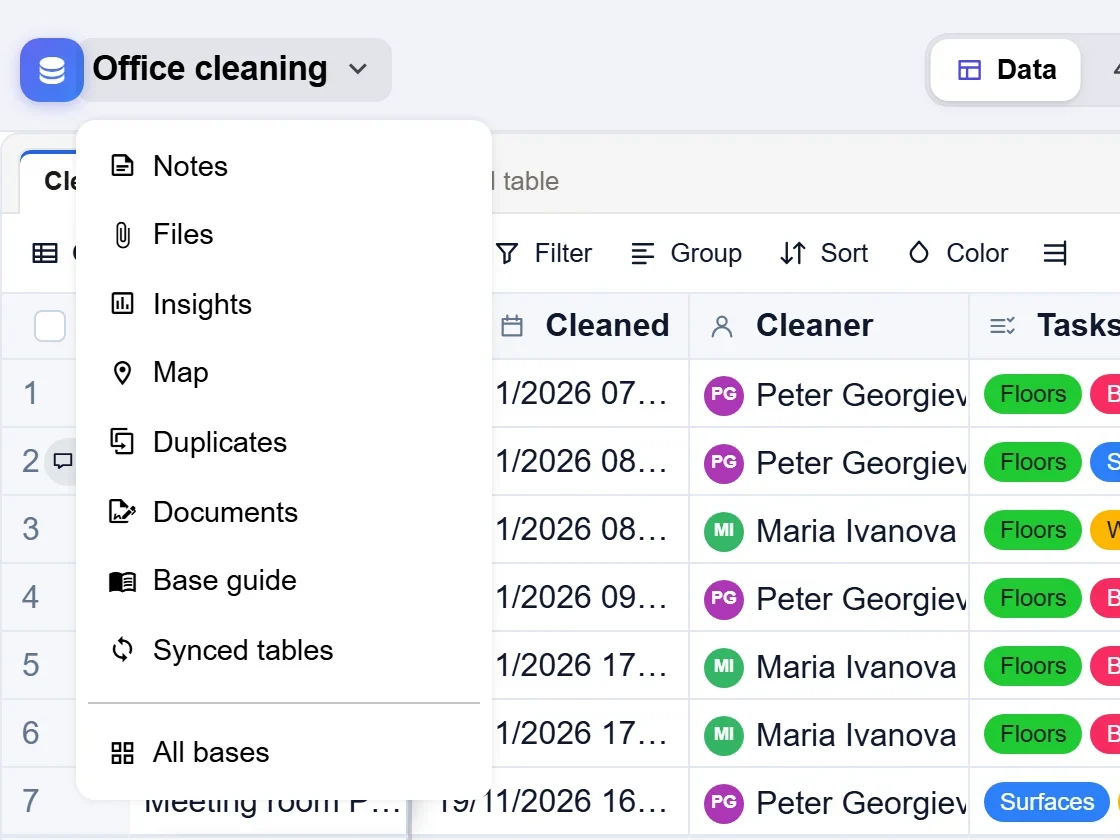
Click the base's name at the top left and choose Notes.
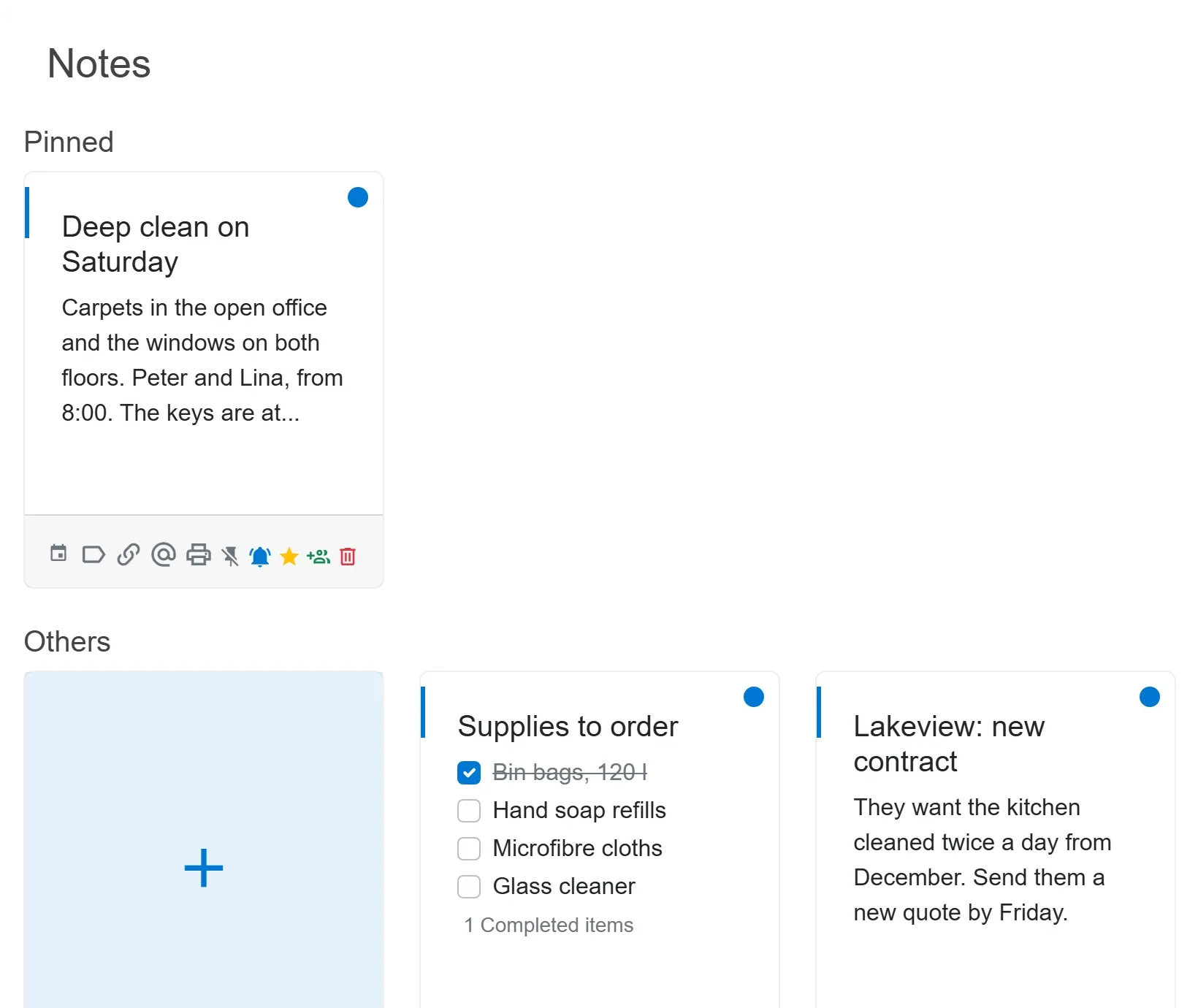
Pinned notes come first, under Pinned, and the rest under Others.
Write a note
- Point at the large + card. Two small buttons appear: the pencil (Write text) for a written note, and the ticked boxes (Create list) for a checklist.
- Click the pencil next to New note at the top and type a title.
- Write the note. The bar above the text has bold, headings, lists, quotes, alignment and links.
- Click Add.
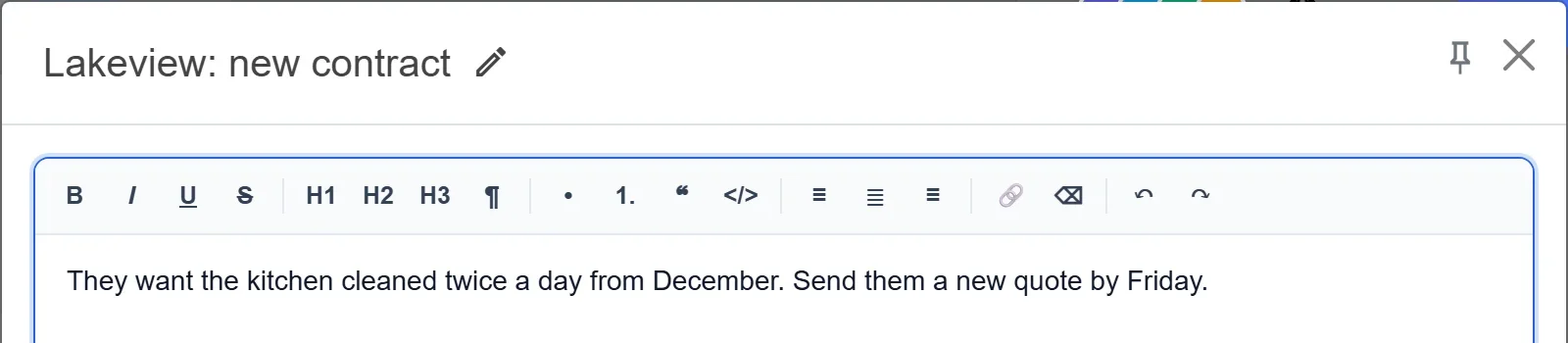
To change a note later, click it, edit it and click Save & Close. In a checklist, tick an item when it is done: it is crossed out and counted under Completed items.
Use the buttons under a note
Each note has a row of small buttons at the bottom. Point at one to see its name.

- Edit Labels (the label): give the note coloured labels. The Label manager adds, renames, recolours and removes them.
- Copy Link (the chain): copy a link that opens the note.
- Send E-mail (the @) and Print (the printer).
- Pin (the pin): keep the note at the top.
- Reminder (the bell): under Select time to remind, pick a date and time, tick the people under Select which members to notify, and click Save. At that time they get a notification.
- Star: mark the notes that matter.
- Assign contributors (the person with a plus): each person you tick gets a notification.
- Remove (the bin): delete the note.
Find a note
Click Filters at the top right to show notes with or without a star, by label, by person or by colour. Untick Latest first to see the oldest first. Reset filters shows them all again.
Good to know
- Contributors and owners can open the notes and write them. The buttons under each note are for the base's owners.
- Guests see the notes only if Allow guests to view the base notes is on in the base's Guest Access settings.
- A plan can limit how many notes a base holds. When the limit is reached, the + card says so.
- Reminders are sent by the server's scheduled job, so on a self-hosted installation it must be running.
- To talk about a single record, comment on the record instead: see Comment on records and mention people.