Two sections of the base page are new this month. Interfaces are simple apps built from your tables, for people who should see only part of a base. Forms is a builder for every table's form, with a new Look tab for layout, background and type. And printed QR codes now open a form with the place already filled in, so a cleaner, a technician or a visitor can log what they did without an account.
What an interface is
An interface is an app on a base: pages down the side, each one view of a table shown on its own. A page can be a grid, a list, a gallery, a kanban board, a calendar, a timeline, a record review, a dashboard, a form or a chart. For each page you decide:
- what people may do there: add records, change records, delete records, comment;
- which fields show: shown, read only or hidden;
- whether it shows only the viewer's own records.
Owners work on a draft with Edit and make it live with Publish. The status always says where the draft stands: Published, Changes not published, or Not published yet. Each interface has a colour, chosen from nine, which becomes the accent of its buttons, links and page list, and a short description of what it is for.
Who sees an interface
Members of the base open it from the base's Interfaces section. You can also invite people to the interface alone, by e-mail, as editor, commenter or read only. People invited this way see that interface and nothing else of the base, and the server holds them to it: a hidden field cannot be read, filtered, sorted, grouped, searched or written by them, through the screen or the API.
For a wider audience, Public link under Share gives a read-only address anyone can open, signed in or not. New link ends the old one, and turning it off ends it at once. Files in records open for interface-only people and visitors through signed links that last six hours, and only for files in that base.
An open interface page shows changes made elsewhere: every 15 seconds while it is in front, it asks which records changed and updates them in place, so a dashboard on a wall screen stays current.
Dashboards with pickers
A dashboard page is made of tiles: numbers, charts, lists and progress bars, plus text (headings, paragraphs, bold and links), buttons that open a link, images and dividers. A record picker tile lets the viewer choose a record, for example a project, and the number, chart, list and progress tiles then count only the records linked to it. Choose another project and they follow. A dashboard is read only; visitors are not offered the dashboard's editing controls.
The Forms section
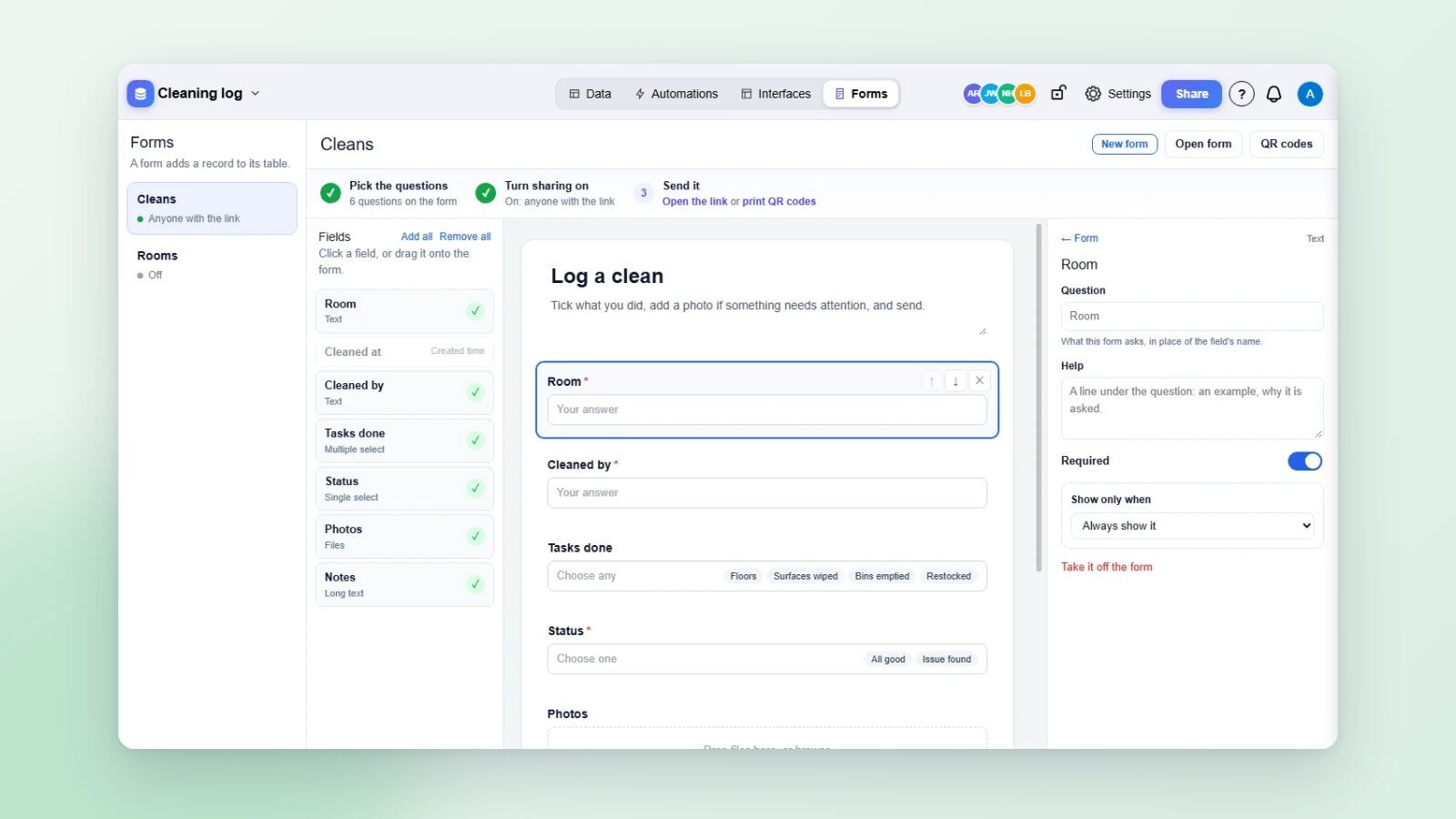
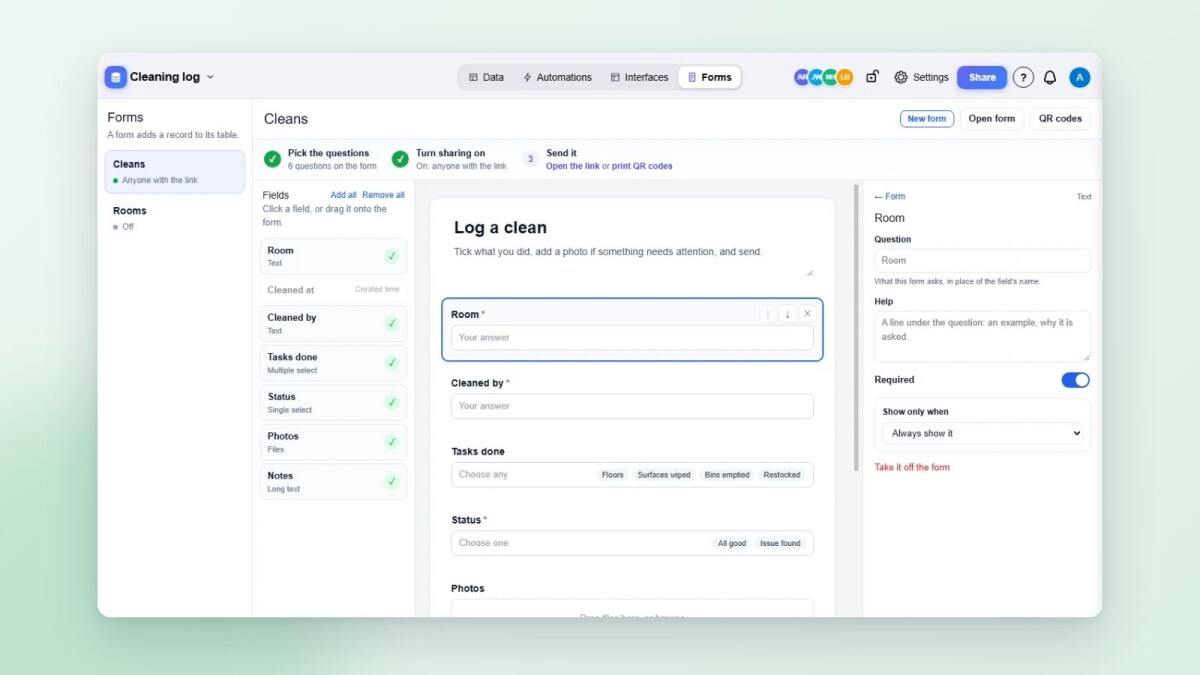
Forms now has a section of its own, next to Interfaces. On the left is each table with its form's state: off, members only, anyone with the link, or protected by a password. Pick a table and its form opens in a builder:
- the table's fields on the left: click one, or drag it onto the form;
- the form in the middle, with its title and description typed in place, and questions you drag, move or take off;
- on the right, the picked question's own wording, a help line, whether it is required, and Show only when, so a question appears only for some answers.
Three steps across the top tick themselves off as you go: Pick the questions, Turn sharing on, Send it. New form, Open form and QR codes sit above the builder.
The Look tab
The panel beside the form has three tabs: Form, Look and Sharing. Look decides how the form appears to the people who fill it in, and the form beside the panel shows each change as you make it:
- Layout: every question on one page, or One at a time, with a progress bar, Back and Next, and Enter to go on. Questions slide or fade in, with no movement for visitors who ask their device for less motion. Choose the width, and whether the form is centred, on the left, or on one half of a split screen.
- Background: plain, a colour, one of eight gradients, one of twelve pictures of our own, or your own picture (JPEG, PNG, GIF or WebP up to 5 MB), with darkening and blur for a picture.
- Card and type: how much of the background shows through the card, light or dark, corners, shadow, font, and the colour of buttons and highlights.
- Logo and cover, a welcome screen, and what happens after sending.
Under Sharing you turn the form on for anyone with the link, set a password, ask for reCAPTCHA, copy the link, or take the code to embed it in a website. On a phone the same form fills the screen, with the background as a band above it.
QR codes that open a form
QR codes in the base's settings prints a page of cards, one per room, lift or entrance. Each code opens the base's public form with that place filled in. Whoever scans it, with no account, adds what they did, notes and photos, and the record keeps the time it came in. The place is found by name: a text field on the form named like another table's primary field, such as "Room" and the Rooms table.
A form with a password can still be opened from its printed codes: each code carries a key made from the password, so a scan goes straight to the form while the bare link still asks for the password. Setting a new password retires the codes printed before it. The QR codes page says whether the form is protected and lets an owner set, change or remove the password.
Three templates use this from the start: Cleaning log, Lift and equipment service, and Visitor and new starter check-in. Each opens its form to everyone and e-mails whoever made the base on every new record.
Who this is for
Teams who need to give clients, field staff or another department a focused screen on shared data, and anyone collecting information from people outside the team: requests, inspections, check-ins, sign-ups.
Part 3 of 7 in the series "Artavolo in November 2026". The other parts:
- Part 1: Moving from Airtable to Artavolo without losing anything
- Part 2: AI agents and people on the same tables, with review and undo
- Part 4: Automations that run on the server, plus Zapier, Make and n8n
- Part 5: Artavolo on your phone: the app, photos, barcode scans and notifications
- Part 6: Import from Excel, Access, monday.com, Asana, Trello and more
- Part 7: The new base screen and Home
Every part is on the blog, and the full list of changes is on What's new. For this part, read Interfaces, Forms and QR codes, and the technical reference for interfaces. Ready-made bases with forms are in the template gallery.