Describe and protect a field
Updated
A field description tells people what goes in a field: what a choice means, which unit a number is in, who fills it in. It appears when someone points at the small i next to the field's name, so a shared base explains itself. You can also protect a field, so only the people you pick can change its values.
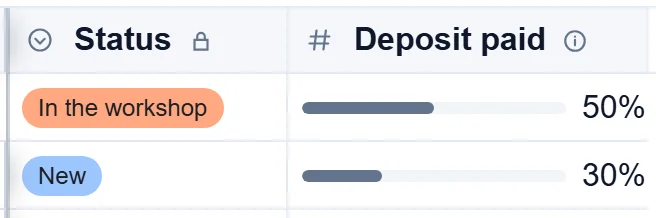
Add a description
- Point at the field's name, click the menu button at its right and choose Edit field.
- Write in Description, at the bottom of the window.
- Press Save.
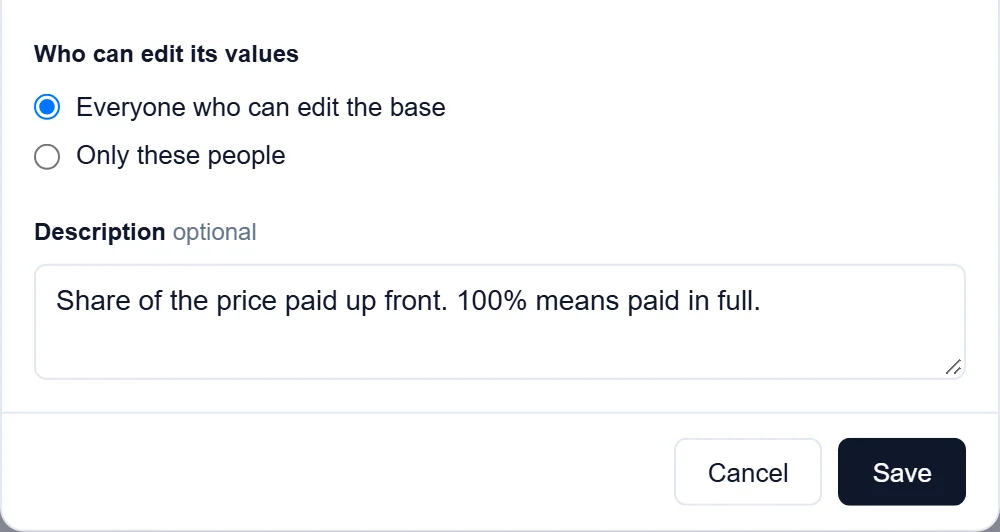
The field's name now shows a small i. Point at it to read the description. You can also write a description when you first add a field.
Write a useful description
- Say what the field is for in one sentence: "The date the customer signed, not the date we sent the offer."
- Give the unit or format: "Hours, in quarters: 1.25, 1.5".
- Explain choices that are not obvious: "Ready: packed and waiting for the courier."
- Say who fills it in, if only one person or team does.
Let only some people change a field
- Open Edit field for the field.
- Under Who can edit its values, choose Only these people.
- Tick the people who may change it.
- Press Save.
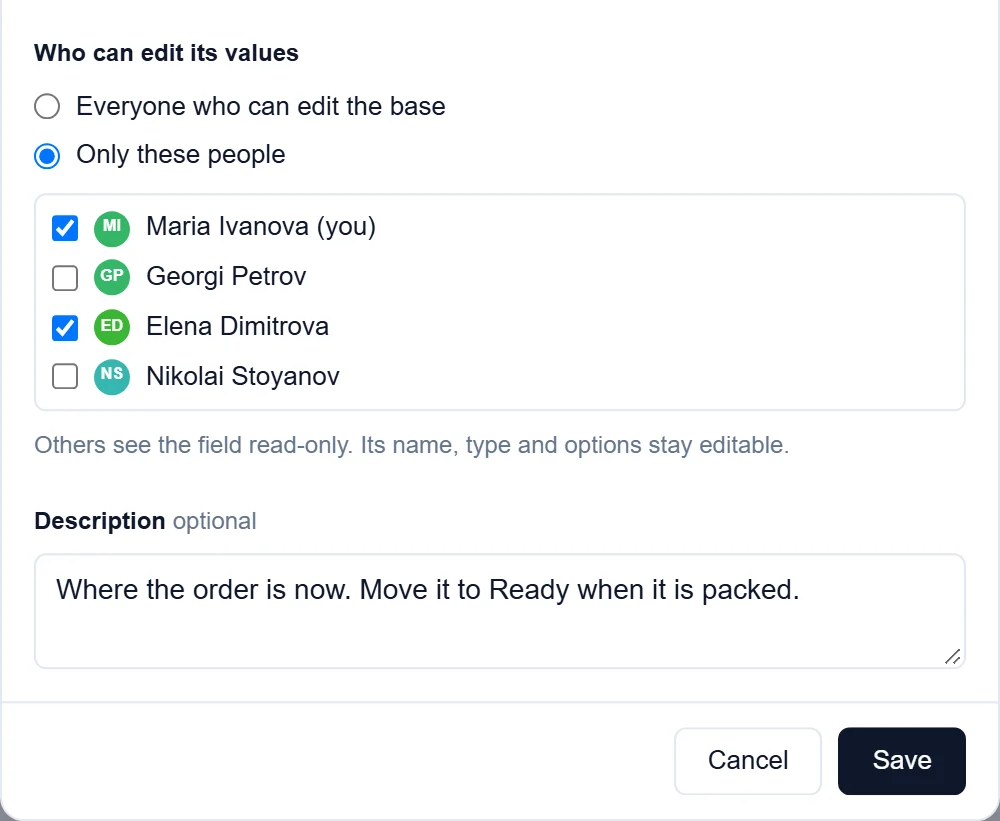
- Everyone else still sees the values but cannot change them.
- The field's name shows a lock. Pointing at it says who can edit the field, followed by the description.
- If you leave yourself out, the window warns you that you will not be able to change the values yourself.
Use it for a price, an approval or a status that only one person should set.
Describe a table
- Click Settings at the top right of the base.
- Choose Description and write what the table is for in What this table is for. It saves by itself.
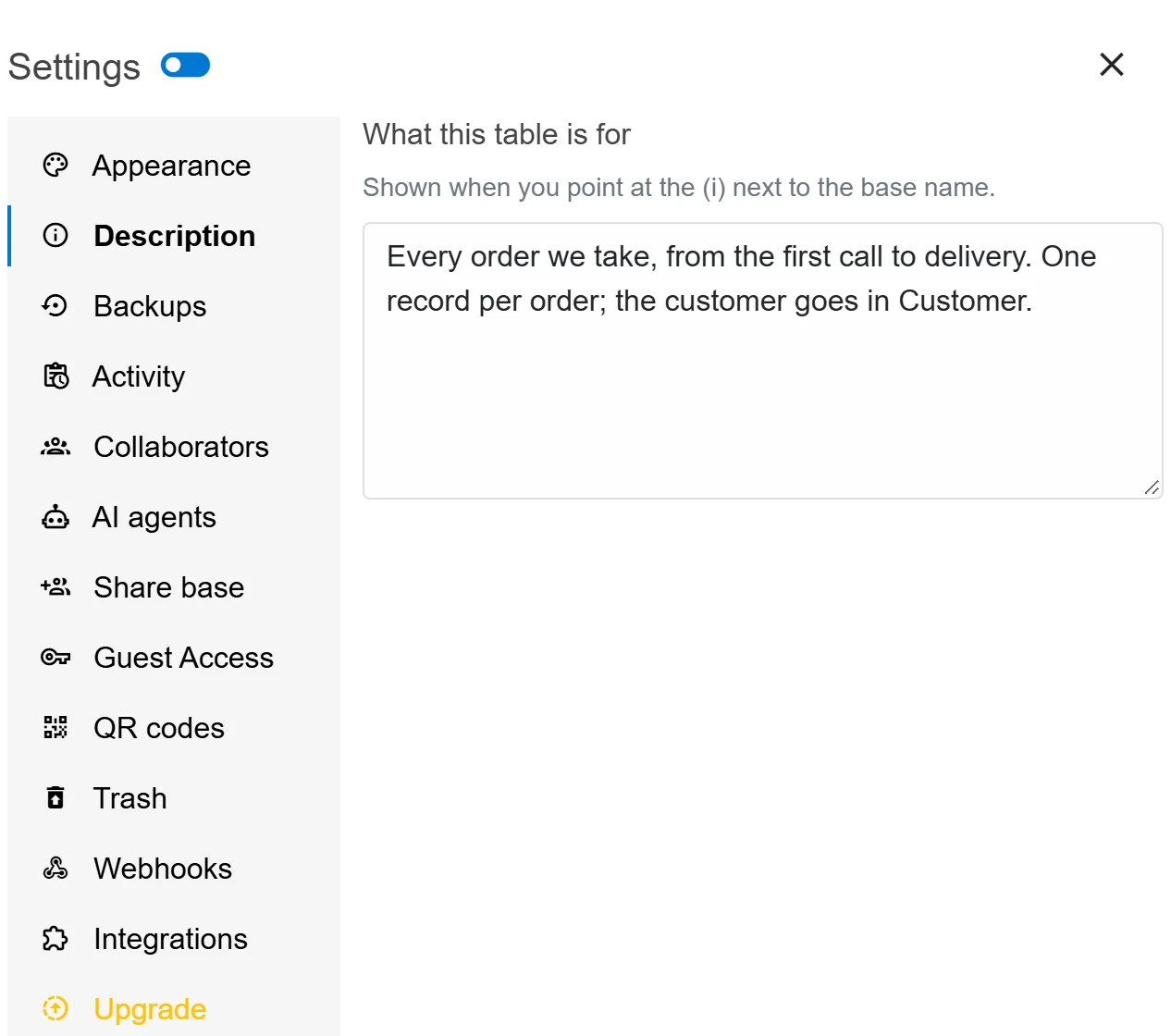
People read it by pointing at the i next to the base's name. Appearance, in the same panel, sets the table's name, colour and icon, and the background of the whole base.
Good to know
- Only the base's owners write descriptions and decide who can edit a field.
- A protected field limits changes only. To hide records from people, use the base's permissions and row rules. See Roles and permissions.
- From Airtable, field descriptions come across with the fields.