Hide and reorder fields
Updated
Hiding a field takes it out of one view, so you see only the columns that matter for the job at hand. Nothing is deleted: the values stay, other views still show the field, and an open record shows every field. The same panel changes the order of the columns.
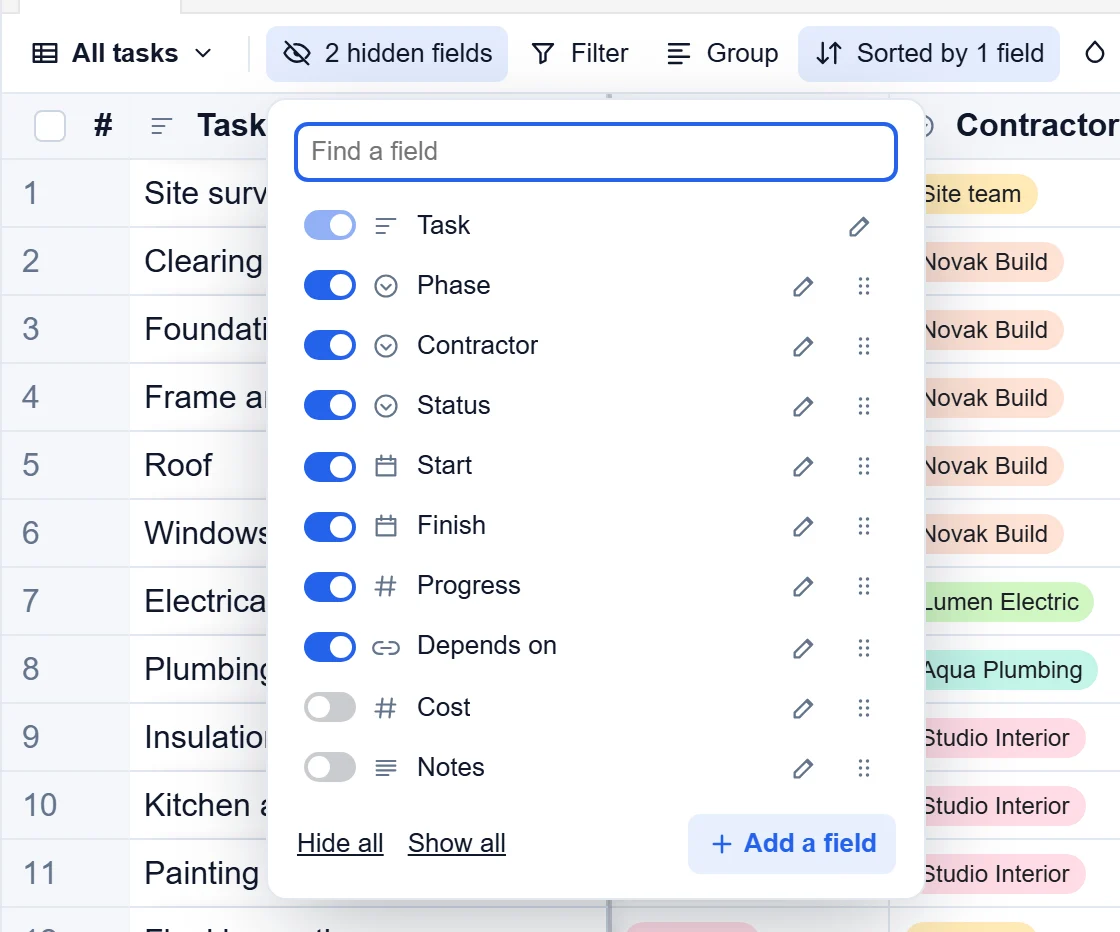
Hide or show fields
- Click Hide fields in the bar above the records.
- Switch a field off to hide it, or on to show it again.
- Click anywhere outside the panel to close it.
Find a field narrows a long list. Hide all and Show all do what they say. The first field (the record's name) is always shown.
When fields are hidden, the button says how many, such as 2 hidden fields, so nobody wonders where a column went.
Change the order
- In the panel, drag a field by the dotted handle at the right of its row.
- In a grid, drag the column's heading left or right.
- Right-click a column heading and choose Move left or Move right. This is the easy way on a touch screen.
The order belongs to the view. It also decides what cards show: a board's cards show the first three fields after the name.
Hide one field quickly
Right-click the column heading and choose Hide field.
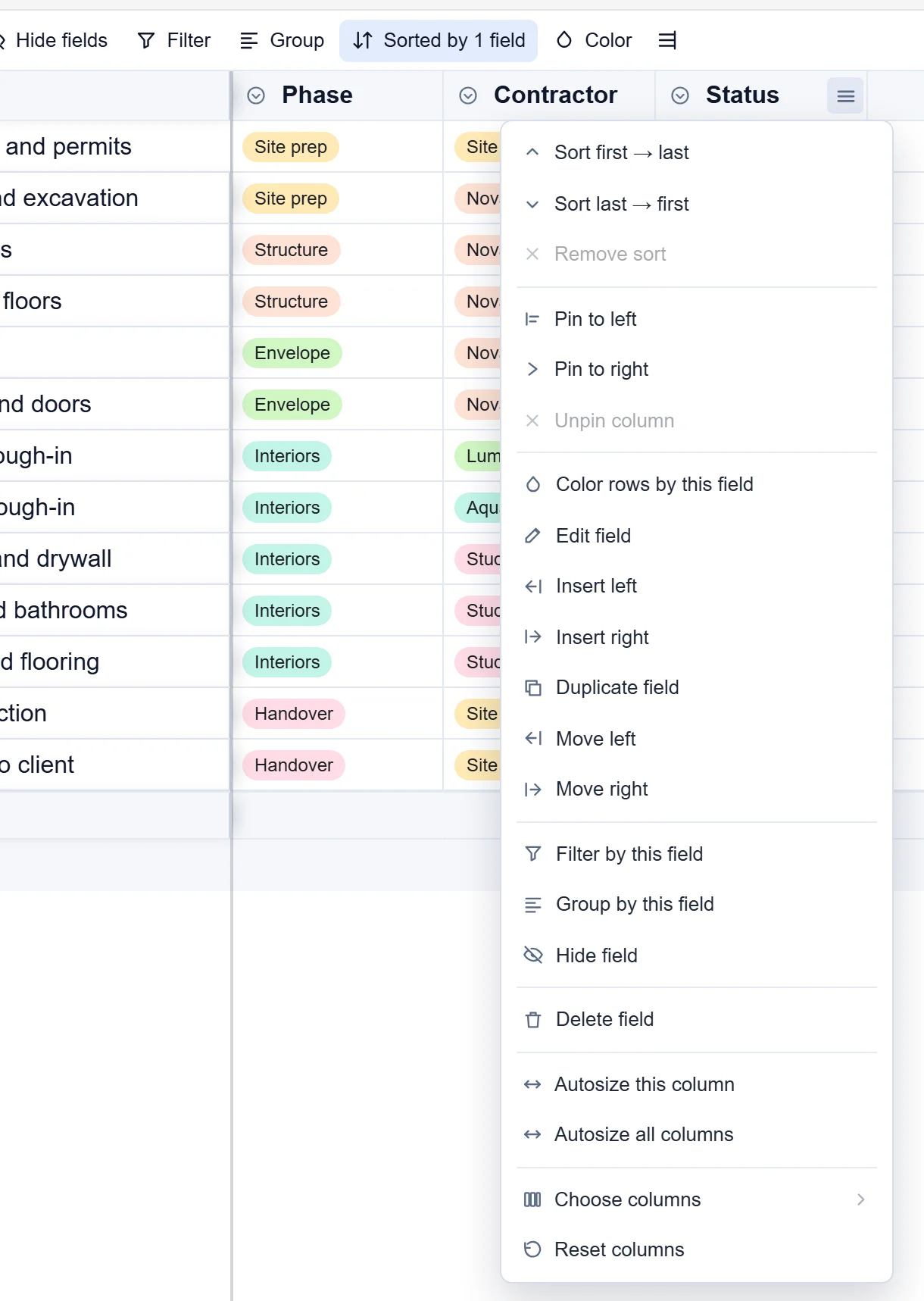
Change or add a field from the panel
If you own the base, each row of the panel has a pencil that opens the field's settings, and + Add a field at the bottom adds a new one. On a phone, where the panel opens from the bottom of the screen, this is the easiest way to manage fields.
Good to know
- Hiding is not protecting. Anyone who may change the view can show the field again, and the field is still in the record, in exports and in the API (the connection other apps use).
- To stop people from changing a field's values, use Edit field and Who can edit its values. To keep people away from a table, or from other people's records, use the base's permissions.
- Only the base's owners save hidden fields and the order of fields to a shared view.