Single select and multiple select fields
Updated
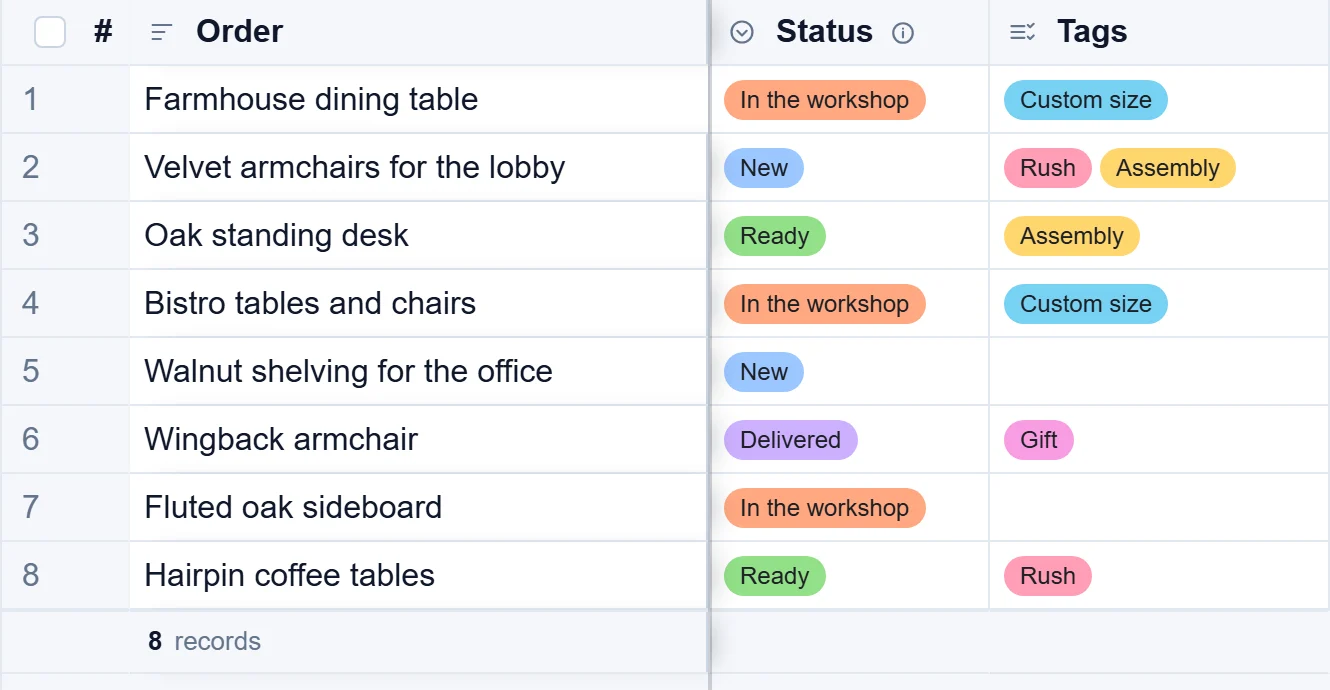
A Single select field holds one choice from a list you make, such as an order's status: New, In the workshop, Ready, Delivered. A Multiple select field holds several, such as tags. Each choice has a colour, so you see at a glance where things stand, and everyone picks from the same list, so nobody writes "done" one day and "finished" the next.
Make the list of choices
- Press the + at the right end of the column names.
- Type a Name, such as Status, and choose Single select or Multiple select under Field type.
- Press + Add option and type the first choice. Repeat for each choice.
- Click the coloured dot in front of a choice to change its colour.
- Put the choices in order with the up and down arrows, or press Sort A to Z. The × removes a choice.
- If new records should start with a choice, pick it under Default value.
- Press Create field.
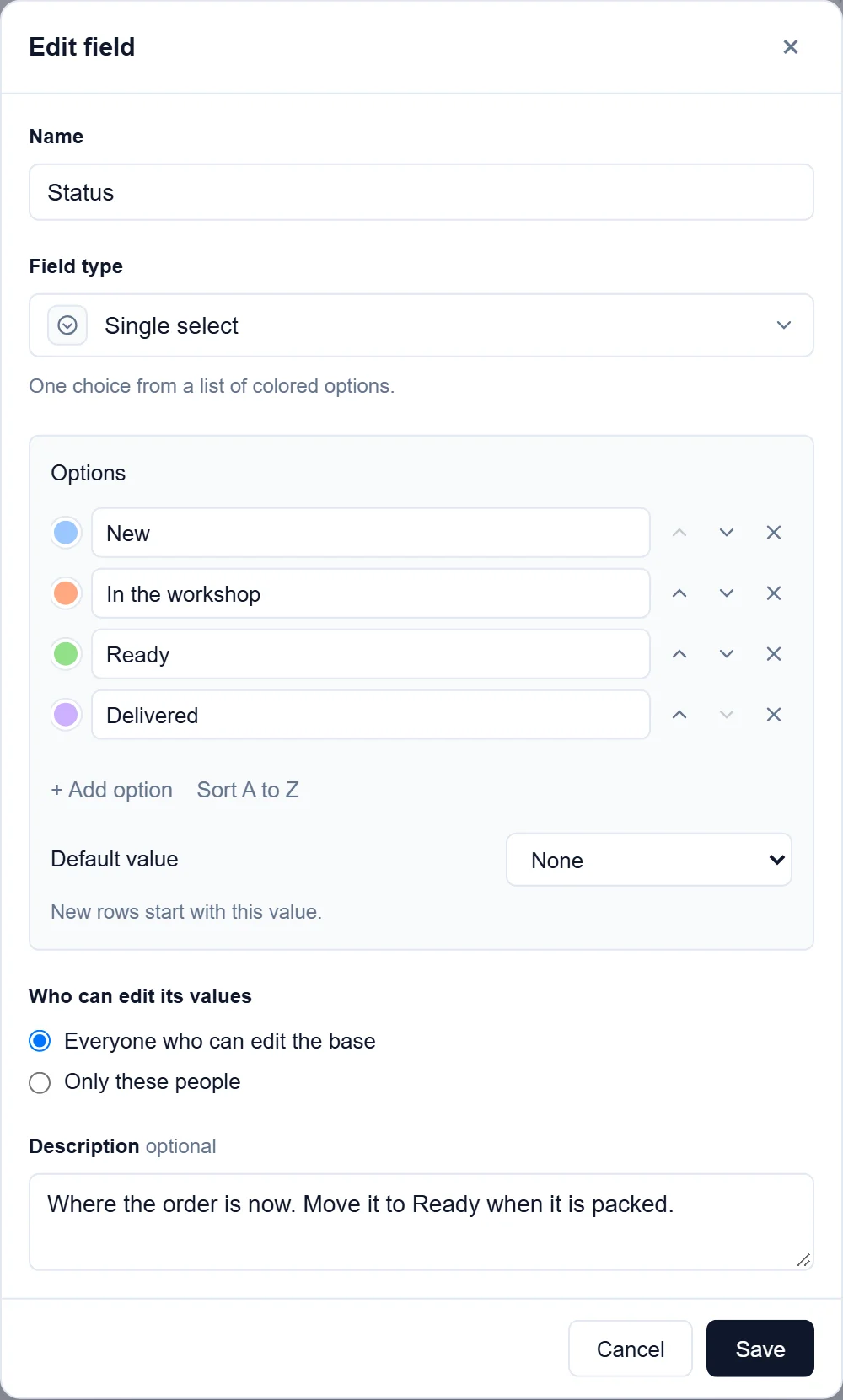
The order matters: it is the order of a Kanban board's columns, of groups, and of a sort from first to last.
Pick a choice
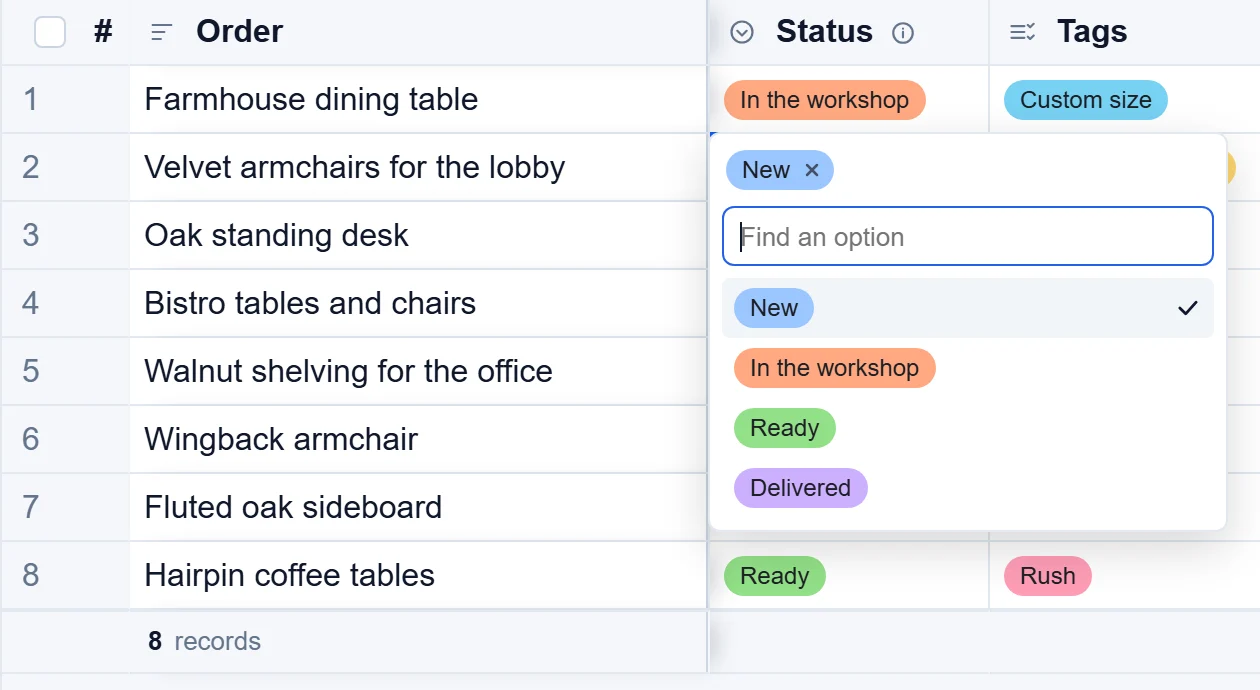
- Double-click the cell. The list of choices opens.
- Click a choice, or type in Find an option to narrow the list. In a multiple select, keep clicking to add more.
- To take a choice off, click the × on its label at the top of the list.
Change the choices later
Point at the field's name, click the menu button at its right and choose Edit field. Renaming a choice renames it in every record that has it. Before you save, the window says how many records a renamed or removed choice reaches; removing a choice clears it from those records.
Use them in views
- A single select gives a Kanban board its columns: drag a card to change its status.
- Color rows by this field in the field's menu, or Color above the table, colours each record by its choice.
- Filters offer is any of and is none of for a single select, and has any of, has all of and has none of for a multiple select.
- Grouping by a select field gives one group per choice, in the list's order.
Good to know
- Only the base's owners add fields and change their choices. Anyone who may edit records picks values.
- Two choices cannot have the same name.
- A value pasted from a spreadsheet must match a choice's name to be kept.
- On a phone, the list of choices opens from the bottom of the screen, without the keyboard.
- From Airtable, single and multiple selects arrive with their choices and colours.