Change many records at once
Updated
When ten tasks are finished, or a whole batch of orders goes to the same courier, you do not have to change them one by one. Tick the records, then set the field once for all of them.
Pick the records
- In a Grid view, point at a record's number at the left end of its row. A tick box appears in its place.
- Click the tick box of each record you want to change.
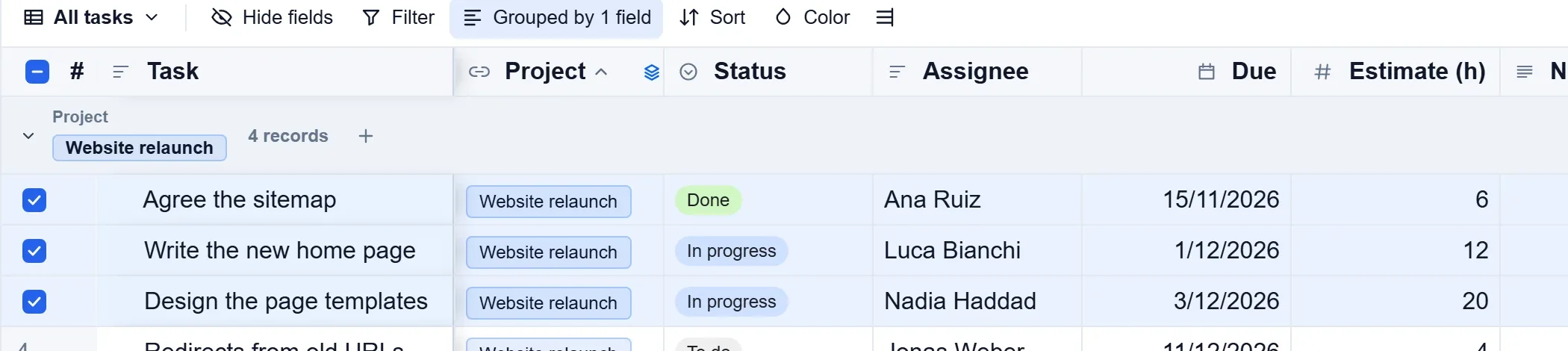
A bar appears at the bottom of the screen. It says how many records are picked.

- Select all picks every record in the view. Filter the view first to pick, say, every task that is late.
- The tick box at the top of the first column also picks every record in the view, or clears them all.
- The cross at the right end of the bar clears the selection.
Change them
- In the bar, click Edit fields. A panel opens on the right with the table's fields.
- Set the fields you want to change. For example, pick Done under Status.
- Click Apply to 3 items (the button says how many records you picked).
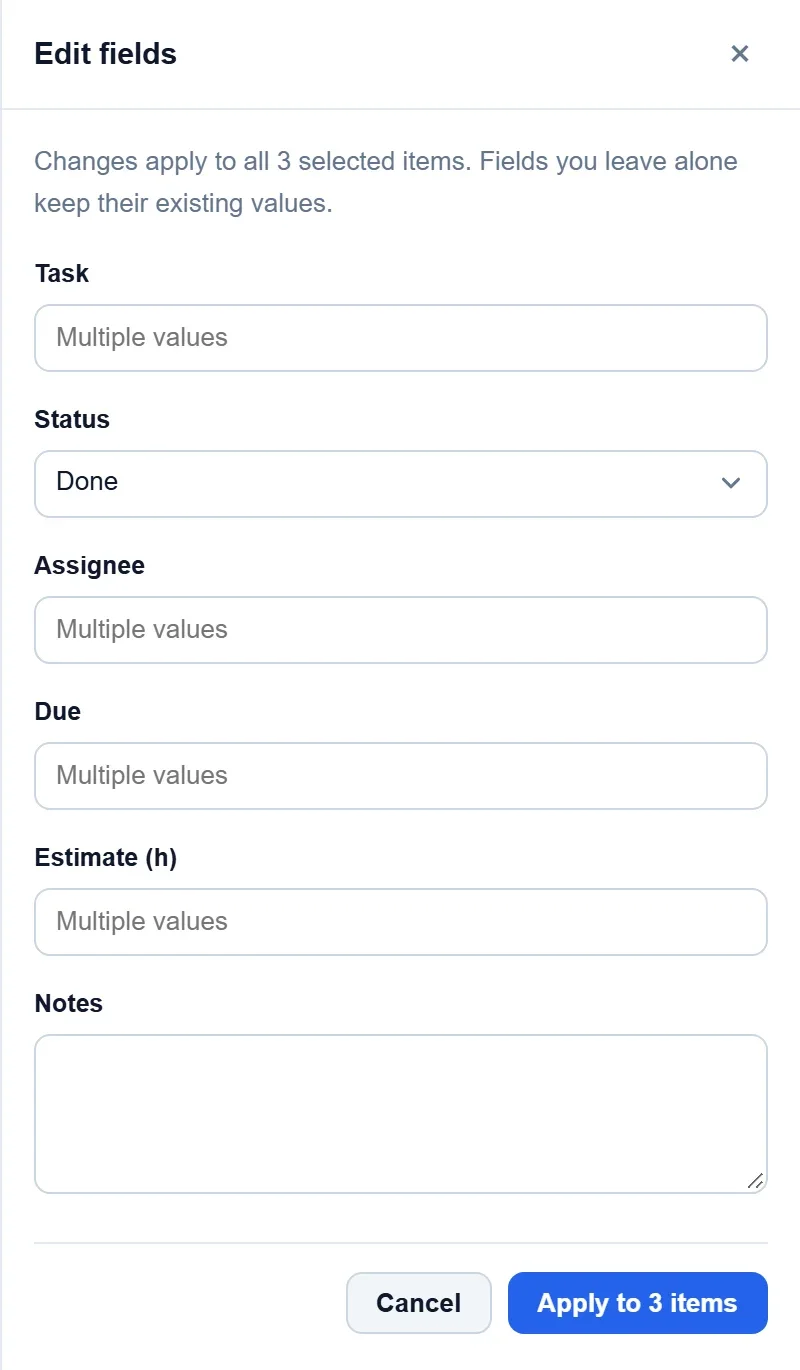
Only the fields you change are written. A field the records do not agree on says Multiple values. Leave it as it is and each record keeps its own value.
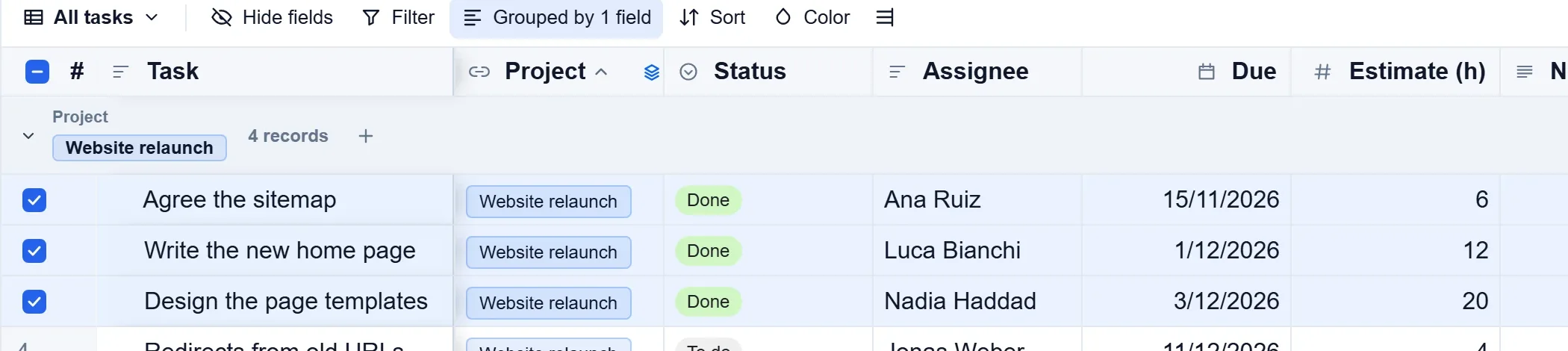
Take it back
Changed the wrong records? Press Ctrl+Z (Cmd+Z on a Mac) straight away. The whole change is one step, so one undo puts every record back as it was.
Delete many records
Click Delete in the same bar. Artavolo asks first, then moves the records to the trash, where you can get them back for 30 days.
Good to know
- Links to other records and attachments are not in the panel: change those in each record.
- Fields Artavolo works out by itself, such as formulas, lookups and created times, are not in the panel either.
- When you change more than 10,000 records at once, Artavolo asks first, because a change that big cannot be undone. It shows how far it has got, and you can stop it.
- To change many records from a file, such as a new price list, import the file and choose to update the records that match. See Import a CSV, Excel or JSON file.