Text fields: single line, long text and rich text
Updated
Three field types hold text. Single line text is for a name, a title or a short code. Long text is for several lines, such as notes or a description. Rich text is for formatted text, with a toolbar for bold, lists and links.
Add a text field
- Press the + after the last field.
- Choose Single line text, Long text or Rich text.
- Set its options and press Create field.
A Single line text field can have a Default value that new records start with.
Write long text
- Click the cell and start typing: the editor grows into a panel with room for paragraphs.
- Enter starts a new line. Ctrl+Enter (Cmd+Enter on a Mac) saves, and Esc cancels.
- The grid shows the start of a long value. Open the record, or use a Gallery view, to read it all.
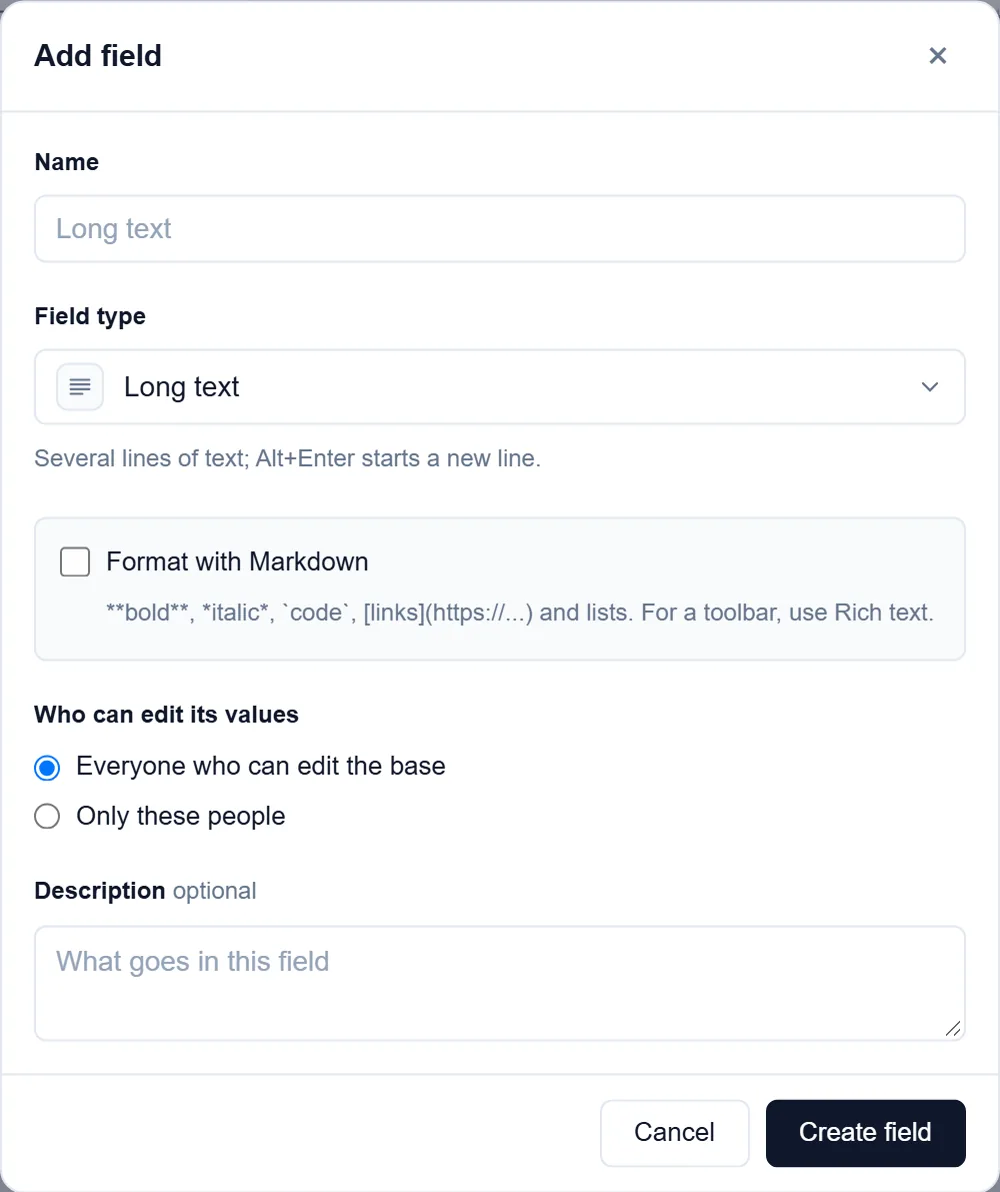
Format with Markdown
Tick Format with Markdown on a Long text field to write **bold**, *italic*, `code`, links and lists, and see them formatted in the cell. If you would rather use buttons than type marks, use Rich text.
Use rich text
A Rich text field opens an editor with a toolbar, for text where the formatting matters: a brief, a job description, release notes. Choose the Toolbar:
- Standard: bold, italic, underline, strikethrough, bulleted and numbered lists, links, and clearing the formatting.
- Full: adds headings, quotes, code blocks, undo and redo.
Text pasted from another app keeps its formatting, cleaned of anything unsafe. Search, filters, sorting, formulas and exports read the text without the formatting.
Change between them
Open the field's menu, choose Edit field and pick another type. The dialog says before you save whether any values will be cleared or cut short. If the result is not what you wanted, Ctrl+Z puts it back.
Good to know
- Only the base's owners add fields or change their type. Anyone who may edit records writes in them.
- To show where a value goes, write a field description.
- From Airtable, long text arrives as Long text, and rich text arrives as Long text with Format with Markdown on, which keeps its formatting.
- For notes that belong to the whole base rather than one record, use the base's Notes. See Notes.