Button field: one press does the job
Updated
A Button field puts a button on every record. One press does a job you would otherwise do by hand: mark an order as shipped, open the customer's address on a map, start an e-mail to them, print the record, or start an automation that sends a text message.
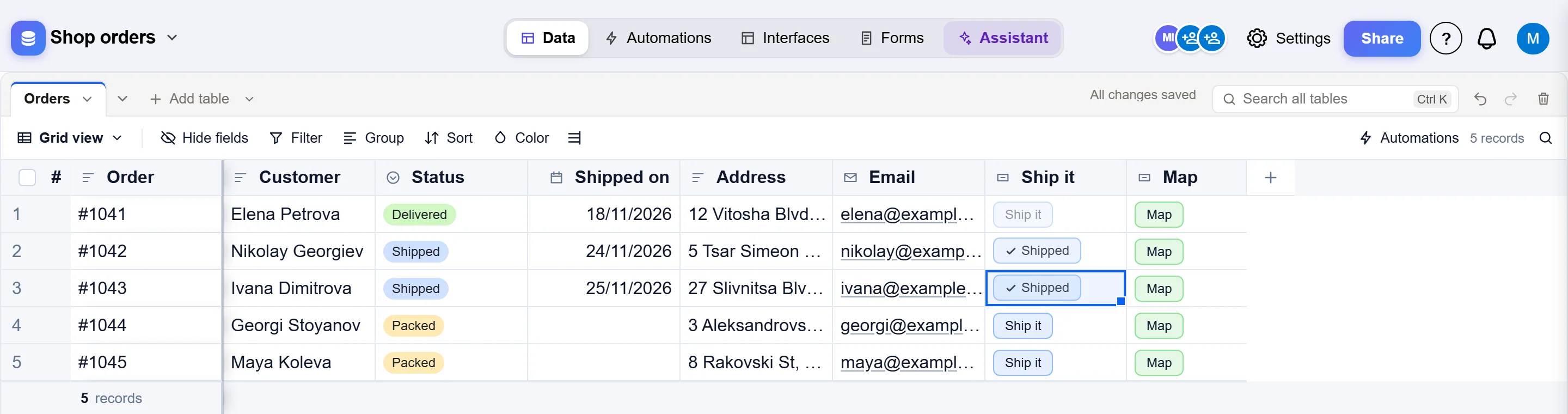
Add a Button field
- Press the + at the right end of the column names.
- Type a Name, such as Ship it, and choose Button under Field type.
- Type the Label people see on the button and pick a Style (its colour).
- Under When pressed, choose what the button does (below), then press Create field.
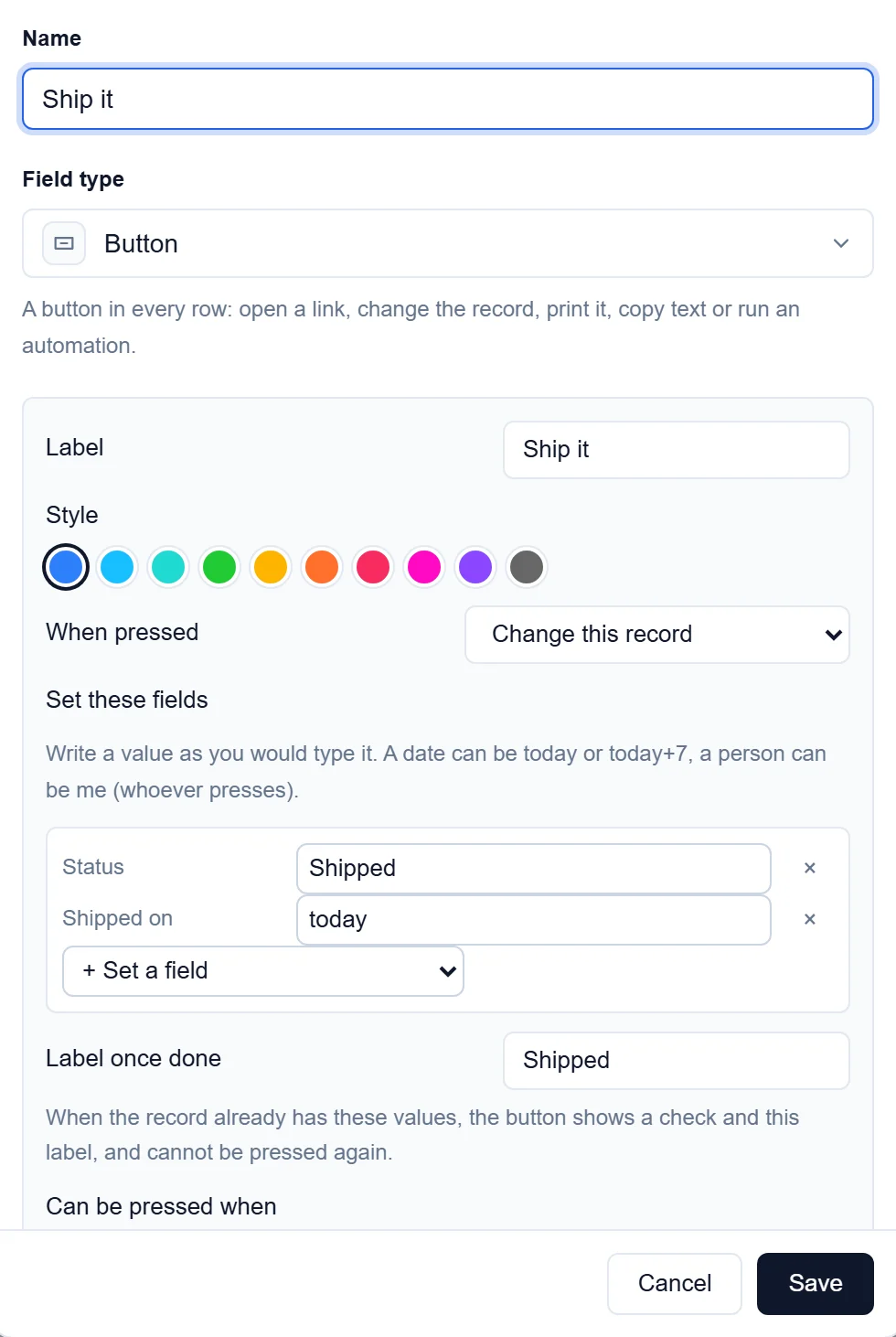
Change the record
Choose Change this record. Under Set these fields, pick each field and type its value as you would type it in the cell, for example Status to Shipped. A date can be today or today+7, and a person can be me, which is whoever presses the button.
Type a Label once done, such as Shipped. Records that already have those values show a tick and that label, so nobody presses the button twice by mistake.
Open a link, an e-mail or a call
Choose Open a link and type the address in URL. Put a field's name in curly brackets where its value goes:
- A map:
https://www.google.com/maps/search/?api=1&query={Address} - An e-mail with the address and subject filled in:
mailto:{Email}?subject=Your order {Order} - A phone call:
tel:{Phone}. A text message:sms:{Phone} - The address a URL field holds: just
{Website}
Web pages open in a new tab. E-mail, call and text links open the app on your computer or phone that handles them. You can also write a formula, as in a Formula field, such as "https://wa.me/" & SUBSTITUTE({Phone}, "+", "") to open a WhatsApp chat.
Run an automation
Choose Run automations to start every automation whose trigger is A button is pressed on this field. Make one with Automations at the top of the table: it can send an e-mail or a text message, add a record to another table, ask AI and more. In its steps, {pressed.name} and {pressed.email} are the person who pressed the button.
Whatever the button does, those automations run too, after the button's own job. So one press can set Status to Shipped and then e-mail the customer that the order is on its way.
More jobs for a button
- Fill in from a record template: fills the record's empty fields from one of the table's record templates. Fields that already have a value keep it.
- Print or another record action: Print opens the record on a page of its own, ready to print or save as a PDF.
- Copy text: copies text made from the record, such as
Order {Order} for {Customer}, {Address}, ready to paste into a chat or an e-mail. - Duplicate the record, Delete the record (it always asks first) and Open the record.
Only on some records
Under Can be pressed when, press + Add condition and choose, for example, Status is Packed. On the other records the button is grey, and pointing at it says why.
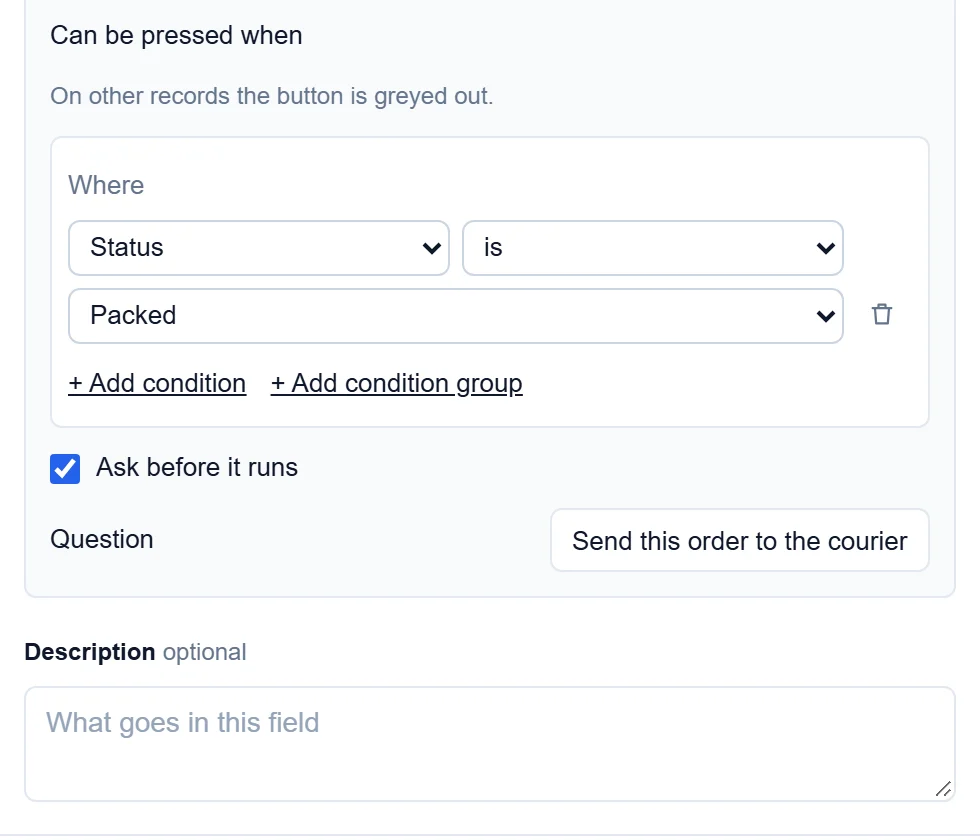
Ask first
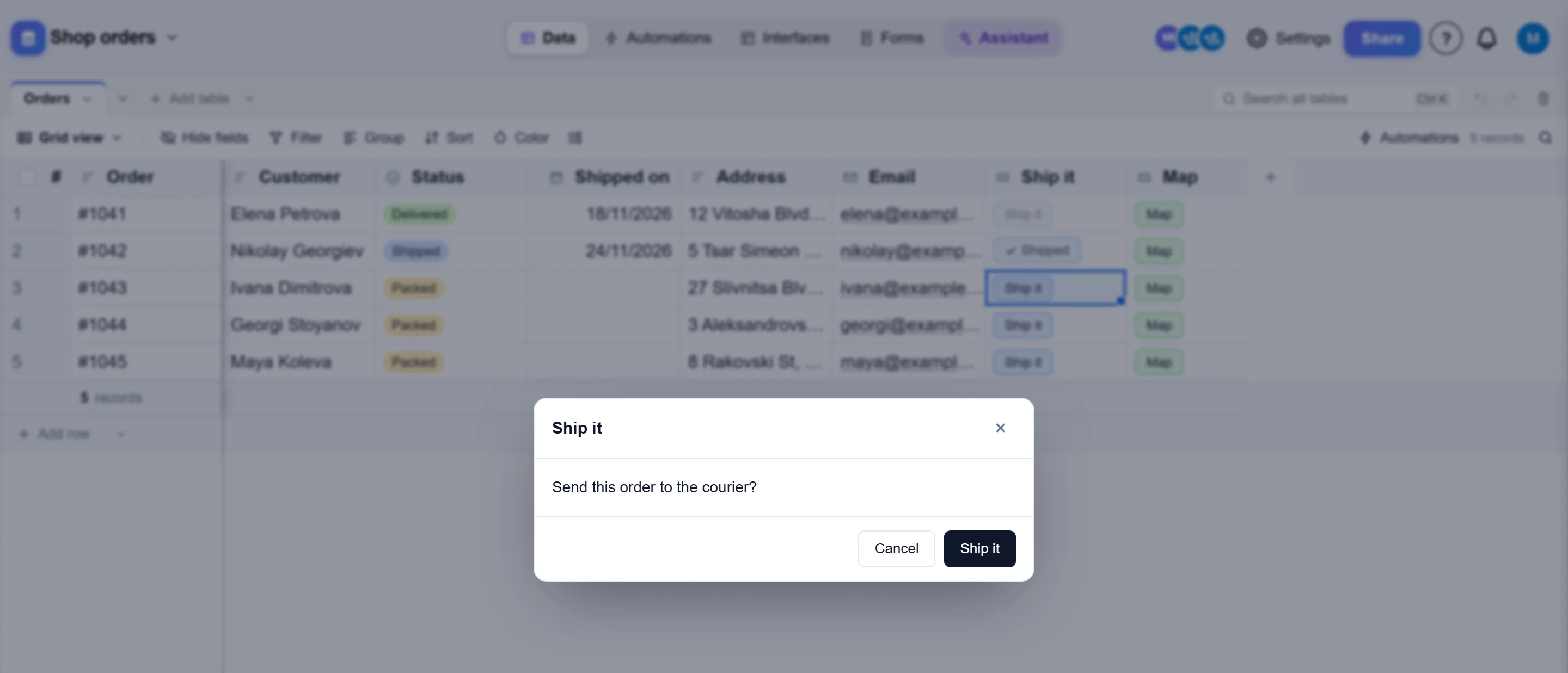
Tick Ask before it runs and type the Question, such as Send this order to the courier? The job runs only when the person presses the button's label in the question.
Good to know
- Only the base's owners add fields. Anyone who may edit records can press a button that changes them. People who may only view the base can open links and copy text; buttons that change records are grey for them.
- A change made by a button is in the record's history, and Ctrl+Z takes it back in one step.
- Buttons work in the grid, on cards, in an open record, on your phone and on interface pages.
- The base's AI chat can add buttons for you. Ask it for a Ship it button that sets Status to Shipped.
- Coming from Airtable? Its button opens a link or runs a script or an extension. Here the same field also changes the record, fills in a template, prints, copies and runs automations, and the link can be the same formula.