Attachment field: images and files
Updated
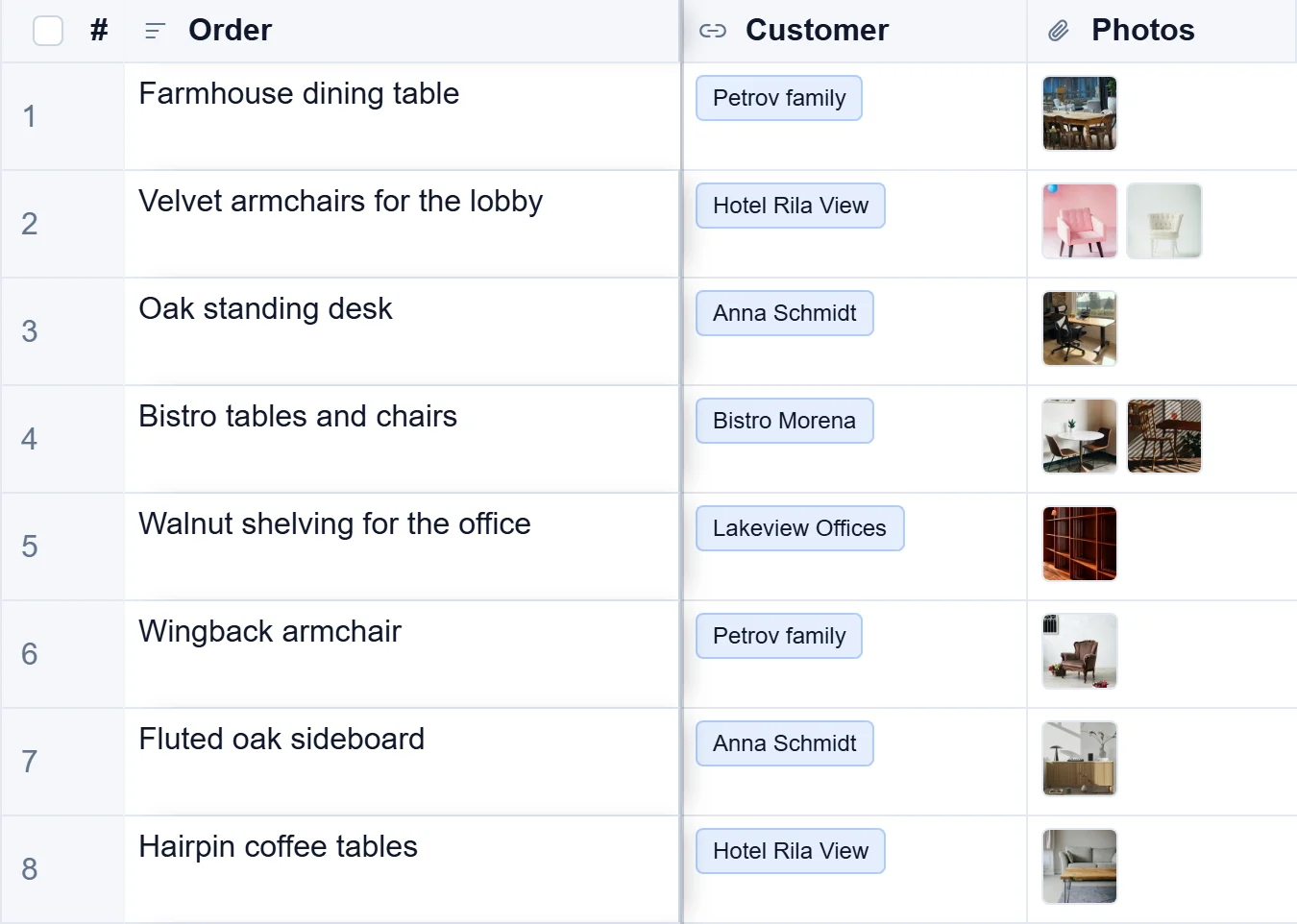
An Attachment field keeps files with each record: product photos, a signed contract, a drawing, an invoice. Pictures show as small thumbnails in the table, and a Gallery view can use the first picture as each card's cover.
Add an Attachment field
- Press the + at the right end of the column names.
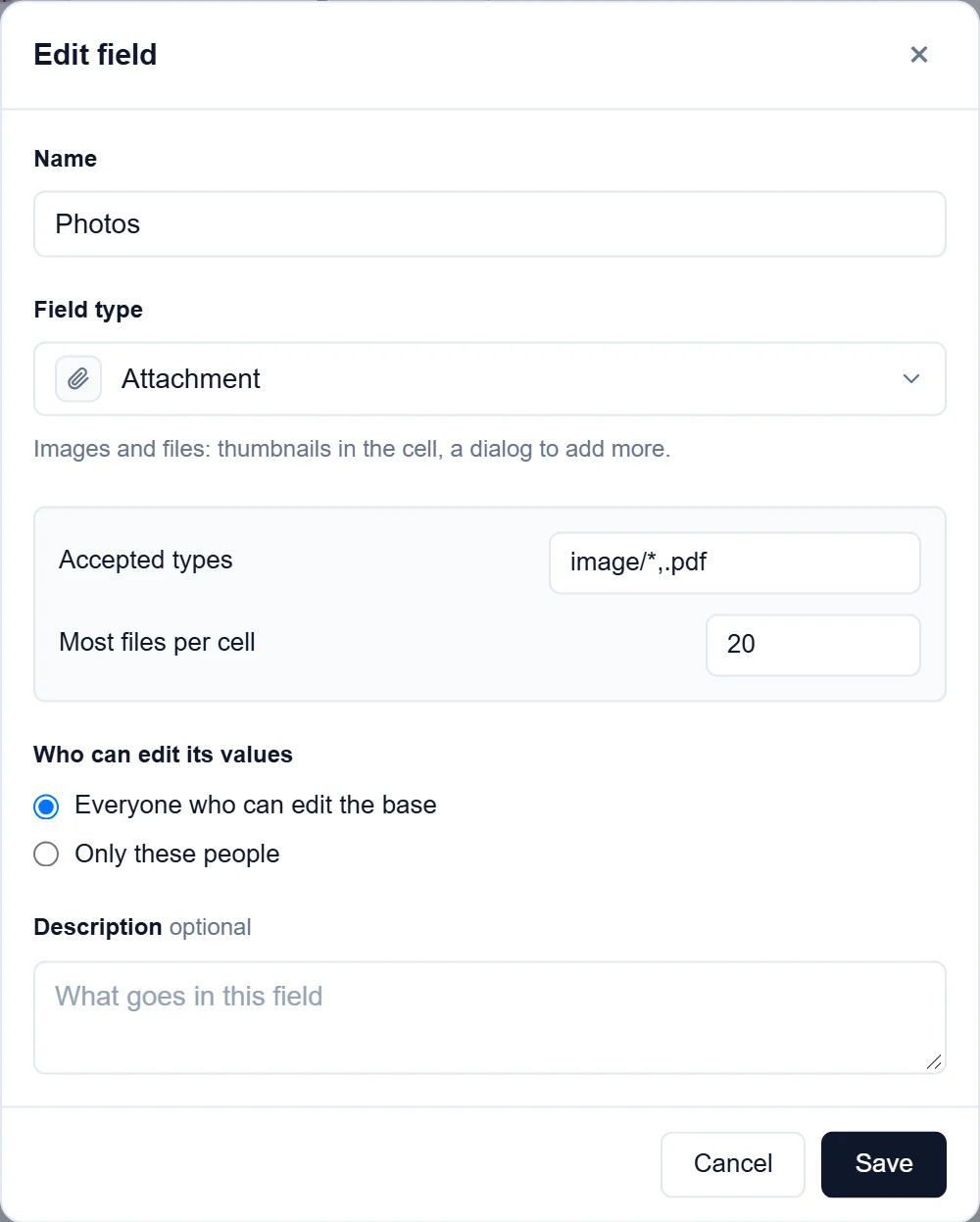
- Type a Name, such as Photos, and choose Attachment under Field type.
- Under Accepted types, list the kinds of file allowed, such as
image/*,.pdffor pictures and PDFs. Leave it empty to accept any file. - Set Most files per cell: one for a profile photo, more for a set of product shots. It starts at 20.
- Press Create field.
Attach files
- Double-click the cell. A window with the record's files opens.
- Press Add files and choose files from your computer, or drop them on the window, or paste them. To add a file from the web, paste its address in or paste a URL.
- Press Done.
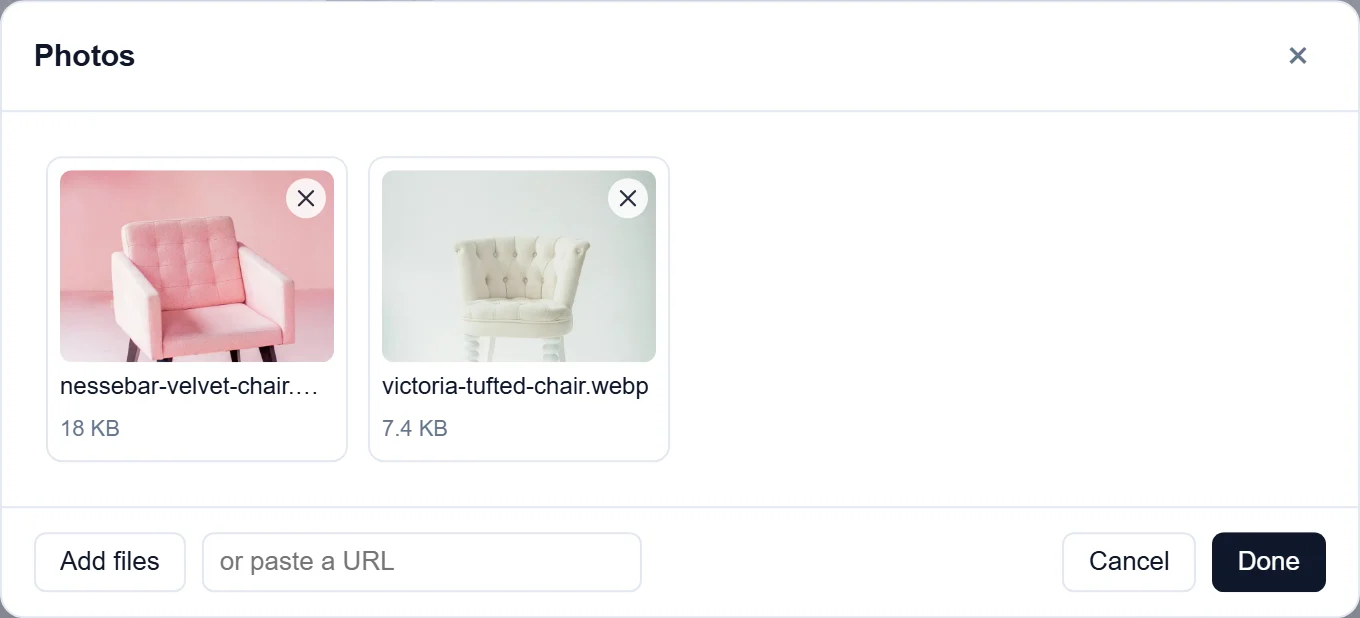
To remove a file, press the × on its picture in the same window. Click a picture to see it full size; Previous and Next move between the record's files.
Keep files in Google Drive, Dropbox or OneDrive
Files can stay where they are and be added by their link. They then take none of your workspace's storage.
- In Google Drive (or Dropbox, or OneDrive), share the file with Anyone with the link and copy the link.
- Double-click the Attachment cell and paste the link in or paste a URL.
A Google Drive or Dropbox picture shows as a thumbnail like an uploaded one, and opens in Drive or Dropbox.
Take a photo on a phone
On a phone or tablet, the files window of a field that accepts pictures also has Take a photo. It opens the camera, and the photo goes straight into the record. Photos are made smaller before they are sent, so they upload quickly on a mobile connection and stay sharp enough to read. See Take photos and scan barcodes.
Good to know
- A file can be up to 25 MB. Files count towards your workspace's storage: 20GB on Standard and 100GB on Pro. The Free plan does not store files, but files added by a link work on every plan.
- Files are kept with the base, and only people who may see the record can open them.
- Only the base's owners add fields or change their options. Anyone who may edit records adds and removes files.
- For files that belong to the whole base rather than one record, owners have the base's Files page in the menu under the base's name.
- A form can ask for files too. See Forms.
- From Airtable, attachment fields arrive with their files copied across.